`
- Pairing is the default token exchange. Details: [Pairing](/channels/pairing)
Groups:
- `channels.bluebubbles.groupPolicy = open | allowlist | disabled` (default: `allowlist`).
- `channels.bluebubbles.groupAllowFrom` controls who can trigger in groups when `allowlist` is set.
### Mention gating (groups)
BlueBubbles supports mention gating for group chats, matching iMessage/WhatsApp behavior:
- Uses `agents.list[].groupChat.mentionPatterns` (or `messages.groupChat.mentionPatterns`) to detect mentions.
- When `requireMention` is enabled for a group, the agent only responds when mentioned.
- Control commands from authorized senders bypass mention gating.
Per-group configuration:
```json
{
channels: {
bluebubbles: {
groupPolicy: "allowlist",
groupAllowFrom: ["+15555550123"],
groups: {
"*": { requireMention: true }, // default for all groups
"iMessage;-;chat123": { requireMention: false }, // override for specific group
},
},
},
}
```
### Command gating
- Control commands (e.g., `/config`, `/model`) require authorization.
- Uses `allowFrom` and `groupAllowFrom` to determine command authorization.
- Authorized senders can run control commands even without mentioning in groups.
## Typing + read receipts
- **Typing indicators**: Sent automatically before and during response generation.
- **Read receipts**: Controlled by `channels.bluebubbles.sendReadReceipts` (default: `true`).
- **Typing indicators**: OpenClaw sends typing start events; BlueBubbles clears typing automatically on send or timeout (manual stop via DELETE is unreliable).
```json
{
channels: {
bluebubbles: {
sendReadReceipts: false, // disable read receipts
},
},
}
```
## Advanced actions
BlueBubbles supports advanced message actions when enabled in config:
```json
{
channels: {
bluebubbles: {
actions: {
reactions: true, // tapbacks (default: true)
edit: true, // edit sent messages (macOS 13+, broken on macOS 26 Tahoe)
unsend: true, // unsend messages (macOS 13+)
reply: true, // reply threading by message GUID
sendWithEffect: true, // message effects (slam, loud, etc.)
renameGroup: true, // rename group chats
setGroupIcon: true, // set group chat icon/photo (flaky on macOS 26 Tahoe)
addParticipant: true, // add participants to groups
removeParticipant: true, // remove participants from groups
leaveGroup: true, // leave group chats
sendAttachment: true, // send attachments/media
},
},
},
}
```
Available actions:
- **react**: Add/remove tapback reactions (`messageId`, `emoji`, `remove`)
- **edit**: Edit a sent message (`messageId`, `text`)
- **unsend**: Unsend a message (`messageId`)
- **reply**: Reply to a specific message (`messageId`, `text`, `to`)
- **sendWithEffect**: Send with iMessage effect (`text`, `to`, `effectId`)
- **renameGroup**: Rename a group chat (`chatGuid`, `displayName`)
- **setGroupIcon**: Set a group chat’s icon/photo (`chatGuid`, `media`) — flaky on macOS 26 Tahoe (API may return success but the icon does not sync).
- **addParticipant**: Add someone to a group (`chatGuid`, `address`)
- **removeParticipant**: Remove someone from a group (`chatGuid`, `address`)
- **leaveGroup**: Leave a group chat (`chatGuid`)
- **sendAttachment**: Send media/files (`to`, `buffer`, `filename`, `asVoice`)
- Voice memos: set `asVoice: true` with **MP3** or **CAF** audio to send as an iMessage voice message. BlueBubbles converts MP3 → CAF when sending voice memos.
### Message IDs (short vs full)
OpenClaw may surface *short* message IDs (e.g., `1`, `2`) to save tokens.
- `MessageSid` / `ReplyToId` can be short IDs.
- `MessageSidFull` / `ReplyToIdFull` contain the provider full IDs.
- Short IDs are in-memory; they can expire on restart or cache eviction.
- Actions accept short or full `messageId`, but short IDs will error if no longer available.
Use full IDs for durable automations and storage:
- Templates: `{{MessageSidFull}}`, `{{ReplyToIdFull}}`
- Context: `MessageSidFull` / `ReplyToIdFull` in inbound payloads
See [Configuration](/gateway/configuration) for template variables.
## Block streaming
Control whether responses are sent as a single message or streamed in blocks:
```json
{
channels: {
bluebubbles: {
blockStreaming: true, // enable block streaming (off by default)
},
},
}
```
## Media + limits
- Inbound attachments are downloaded and stored in the media cache.
- Media cap via `channels.bluebubbles.mediaMaxMb` for inbound and outbound media (default: 8 MB).
- Outbound text is chunked to `channels.bluebubbles.textChunkLimit` (default: 4000 chars).
## Configuration reference
Full configuration: [Configuration](/gateway/configuration) Provider options:
- `channels.bluebubbles.enabled`: Enable/disable the channel.
- `channels.bluebubbles.serverUrl`: BlueBubbles REST API base URL.
- `channels.bluebubbles.password`: API password.
- `channels.bluebubbles.webhookPath`: Webhook endpoint path (default: `/bluebubbles-webhook`).
- `channels.bluebubbles.dmPolicy`: `pairing | allowlist | open | disabled` (default: `pairing`).
- `channels.bluebubbles.allowFrom`: DM allowlist (handles, emails, E.164 numbers, `chat_id:*`, `chat_guid:*`).
- `channels.bluebubbles.groupPolicy`: `open | allowlist | disabled` (default: `allowlist`).
- `channels.bluebubbles.groupAllowFrom`: Group sender allowlist.
- `channels.bluebubbles.groups`: Per-group config (`requireMention`, etc.).
- `channels.bluebubbles.sendReadReceipts`: Send read receipts (default: `true`).
- `channels.bluebubbles.blockStreaming`: Enable block streaming (default: `false`; required for streaming replies).
- `channels.bluebubbles.textChunkLimit`: Outbound chunk size in chars (default: 4000).
- `channels.bluebubbles.chunkMode`: `length` (default) splits only when exceeding `textChunkLimit`; `newline` splits on blank lines (paragraph boundaries) before length chunking.
- `channels.bluebubbles.mediaMaxMb`: Inbound/outbound media cap in MB (default: 8).
- `channels.bluebubbles.mediaLocalRoots`: Explicit allowlist of absolute local directories permitted for outbound local media paths. Local path sends are denied by default unless this is configured. Per-account override: `channels.bluebubbles.accounts..mediaLocalRoots`.
- `channels.bluebubbles.historyLimit`: Max group messages for context (0 disables).
- `channels.bluebubbles.dmHistoryLimit`: DM history limit.
- `channels.bluebubbles.actions`: Enable/disable specific actions.
- `channels.bluebubbles.accounts`: Multi-account configuration.
Related global options:
- `agents.list[].groupChat.mentionPatterns` (or `messages.groupChat.mentionPatterns`).
- `messages.responsePrefix`.
## Addressing / delivery targets
Prefer `chat_guid` for stable routing:
- `chat_guid:iMessage;-;+15555550123` (preferred for groups)
- `chat_id:123`
- `chat_identifier:...`
- Direct handles: `+15555550123`, `user@example.com`
- If a direct handle does not have an existing DM chat, OpenClaw will create one via `POST /api/v1/chat/new`. This requires the BlueBubbles Private API to be enabled.
## Security
- Webhook requests are authenticated by comparing `guid`/`password` query params or headers against `channels.bluebubbles.password`. Requests from `localhost` are also accepted.
- Keep the API password and webhook endpoint secret (treat them like credentials).
- Localhost trust means a same-host reverse proxy can unintentionally bypass the password. If you proxy the gateway, require auth at the proxy and configure `gateway.trustedProxies`. See [Gateway security](/gateway/security#reverse-proxy-configuration).
- Enable HTTPS + firewall rules on the BlueBubbles server if exposing it outside your LAN.
## Troubleshooting
- If typing/read events stop working, check the BlueBubbles webhook logs and verify the gateway path matches `channels.bluebubbles.webhookPath`.
- Pairing codes expire after one hour; use `openclaw pairing list bluebubbles` and `openclaw pairing approve bluebubbles `.
- Reactions require the BlueBubbles private API (`POST /api/v1/message/react`); ensure the server version exposes it.
- Edit/unsend require macOS 13+ and a compatible BlueBubbles server version. On macOS 26 (Tahoe), edit is currently broken due to private API changes.
- Group icon updates can be flaky on macOS 26 (Tahoe): the API may return success but the new icon does not sync.
- OpenClaw auto-hides known-broken actions based on the BlueBubbles server’s macOS version. If edit still appears on macOS 26 (Tahoe), disable it manually with `channels.bluebubbles.actions.edit=false`.
- For status/health info: `openclaw status --all` or `openclaw status --deep`.
For general channel workflow reference, see [Channels](/channels) and the [Plugins](/tools/plugin) guide.
[Chat Channels](/channels)[Discord](/channels/discord)
---
## OpenClaw Broadcast Groups Configuration Guide for Multi-Agent Teams
URL: https://openclawx.cloud/en/channels/broadcast-groups
---
Configuration
Broadcast Groups
**Status:** Experimental
**Version:** Added in 2026.1.9
## Overview
Broadcast Groups enable multiple agents to process and respond to the same message simultaneously. This allows you to create specialized agent teams that work together in a single WhatsApp group or DM — all using one phone number. Current scope: **WhatsApp only** (web channel). Broadcast groups are evaluated after channel allowlists and group activation rules. In WhatsApp groups, this means broadcasts happen when OpenClaw would normally reply (for example: on mention, depending on your group settings).
## Use Cases
### 1\. Specialized Agent Teams
Deploy multiple agents with atomic, focused responsibilities:
```
Group: "Development Team"
Agents:
- CodeReviewer (reviews code snippets)
- DocumentationBot (generates docs)
- SecurityAuditor (checks for vulnerabilities)
- TestGenerator (suggests test cases)
```
Each agent processes the same message and provides its specialized perspective.
### 2\. Multi-Language Support
```
Group: "International Support"
Agents:
- Agent_EN (responds in English)
- Agent_DE (responds in German)
- Agent_ES (responds in Spanish)
```
### 3\. Quality Assurance Workflows
```
Group: "Customer Support"
Agents:
- SupportAgent (provides answer)
- QAAgent (reviews quality, only responds if issues found)
```
### 4\. Task Automation
```
Group: "Project Management"
Agents:
- TaskTracker (updates task database)
- TimeLogger (logs time spent)
- ReportGenerator (creates summaries)
```
## Configuration
### Basic Setup
Add a top-level `broadcast` section (next to `bindings`). Keys are WhatsApp peer ids:
- group chats: group JID (e.g. `120363403215116621@g.us`)
- DMs: E.164 phone number (e.g. `+15551234567`)
```json
{
"broadcast": {
"120363403215116621@g.us": ["alfred", "baerbel", "assistant3"]
}
}
```
**Result:** When OpenClaw would reply in this chat, it will run all three agents.
### Processing Strategy
Control how agents process messages:
#### Parallel (Default)
All agents process simultaneously:
```json
{
"broadcast": {
"strategy": "parallel",
"120363403215116621@g.us": ["alfred", "baerbel"]
}
}
```
#### Sequential
Agents process in order (one waits for previous to finish):
```json
{
"broadcast": {
"strategy": "sequential",
"120363403215116621@g.us": ["alfred", "baerbel"]
}
}
```
### Complete Example
```json
{
"agents": {
"list": [
{
"id": "code-reviewer",
"name": "Code Reviewer",
"workspace": "/path/to/code-reviewer",
"sandbox": { "mode": "all" }
},
{
"id": "security-auditor",
"name": "Security Auditor",
"workspace": "/path/to/security-auditor",
"sandbox": { "mode": "all" }
},
{
"id": "docs-generator",
"name": "Documentation Generator",
"workspace": "/path/to/docs-generator",
"sandbox": { "mode": "all" }
}
]
},
"broadcast": {
"strategy": "parallel",
"120363403215116621@g.us": ["code-reviewer", "security-auditor", "docs-generator"],
"120363424282127706@g.us": ["support-en", "support-de"],
"+15555550123": ["assistant", "logger"]
}
}
```
## How It Works
### Message Flow
1. **Incoming message** arrives in a WhatsApp group
2. **Broadcast check**: System checks if peer ID is in `broadcast`
3. **If in broadcast list**:
- All listed agents process the message
- Each agent has its own session key and isolated context
- Agents process in parallel (default) or sequentially
4. **If not in broadcast list**:
- Normal routing applies (first matching binding)
Note: broadcast groups do not bypass channel allowlists or group activation rules (mentions/commands/etc). They only change *which agents run* when a message is eligible for processing.
### Session Isolation
Each agent in a broadcast group maintains completely separate:
- **Session keys** (`agent:alfred:whatsapp:group:120363...` vs `agent:baerbel:whatsapp:group:120363...`)
- **Conversation history** (agent doesn’t see other agents’ messages)
- **Workspace** (separate sandboxes if configured)
- **Tool access** (different allow/deny lists)
- **Memory/context** (separate IDENTITY.md, SOUL.md, etc.)
- **Group context buffer** (recent group messages used for context) is shared per peer, so all broadcast agents see the same context when triggered
This allows each agent to have:
- Different personalities
- Different tool access (e.g., read-only vs. read-write)
- Different models (e.g., opus vs. sonnet)
- Different skills installed
### Example: Isolated Sessions
In group `120363403215116621@g.us` with agents `["alfred", "baerbel"]`: **Alfred’s context:**
```yaml
Session: agent:alfred:whatsapp:group:120363403215116621@g.us
History: [user message, alfred's previous responses]
Workspace: /Users/pascal/openclaw-alfred/
Tools: read, write, exec
```
**Bärbel’s context:**
```yaml
Session: agent:baerbel:whatsapp:group:120363403215116621@g.us
History: [user message, baerbel's previous responses]
Workspace: /Users/pascal/openclaw-baerbel/
Tools: read only
```
## Best Practices
### 1\. Keep Agents Focused
Design each agent with a single, clear responsibility:
```json
{
"broadcast": {
"DEV_GROUP": ["formatter", "linter", "tester"]
}
}
```
✅ **Good:** Each agent has one job
❌ **Bad:** One generic “dev-helper” agent
### 2\. Use Descriptive Names
Make it clear what each agent does:
```json
{
"agents": {
"security-scanner": { "name": "Security Scanner" },
"code-formatter": { "name": "Code Formatter" },
"test-generator": { "name": "Test Generator" }
}
}
```
### 3\. Configure Different Tool Access
Give agents only the tools they need:
```json
{
"agents": {
"reviewer": {
"tools": { "allow": ["read", "exec"] } // Read-only
},
"fixer": {
"tools": { "allow": ["read", "write", "edit", "exec"] } // Read-write
}
}
}
```
### 4\. Monitor Performance
With many agents, consider:
- Using `"strategy": "parallel"` (default) for speed
- Limiting broadcast groups to 5-10 agents
- Using faster models for simpler agents
### 5\. Handle Failures Gracefully
Agents fail independently. One agent’s error doesn’t block others:
```
Message → [Agent A ✓, Agent B ✗ error, Agent C ✓]
Result: Agent A and C respond, Agent B logs error
```
## Compatibility
### Providers
Broadcast groups currently work with:
- ✅ WhatsApp (implemented)
- 🚧 Telegram (planned)
- 🚧 Discord (planned)
- 🚧 Slack (planned)
### Routing
Broadcast groups work alongside existing routing:
```json
{
"bindings": [
{
"match": { "channel": "whatsapp", "peer": { "kind": "group", "id": "GROUP_A" } },
"agentId": "alfred"
}
],
"broadcast": {
"GROUP_B": ["agent1", "agent2"]
}
}
```
- `GROUP_A`: Only alfred responds (normal routing)
- `GROUP_B`: agent1 AND agent2 respond (broadcast)
**Precedence:** `broadcast` takes priority over `bindings`.
## Troubleshooting
### Agents Not Responding
**Check:**
1. Agent IDs exist in `agents.list`
2. Peer ID format is correct (e.g., `120363403215116621@g.us`)
3. Agents are not in deny lists
**Debug:**
```bash
tail -f ~/.openclaw/logs/gateway.log | grep broadcast
```
### Only One Agent Responding
**Cause:** Peer ID might be in `bindings` but not `broadcast`. **Fix:** Add to broadcast config or remove from bindings.
### Performance Issues
**If slow with many agents:**
- Reduce number of agents per group
- Use lighter models (sonnet instead of opus)
- Check sandbox startup time
## Examples
### Example 1: Code Review Team
```json
{
"broadcast": {
"strategy": "parallel",
"120363403215116621@g.us": [
"code-formatter",
"security-scanner",
"test-coverage",
"docs-checker"
]
},
"agents": {
"list": [
{
"id": "code-formatter",
"workspace": "~/agents/formatter",
"tools": { "allow": ["read", "write"] }
},
{
"id": "security-scanner",
"workspace": "~/agents/security",
"tools": { "allow": ["read", "exec"] }
},
{
"id": "test-coverage",
"workspace": "~/agents/testing",
"tools": { "allow": ["read", "exec"] }
},
{ "id": "docs-checker", "workspace": "~/agents/docs", "tools": { "allow": ["read"] } }
]
}
}
```
**User sends:** Code snippet
**Responses:**
- code-formatter: “Fixed indentation and added type hints”
- security-scanner: “⚠️ SQL injection vulnerability in line 12”
- test-coverage: “Coverage is 45%, missing tests for error cases”
- docs-checker: “Missing docstring for function `process_data`”
### Example 2: Multi-Language Support
```json
{
"broadcast": {
"strategy": "sequential",
"+15555550123": ["detect-language", "translator-en", "translator-de"]
},
"agents": {
"list": [
{ "id": "detect-language", "workspace": "~/agents/lang-detect" },
{ "id": "translator-en", "workspace": "~/agents/translate-en" },
{ "id": "translator-de", "workspace": "~/agents/translate-de" }
]
}
}
```
## API Reference
### Config Schema
```typescript
interface OpenClawConfig {
broadcast?: {
strategy?: "parallel" | "sequential";
[peerId: string]: string[];
};
}
```
### Fields
- `strategy` (optional): How to process agents
- `"parallel"` (default): All agents process simultaneously
- `"sequential"`: Agents process in array order
- `[peerId]`: WhatsApp group JID, E.164 number, or other peer ID
- Value: Array of agent IDs that should process messages
## Limitations
1. **Max agents:** No hard limit, but 10+ agents may be slow
2. **Shared context:** Agents don’t see each other’s responses (by design)
3. **Message ordering:** Parallel responses may arrive in any order
4. **Rate limits:** All agents count toward WhatsApp rate limits
## Future Enhancements
Planned features:
- [ ] Shared context mode (agents see each other’s responses)
- [ ] Agent coordination (agents can signal each other)
- [ ] Dynamic agent selection (choose agents based on message content)
- [ ] Agent priorities (some agents respond before others)
## See Also
- [Multi-Agent Configuration](/tools/multi-agent-sandbox-tools)
- [Routing Configuration](/channels/channel-routing)
- [Session Management](/concepts/session)
[Groups](/channels/groups)[Channel Routing](/channels/channel-routing)
---
## OpenClaw Channel Routing Configuration and Session Management
URL: https://openclawx.cloud/en/channels/channel-routing
---
Configuration
Channel Routing
OpenClaw routes replies **back to the channel where a message came from**. The model does not choose a channel; routing is deterministic and controlled by the host configuration.
## Key terms
- **Channel**: `whatsapp`, `telegram`, `discord`, `slack`, `signal`, `imessage`, `webchat`.
- **AccountId**: per‑channel account instance (when supported).
- Optional channel default account: `channels..defaultAccount` chooses which account is used when an outbound path does not specify `accountId`.
- In multi-account setups, set an explicit default (`defaultAccount` or `accounts.default`) when two or more accounts are configured. Without it, fallback routing may pick the first normalized account ID.
- **AgentId**: an isolated workspace + session store (“brain”).
- **SessionKey**: the bucket key used to store context and control concurrency.
## Session key shapes (examples)
Direct messages collapse to the agent’s **main** session:
- `agent::` (default: `agent:main:main`)
Groups and channels remain isolated per channel:
- Groups: `agent:::group:`
- Channels/rooms: `agent:::channel:`
Threads:
- Slack/Discord threads append `:thread:` to the base key.
- Telegram forum topics embed `:topic:` in the group key.
Examples:
- `agent:main:telegram:group:-1001234567890:topic:42`
- `agent:main:discord:channel:123456:thread:987654`
## Main DM route pinning
When `session.dmScope` is `main`, direct messages may share one main session. To prevent the session’s `lastRoute` from being overwritten by non-owner DMs, OpenClaw infers a pinned owner from `allowFrom` when all of these are true:
- `allowFrom` has exactly one non-wildcard entry.
- The entry can be normalized to a concrete sender ID for that channel.
- The inbound DM sender does not match that pinned owner.
In that mismatch case, OpenClaw still records inbound session metadata, but it skips updating the main session `lastRoute`.
## Routing rules (how an agent is chosen)
Routing picks **one agent** for each inbound message:
1. **Exact peer match** (`bindings` with `peer.kind` + `peer.id`).
2. **Parent peer match** (thread inheritance).
3. **Guild + roles match** (Discord) via `guildId` + `roles`.
4. **Guild match** (Discord) via `guildId`.
5. **Team match** (Slack) via `teamId`.
6. **Account match** (`accountId` on the channel).
7. **Channel match** (any account on that channel, `accountId: "*"`).
8. **Default agent** (`agents.list[].default`, else first list entry, fallback to `main`).
When a binding includes multiple match fields (`peer`, `guildId`, `teamId`, `roles`), **all provided fields must match** for that binding to apply. The matched agent determines which workspace and session store are used.
## Broadcast groups (run multiple agents)
Broadcast groups let you run **multiple agents** for the same peer **when OpenClaw would normally reply** (for example: in WhatsApp groups, after mention/activation gating). Config:
```json
{
broadcast: {
strategy: "parallel",
"120363403215116621@g.us": ["alfred", "baerbel"],
"+15555550123": ["support", "logger"],
},
}
```
See: [Broadcast Groups](/channels/broadcast-groups).
## Config overview
- `agents.list`: named agent definitions (workspace, model, etc.).
- `bindings`: map inbound channels/accounts/peers to agents.
Example:
```json
{
agents: {
list: [{ id: "support", name: "Support", workspace: "~/.openclaw/workspace-support" }],
},
bindings: [
{ match: { channel: "slack", teamId: "T123" }, agentId: "support" },
{ match: { channel: "telegram", peer: { kind: "group", id: "-100123" } }, agentId: "support" },
],
}
```
## Session storage
Session stores live under the state directory (default `~/.openclaw`):
- `~/.openclaw/agents//sessions/sessions.json`
- JSONL transcripts live alongside the store
You can override the store path via `session.store` and `{agentId}` templating.
## WebChat behavior
WebChat attaches to the **selected agent** and defaults to the agent’s main session. Because of this, WebChat lets you see cross‑channel context for that agent in one place.
## Reply context
Inbound replies include:
- `ReplyToId`, `ReplyToBody`, and `ReplyToSender` when available.
- Quoted context is appended to `Body` as a `[Replying to ...]` block.
This is consistent across channels.
[Broadcast Groups](/channels/broadcast-groups)[Channel Location Parsing](/channels/location)
---
## How to Set Up and Configure Discord for OpenClaw AI Agent
URL: https://openclawx.cloud/en/channels/discord
---
Messaging platforms
Discord
Status: ready for DMs and guild channels via the official Discord gateway.
## Quick setup
You will need to create a new application with a bot, add the bot to your server, and pair it to OpenClaw. We recommend adding your bot to your own private server. If you don’t have one yet, [create one first](https://support.discord.com/hc/en-us/articles/204849977-How-do-I-create-a-server) (choose **Create My Own > For me and my friends**).
### Step 1: Create a Discord application and bot
Go to the [Discord Developer Portal](https://discord.com/developers/applications) and click **New Application**. Name it something like “OpenClaw”.Click **Bot** on the sidebar. Set the **Username** to whatever you call your OpenClaw agent.
### Step 2: Enable privileged intents
Still on the **Bot** page, scroll down to **Privileged Gateway Intents** and enable:
- **Message Content Intent** (required)
- **Server Members Intent** (recommended; required for role allowlists and name-to-ID matching)
- **Presence Intent** (optional; only needed for presence updates)
### Step 3: Copy your bot token
Scroll back up on the **Bot** page and click **Reset Token**.
> **ℹ️** Despite the name, this generates your first token — nothing is being “reset.”
Copy the token and save it somewhere. This is your **Bot Token** and you will need it shortly.
### Step 4: Generate an invite URL and add the bot to your server
Click **OAuth2** on the sidebar. You’ll generate an invite URL with the right permissions to add the bot to your server.Scroll down to **OAuth2 URL Generator** and enable:
- `bot`
- `applications.commands`
A **Bot Permissions** section will appear below. Enable:
- View Channels
- Send Messages
- Read Message History
- Embed Links
- Attach Files
- Add Reactions (optional)
Copy the generated URL at the bottom, paste it into your browser, select your server, and click **Continue** to connect. You should now see your bot in the Discord server.
### Step 5: Enable Developer Mode and collect your IDs
Back in the Discord app, you need to enable Developer Mode so you can copy internal IDs.
1. Click **User Settings** (gear icon next to your avatar) → **Advanced** → toggle on **Developer Mode**
2. Right-click your **server icon** in the sidebar → **Copy Server ID**
3. Right-click your **own avatar** → **Copy User ID**
Save your **Server ID** and **User ID** alongside your Bot Token — you’ll send all three to OpenClaw in the next step.
### Step 6: Allow DMs from server members
For pairing to work, Discord needs to allow your bot to DM you. Right-click your **server icon** → **Privacy Settings** → toggle on **Direct Messages**.This lets server members (including bots) send you DMs. Keep this enabled if you want to use Discord DMs with OpenClaw. If you only plan to use guild channels, you can disable DMs after pairing.
### Step 7: Step 0: Set your bot token securely (do not send it in chat)
Your Discord bot token is a secret (like a password). Set it on the machine running OpenClaw before messaging your agent.
```bash
openclaw config set channels.discord.token '"YOUR_BOT_TOKEN"' --json
openclaw config set channels.discord.enabled true --json
openclaw gateway
```
If OpenClaw is already running as a background service, use `openclaw gateway restart` instead.
### Step 8: Configure OpenClaw and pair
Chat with your OpenClaw agent on any existing channel (e.g. Telegram) and tell it. If Discord is your first channel, use the CLI / config tab instead.
> “I already set my Discord bot token in config. Please finish Discord setup with User ID `` and Server ID ``.”
```json
{
channels: {
discord: {
enabled: true,
token: "YOUR_BOT_TOKEN",
},
},
}
```
### Step 9: Approve first DM pairing
Wait until the gateway is running, then DM your bot in Discord. It will respond with a pairing code.
Send the pairing code to your agent on your existing channel:
> “Approve this Discord pairing code: ``”
```bash
openclaw pairing list discord
openclaw pairing approve discord
```
Pairing codes expire after 1 hour.You should now be able to chat with your agent in Discord via DM.
> **ℹ️** Token resolution is account-aware. Config token values win over env fallback. `DISCORD_BOT_TOKEN` is only used for the default account.
## Recommended: Set up a guild workspace
Once DMs are working, you can set up your Discord server as a full workspace where each channel gets its own agent session with its own context. This is recommended for private servers where it’s just you and your bot.
### Step 1: Add your server to the guild allowlist
This enables your agent to respond in any channel on your server, not just DMs.
> “Add my Discord Server ID `` to the guild allowlist”
```json
{
channels: {
discord: {
groupPolicy: "allowlist",
guilds: {
YOUR_SERVER_ID: {
requireMention: true,
users: ["YOUR_USER_ID"],
},
},
},
},
}
```
### Step 2: Allow responses without @mention
By default, your agent only responds in guild channels when @mentioned. For a private server, you probably want it to respond to every message.
> “Allow my agent to respond on this server without having to be @mentioned”
```json
{
channels: {
discord: {
guilds: {
YOUR_SERVER_ID: {
requireMention: false,
},
},
},
},
}
```
### Step 3: Plan for memory in guild channels
By default, long-term memory (MEMORY.md) only loads in DM sessions. Guild channels do not auto-load MEMORY.md.
> “When I ask questions in Discord channels, use memory\_search or memory\_get if you need long-term context from MEMORY.md.”
If you need shared context in every channel, put the stable instructions in `AGENTS.md` or `USER.md` (they are injected for every session). Keep long-term notes in `MEMORY.md` and access them on demand with memory tools.
Now create some channels on your Discord server and start chatting. Your agent can see the channel name, and each channel gets its own isolated session — so you can set up `#coding`, `#home`, `#research`, or whatever fits your workflow.
## Runtime model
- Gateway owns the Discord connection.
- Reply routing is deterministic: Discord inbound replies back to Discord.
- By default (`session.dmScope=main`), direct chats share the agent main session (`agent:main:main`).
- Guild channels are isolated session keys (`agent::discord:channel:`).
- Group DMs are ignored by default (`channels.discord.dm.groupEnabled=false`).
- Native slash commands run in isolated command sessions (`agent::discord:slash:`), while still carrying `CommandTargetSessionKey` to the routed conversation session.
## Forum channels
Discord forum and media channels only accept thread posts. OpenClaw supports two ways to create them:
- Send a message to the forum parent (`channel:`) to auto-create a thread. The thread title uses the first non-empty line of your message.
- Use `openclaw message thread create` to create a thread directly. Do not pass `--message-id` for forum channels.
Example: send to forum parent to create a thread
```bash
openclaw message send --channel discord --target channel: \
--message "Topic title\nBody of the post"
```
Example: create a forum thread explicitly
```bash
openclaw message thread create --channel discord --target channel: \
--thread-name "Topic title" --message "Body of the post"
```
Forum parents do not accept Discord components. If you need components, send to the thread itself (`channel:`).
## Interactive components
OpenClaw supports Discord components v2 containers for agent messages. Use the message tool with a `components` payload. Interaction results are routed back to the agent as normal inbound messages and follow the existing Discord `replyToMode` settings. Supported blocks:
- `text`, `section`, `separator`, `actions`, `media-gallery`, `file`
- Action rows allow up to 5 buttons or a single select menu
- Select types: `string`, `user`, `role`, `mentionable`, `channel`
By default, components are single use. Set `components.reusable=true` to allow buttons, selects, and forms to be used multiple times until they expire. To restrict who can click a button, set `allowedUsers` on that button (Discord user IDs, tags, or `*`). When configured, unmatched users receive an ephemeral denial. The `/model` and `/models` slash commands open an interactive model picker with provider and model dropdowns plus a Submit step. The picker reply is ephemeral and only the invoking user can use it. File attachments:
- `file` blocks must point to an attachment reference (`attachment://`)
- Provide the attachment via `media`/`path`/`filePath` (single file); use `media-gallery` for multiple files
- Use `filename` to override the upload name when it should match the attachment reference
Modal forms:
- Add `components.modal` with up to 5 fields
- Field types: `text`, `checkbox`, `radio`, `select`, `role-select`, `user-select`
- OpenClaw adds a trigger button automatically
Example:
```json
{
channel: "discord",
action: "send",
to: "channel:123456789012345678",
message: "Optional fallback text",
components: {
reusable: true,
text: "Choose a path",
blocks: [
{
type: "actions",
buttons: [
{
label: "Approve",
style: "success",
allowedUsers: ["123456789012345678"],
},
{ label: "Decline", style: "danger" },
],
},
{
type: "actions",
select: {
type: "string",
placeholder: "Pick an option",
options: [
{ label: "Option A", value: "a" },
{ label: "Option B", value: "b" },
],
},
},
],
modal: {
title: "Details",
triggerLabel: "Open form",
fields: [
{ type: "text", label: "Requester" },
{
type: "select",
label: "Priority",
options: [
{ label: "Low", value: "low" },
{ label: "High", value: "high" },
],
},
],
},
},
}
```
## Access control and routing
`channels.discord.dmPolicy` controls DM access (legacy: `channels.discord.dm.policy`):
- `pairing` (default)
- `allowlist`
- `open` (requires `channels.discord.allowFrom` to include `"*"`; legacy: `channels.discord.dm.allowFrom`)
- `disabled`
If DM policy is not open, unknown users are blocked (or prompted for pairing in `pairing` mode).Multi-account precedence:
- `channels.discord.accounts.default.allowFrom` applies only to the `default` account.
- Named accounts inherit `channels.discord.allowFrom` when their own `allowFrom` is unset.
- Named accounts do not inherit `channels.discord.accounts.default.allowFrom`.
DM target format for delivery:
- `user:`
- `<@id>` mention
Bare numeric IDs are ambiguous and rejected unless an explicit user/channel target kind is provided.
```json
{
channels: {
discord: {
groupPolicy: "allowlist",
guilds: {
"123456789012345678": {
requireMention: true,
ignoreOtherMentions: true,
users: ["987654321098765432"],
roles: ["123456789012345678"],
channels: {
general: { allow: true },
help: { allow: true, requireMention: true },
},
},
},
},
},
}
```
Guild messages are mention-gated by default.Mention detection includes:
- explicit bot mention
- configured mention patterns (`agents.list[].groupChat.mentionPatterns`, fallback `messages.groupChat.mentionPatterns`)
- implicit reply-to-bot behavior in supported cases
`requireMention` is configured per guild/channel (`channels.discord.guilds...`). `ignoreOtherMentions` optionally drops messages that mention another user/role but not the bot (excluding @everyone/@here).Group DMs:
- default: ignored (`dm.groupEnabled=false`)
- optional allowlist via `dm.groupChannels` (channel IDs or slugs)
### Role-based agent routing
Use `bindings[].match.roles` to route Discord guild members to different agents by role ID. Role-based bindings accept role IDs only and are evaluated after peer or parent-peer bindings and before guild-only bindings. If a binding also sets other match fields (for example `peer` + `guildId` + `roles`), all configured fields must match.
```json
{
bindings: [
{
agentId: "opus",
match: {
channel: "discord",
guildId: "123456789012345678",
roles: ["111111111111111111"],
},
},
{
agentId: "sonnet",
match: {
channel: "discord",
guildId: "123456789012345678",
},
},
],
}
```
## Developer Portal setup
1. Discord Developer Portal -> **Applications** -> **New Application**
2. **Bot** -> **Add Bot**
3. Copy bot token
In **Bot -> Privileged Gateway Intents**, enable:
- Message Content Intent
- Server Members Intent (recommended)
Presence intent is optional and only required if you want to receive presence updates. Setting bot presence (`setPresence`) does not require enabling presence updates for members.
OAuth URL generator:
- scopes: `bot`, `applications.commands`
Typical baseline permissions:
- View Channels
- Send Messages
- Read Message History
- Embed Links
- Attach Files
- Add Reactions (optional)
Avoid `Administrator` unless explicitly needed.
Enable Discord Developer Mode, then copy:
- server ID
- channel ID
- user ID
Prefer numeric IDs in OpenClaw config for reliable audits and probes.
## Native commands and command auth
- `commands.native` defaults to `"auto"` and is enabled for Discord.
- Per-channel override: `channels.discord.commands.native`.
- `commands.native=false` explicitly clears previously registered Discord native commands.
- Native command auth uses the same Discord allowlists/policies as normal message handling.
- Commands may still be visible in Discord UI for users who are not authorized; execution still enforces OpenClaw auth and returns “not authorized”.
See [Slash commands](/tools/slash-commands) for command catalog and behavior. Default slash command settings:
- `ephemeral: true`
## Feature details
Discord supports reply tags in agent output:
- `[[reply_to_current]]`
- `[[reply_to:]]`
Controlled by `channels.discord.replyToMode`:
- `off` (default)
- `first`
- `all`
Note: `off` disables implicit reply threading. Explicit `[[reply_to_*]]` tags are still honored.Message IDs are surfaced in context/history so agents can target specific messages.
OpenClaw can stream draft replies by sending a temporary message and editing it as text arrives.
- `channels.discord.streaming` controls preview streaming (`off` | `partial` | `block` | `progress`, default: `off`).
- `progress` is accepted for cross-channel consistency and maps to `partial` on Discord.
- `channels.discord.streamMode` is a legacy alias and is auto-migrated.
- `partial` edits a single preview message as tokens arrive.
- `block` emits draft-sized chunks (use `draftChunk` to tune size and breakpoints).
Example:
```json
{
channels: {
discord: {
streaming: "partial",
},
},
}
```
`block` mode chunking defaults (clamped to `channels.discord.textChunkLimit`):
```json
{
channels: {
discord: {
streaming: "block",
draftChunk: {
minChars: 200,
maxChars: 800,
breakPreference: "paragraph",
},
},
},
}
```
Preview streaming is text-only; media replies fall back to normal delivery.Note: preview streaming is separate from block streaming. When block streaming is explicitly enabled for Discord, OpenClaw skips the preview stream to avoid double streaming.
Guild history context:
- `channels.discord.historyLimit` default `20`
- fallback: `messages.groupChat.historyLimit`
- `0` disables
DM history controls:
- `channels.discord.dmHistoryLimit`
- `channels.discord.dms[""].historyLimit`
Thread behavior:
- Discord threads are routed as channel sessions
- parent thread metadata can be used for parent-session linkage
- thread config inherits parent channel config unless a thread-specific entry exists
Channel topics are injected as **untrusted** context (not as system prompt).
Discord can bind a thread to a session target so follow-up messages in that thread keep routing to the same session (including subagent sessions).Commands:
- `/focus ` bind current/new thread to a subagent/session target
- `/unfocus` remove current thread binding
- `/agents` show active runs and binding state
- `/session idle ` inspect/update inactivity auto-unfocus for focused bindings
- `/session max-age ` inspect/update hard max age for focused bindings
Config:
```json
{
session: {
threadBindings: {
enabled: true,
idleHours: 24,
maxAgeHours: 0,
},
},
channels: {
discord: {
threadBindings: {
enabled: true,
idleHours: 24,
maxAgeHours: 0,
spawnSubagentSessions: false, // opt-in
},
},
},
}
```
Notes:
- `session.threadBindings.*` sets global defaults.
- `channels.discord.threadBindings.*` overrides Discord behavior.
- `spawnSubagentSessions` must be true to auto-create/bind threads for `sessions_spawn({ thread: true })`.
- `spawnAcpSessions` must be true to auto-create/bind threads for ACP (`/acp spawn ... --thread ...` or `sessions_spawn({ runtime: "acp", thread: true })`).
- If thread bindings are disabled for an account, `/focus` and related thread binding operations are unavailable.
See [Sub-agents](/tools/subagents), [ACP Agents](/tools/acp-agents), and [Configuration Reference](/gateway/configuration-reference).
For stable “always-on” ACP workspaces, configure top-level typed ACP bindings targeting Discord conversations.Config path:
- `bindings[]` with `type: "acp"` and `match.channel: "discord"`
Example:
```json
{
agents: {
list: [
{
id: "codex",
runtime: {
type: "acp",
acp: {
agent: "codex",
backend: "acpx",
mode: "persistent",
cwd: "/workspace/openclaw",
},
},
},
],
},
bindings: [
{
type: "acp",
agentId: "codex",
match: {
channel: "discord",
accountId: "default",
peer: { kind: "channel", id: "222222222222222222" },
},
acp: { label: "codex-main" },
},
],
channels: {
discord: {
guilds: {
"111111111111111111": {
channels: {
"222222222222222222": {
requireMention: false,
},
},
},
},
},
},
}
```
Notes:
- Thread messages can inherit the parent channel ACP binding.
- In a bound channel or thread, `/new` and `/reset` reset the same ACP session in place.
- Temporary thread bindings still work and can override target resolution while active.
See [ACP Agents](/tools/acp-agents) for binding behavior details.
Per-guild reaction notification mode:
- `off`
- `own` (default)
- `all`
- `allowlist` (uses `guilds..users`)
Reaction events are turned into system events and attached to the routed Discord session.
`ackReaction` sends an acknowledgement emoji while OpenClaw is processing an inbound message.Resolution order:
- `channels.discord.accounts..ackReaction`
- `channels.discord.ackReaction`
- `messages.ackReaction`
- agent identity emoji fallback (`agents.list[].identity.emoji`, else ”👀”)
Notes:
- Discord accepts unicode emoji or custom emoji names.
- Use `""` to disable the reaction for a channel or account.
Channel-initiated config writes are enabled by default.This affects `/config set|unset` flows (when command features are enabled).Disable:
```json
{
channels: {
discord: {
configWrites: false,
},
},
}
```
Route Discord gateway WebSocket traffic and startup REST lookups (application ID + allowlist resolution) through an HTTP(S) proxy with `channels.discord.proxy`.
```json
{
channels: {
discord: {
proxy: "http://proxy.example:8080",
},
},
}
```
Per-account override:
```json
{
channels: {
discord: {
accounts: {
primary: {
proxy: "http://proxy.example:8080",
},
},
},
},
}
```
Enable PluralKit resolution to map proxied messages to system member identity:
```json
{
channels: {
discord: {
pluralkit: {
enabled: true,
token: "pk_live_...", // optional; needed for private systems
},
},
},
}
```
Notes:
- allowlists can use `pk:`
- member display names are matched by name/slug only when `channels.discord.dangerouslyAllowNameMatching: true`
- lookups use original message ID and are time-window constrained
- if lookup fails, proxied messages are treated as bot messages and dropped unless `allowBots=true`
Presence updates are applied when you set a status or activity field, or when you enable auto presence.Status only example:
```json
{
channels: {
discord: {
status: "idle",
},
},
}
```
Activity example (custom status is the default activity type):
```json
{
channels: {
discord: {
activity: "Focus time",
activityType: 4,
},
},
}
```
Streaming example:
```json
{
channels: {
discord: {
activity: "Live coding",
activityType: 1,
activityUrl: "https://twitch.tv/openclaw",
},
},
}
```
Activity type map:
- 0: Playing
- 1: Streaming (requires `activityUrl`)
- 2: Listening
- 3: Watching
- 4: Custom (uses the activity text as the status state; emoji is optional)
- 5: Competing
Auto presence example (runtime health signal):
```json
{
channels: {
discord: {
autoPresence: {
enabled: true,
intervalMs: 30000,
minUpdateIntervalMs: 15000,
exhaustedText: "token exhausted",
},
},
},
}
```
Auto presence maps runtime availability to Discord status: healthy => online, degraded or unknown => idle, exhausted or unavailable => dnd. Optional text overrides:
- `autoPresence.healthyText`
- `autoPresence.degradedText`
- `autoPresence.exhaustedText` (supports `{reason}` placeholder)
Discord supports button-based exec approvals in DMs and can optionally post approval prompts in the originating channel.Config path:
- `channels.discord.execApprovals.enabled`
- `channels.discord.execApprovals.approvers`
- `channels.discord.execApprovals.target` (`dm` | `channel` | `both`, default: `dm`)
- `agentFilter`, `sessionFilter`, `cleanupAfterResolve`
When `target` is `channel` or `both`, the approval prompt is visible in the channel. Only configured approvers can use the buttons; other users receive an ephemeral denial. Approval prompts include the command text, so only enable channel delivery in trusted channels. If the channel ID cannot be derived from the session key, OpenClaw falls back to DM delivery.If approvals fail with unknown approval IDs, verify approver list and feature enablement.Related docs: [Exec approvals](/tools/exec-approvals)
## Tools and action gates
Discord message actions include messaging, channel admin, moderation, presence, and metadata actions. Core examples:
- messaging: `sendMessage`, `readMessages`, `editMessage`, `deleteMessage`, `threadReply`
- reactions: `react`, `reactions`, `emojiList`
- moderation: `timeout`, `kick`, `ban`
- presence: `setPresence`
Action gates live under `channels.discord.actions.*`. Default gate behavior:
| Action group | Default |
| --- | --- |
| reactions, messages, threads, pins, polls, search, memberInfo, roleInfo, channelInfo, channels, voiceStatus, events, stickers, emojiUploads, stickerUploads, permissions | enabled |
| roles | disabled |
| moderation | disabled |
| presence | disabled |
## Components v2 UI
OpenClaw uses Discord components v2 for exec approvals and cross-context markers. Discord message actions can also accept `components` for custom UI (advanced; requires Carbon component instances), while legacy `embeds` remain available but are not recommended.
- `channels.discord.ui.components.accentColor` sets the accent color used by Discord component containers (hex).
- Set per account with `channels.discord.accounts..ui.components.accentColor`.
- `embeds` are ignored when components v2 are present.
Example:
```json
{
channels: {
discord: {
ui: {
components: {
accentColor: "#5865F2",
},
},
},
},
}
```
## Voice channels
OpenClaw can join Discord voice channels for realtime, continuous conversations. This is separate from voice message attachments. Requirements:
- Enable native commands (`commands.native` or `channels.discord.commands.native`).
- Configure `channels.discord.voice`.
- The bot needs Connect + Speak permissions in the target voice channel.
Use the Discord-only native command `/vc join|leave|status` to control sessions. The command uses the account default agent and follows the same allowlist and group policy rules as other Discord commands. Auto-join example:
```json
{
channels: {
discord: {
voice: {
enabled: true,
autoJoin: [
{
guildId: "123456789012345678",
channelId: "234567890123456789",
},
],
daveEncryption: true,
decryptionFailureTolerance: 24,
tts: {
provider: "openai",
openai: { voice: "alloy" },
},
},
},
},
}
```
Notes:
- `voice.tts` overrides `messages.tts` for voice playback only.
- Voice transcript turns derive owner status from Discord `allowFrom` (or `dm.allowFrom`); non-owner speakers cannot access owner-only tools (for example `gateway` and `cron`).
- Voice is enabled by default; set `channels.discord.voice.enabled=false` to disable it.
- `voice.daveEncryption` and `voice.decryptionFailureTolerance` pass through to `@discordjs/voice` join options.
- `@discordjs/voice` defaults are `daveEncryption=true` and `decryptionFailureTolerance=24` if unset.
- OpenClaw also watches receive decrypt failures and auto-recovers by leaving/rejoining the voice channel after repeated failures in a short window.
- If receive logs repeatedly show `DecryptionFailed(UnencryptedWhenPassthroughDisabled)`, this may be the upstream `@discordjs/voice` receive bug tracked in [discord.js #11419](https://github.com/discordjs/discord.js/issues/11419).
## Voice messages
Discord voice messages show a waveform preview and require OGG/Opus audio plus metadata. OpenClaw generates the waveform automatically, but it needs `ffmpeg` and `ffprobe` available on the gateway host to inspect and convert audio files. Requirements and constraints:
- Provide a **local file path** (URLs are rejected).
- Omit text content (Discord does not allow text + voice message in the same payload).
- Any audio format is accepted; OpenClaw converts to OGG/Opus when needed.
Example:
```
message(action="send", channel="discord", target="channel:123", path="/path/to/audio.mp3", asVoice=true)
```
## Troubleshooting
- enable Message Content Intent
- enable Server Members Intent when you depend on user/member resolution
- restart gateway after changing intents
- verify `groupPolicy`
- verify guild allowlist under `channels.discord.guilds`
- if guild `channels` map exists, only listed channels are allowed
- verify `requireMention` behavior and mention patterns
Useful checks:
```bash
openclaw doctor
openclaw channels status --probe
openclaw logs --follow
```
Common causes:
- `groupPolicy="allowlist"` without matching guild/channel allowlist
- `requireMention` configured in the wrong place (must be under `channels.discord.guilds` or channel entry)
- sender blocked by guild/channel `users` allowlist
Typical logs:
- `Listener DiscordMessageListener timed out after 30000ms for event MESSAGE_CREATE`
- `Slow listener detected ...`
- `discord inbound worker timed out after ...`
Listener budget knob:
- single-account: `channels.discord.eventQueue.listenerTimeout`
- multi-account: `channels.discord.accounts..eventQueue.listenerTimeout`
Worker run timeout knob:
- single-account: `channels.discord.inboundWorker.runTimeoutMs`
- multi-account: `channels.discord.accounts..inboundWorker.runTimeoutMs`
- default: `1800000` (30 minutes); set `0` to disable
Recommended baseline:
```json
{
channels: {
discord: {
accounts: {
default: {
eventQueue: {
listenerTimeout: 120000,
},
inboundWorker: {
runTimeoutMs: 1800000,
},
},
},
},
},
}
```
Use `eventQueue.listenerTimeout` for slow listener setup and `inboundWorker.runTimeoutMs` only if you want a separate safety valve for queued agent turns.
`channels status --probe` permission checks only work for numeric channel IDs.If you use slug keys, runtime matching can still work, but probe cannot fully verify permissions.
- DM disabled: `channels.discord.dm.enabled=false`
- DM policy disabled: `channels.discord.dmPolicy="disabled"` (legacy: `channels.discord.dm.policy`)
- awaiting pairing approval in `pairing` mode
By default bot-authored messages are ignored.If you set `channels.discord.allowBots=true`, use strict mention and allowlist rules to avoid loop behavior. Prefer `channels.discord.allowBots="mentions"` to only accept bot messages that mention the bot.
- keep OpenClaw current (`openclaw update`) so the Discord voice receive recovery logic is present
- confirm `channels.discord.voice.daveEncryption=true` (default)
- start from `channels.discord.voice.decryptionFailureTolerance=24` (upstream default) and tune only if needed
- watch logs for:
- `discord voice: DAVE decrypt failures detected`
- `discord voice: repeated decrypt failures; attempting rejoin`
- if failures continue after automatic rejoin, collect logs and compare against [discord.js #11419](https://github.com/discordjs/discord.js/issues/11419)
## Configuration reference pointers
Primary reference:
- [Configuration reference - Discord](/gateway/configuration-reference#discord)
High-signal Discord fields:
- startup/auth: `enabled`, `token`, `accounts.*`, `allowBots`
- policy: `groupPolicy`, `dm.*`, `guilds.*`, `guilds.*.channels.*`
- command: `commands.native`, `commands.useAccessGroups`, `configWrites`, `slashCommand.*`
- event queue: `eventQueue.listenerTimeout` (listener budget), `eventQueue.maxQueueSize`, `eventQueue.maxConcurrency`
- inbound worker: `inboundWorker.runTimeoutMs`
- reply/history: `replyToMode`, `historyLimit`, `dmHistoryLimit`, `dms.*.historyLimit`
- delivery: `textChunkLimit`, `chunkMode`, `maxLinesPerMessage`
- streaming: `streaming` (legacy alias: `streamMode`), `draftChunk`, `blockStreaming`, `blockStreamingCoalesce`
- media/retry: `mediaMaxMb`, `retry`
- `mediaMaxMb` caps outbound Discord uploads (default: `8MB`)
- actions: `actions.*`
- presence: `activity`, `status`, `activityType`, `activityUrl`
- UI: `ui.components.accentColor`
- features: `threadBindings`, top-level `bindings[]` (`type: "acp"`), `pluralkit`, `execApprovals`, `intents`, `agentComponents`, `heartbeat`, `responsePrefix`
## Safety and operations
- Treat bot tokens as secrets (`DISCORD_BOT_TOKEN` preferred in supervised environments).
- Grant least-privilege Discord permissions.
- If command deploy/state is stale, restart gateway and re-check with `openclaw channels status --probe`.
## Related
- [Pairing](/channels/pairing)
- [Channel routing](/channels/channel-routing)
- [Multi-agent routing](/concepts/multi-agent)
- [Troubleshooting](/channels/troubleshooting)
- [Slash commands](/tools/slash-commands)
[BlueBubbles](/channels/bluebubbles)[Feishu](/channels/feishu)
---
## Connect OpenClaw to Feishu Lark Bot Integration Guide
URL: https://openclawx.cloud/en/channels/feishu
---
Messaging platforms
Feishu
Feishu (Lark) is a team chat platform used by companies for messaging and collaboration. This plugin connects OpenClaw to a Feishu/Lark bot using the platform’s WebSocket event subscription so messages can be received without exposing a public webhook URL.
* * *
## Plugin required
Install the Feishu plugin:
```bash
openclaw plugins install @openclaw/feishu
```
Local checkout (when running from a git repo):
```bash
openclaw plugins install ./extensions/feishu
```
* * *
## Quickstart
There are two ways to add the Feishu channel:
### Method 1: onboarding wizard (recommended)
If you just installed OpenClaw, run the wizard:
```bash
openclaw onboard
```
The wizard guides you through:
1. Creating a Feishu app and collecting credentials
2. Configuring app credentials in OpenClaw
3. Starting the gateway
✅ **After configuration**, check gateway status:
- `openclaw gateway status`
- `openclaw logs --follow`
### Method 2: CLI setup
If you already completed initial install, add the channel via CLI:
```bash
openclaw channels add
```
Choose **Feishu**, then enter the App ID and App Secret. ✅ **After configuration**, manage the gateway:
- `openclaw gateway status`
- `openclaw gateway restart`
- `openclaw logs --follow`
* * *
## Step 1: Create a Feishu app
### 1\. Open Feishu Open Platform
Visit [Feishu Open Platform](https://open.feishu.cn/app) and sign in. Lark (global) tenants should use [https://open.larksuite.com/app](https://open.larksuite.com/app) and set `domain: "lark"` in the Feishu config.
### 2\. Create an app
1. Click **Create enterprise app**
2. Fill in the app name + description
3. Choose an app icon
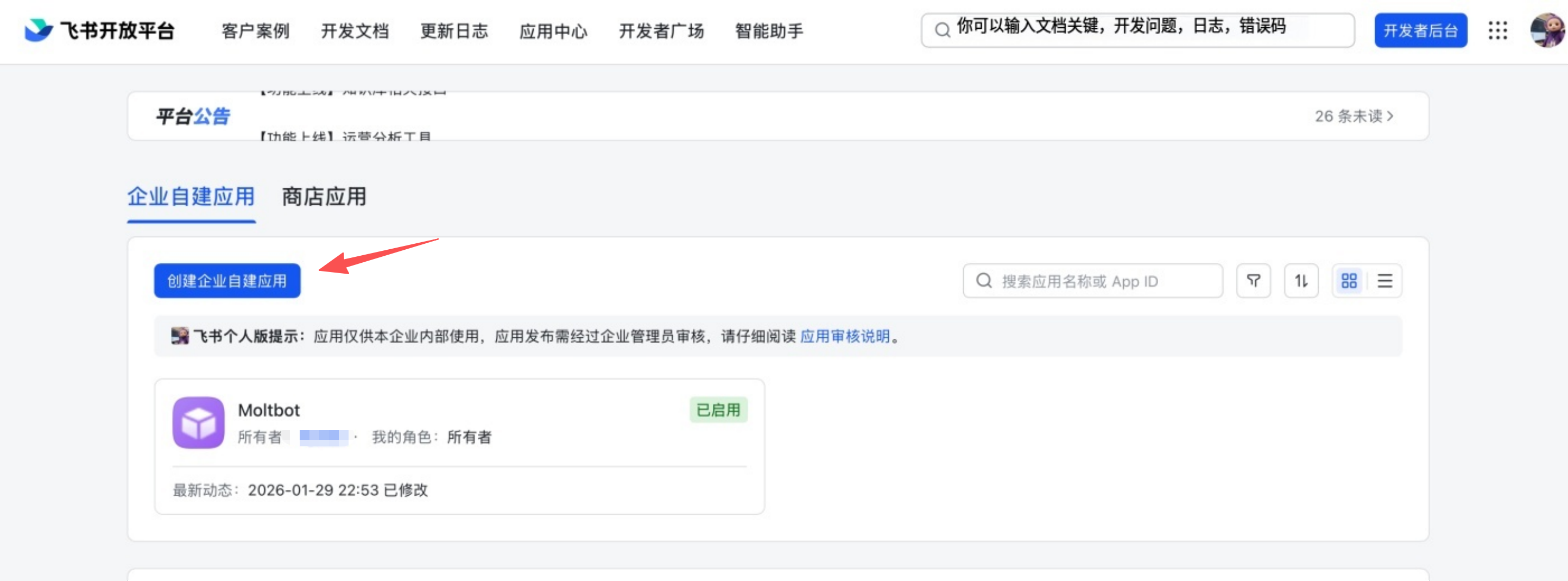
### 3\. Copy credentials
From **Credentials & Basic Info**, copy:
- **App ID** (format: `cli_xxx`)
- **App Secret**
❗ **Important:** keep the App Secret private. 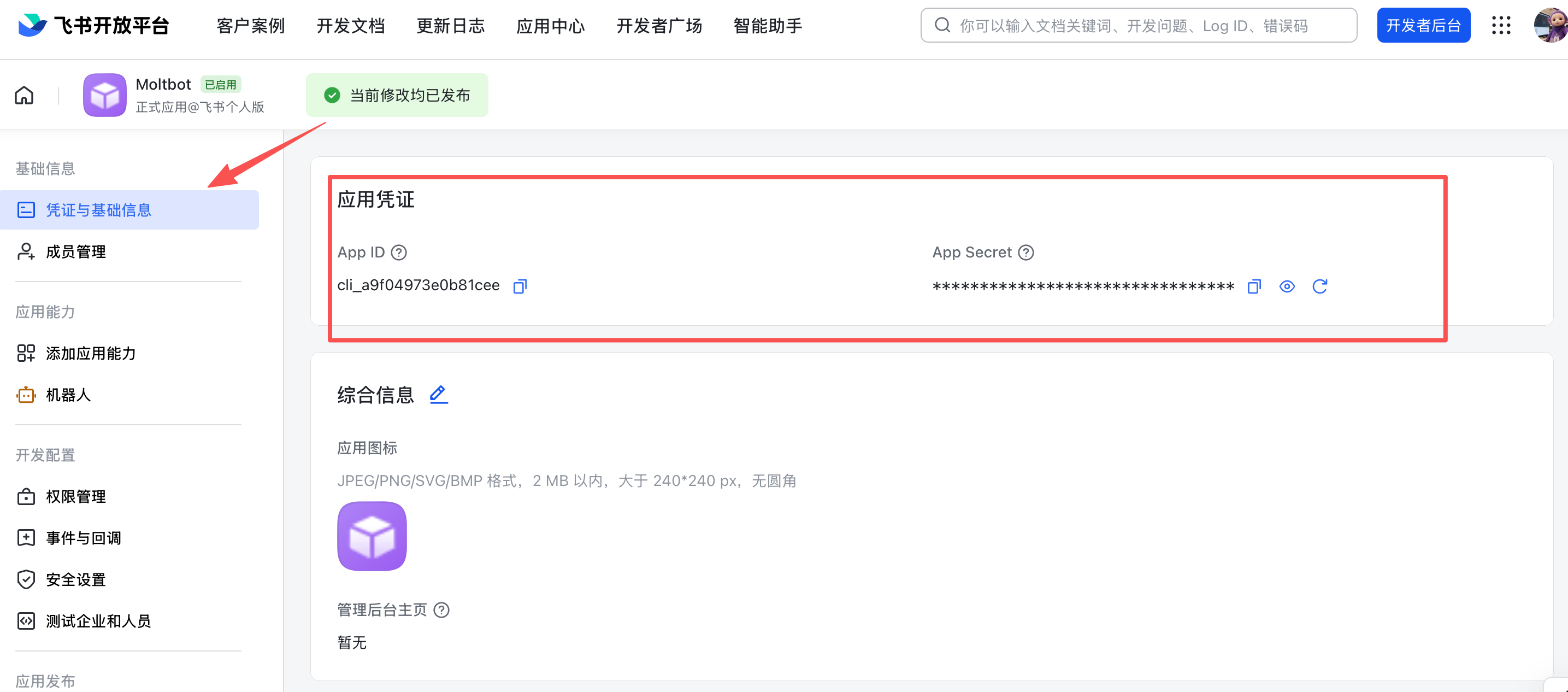
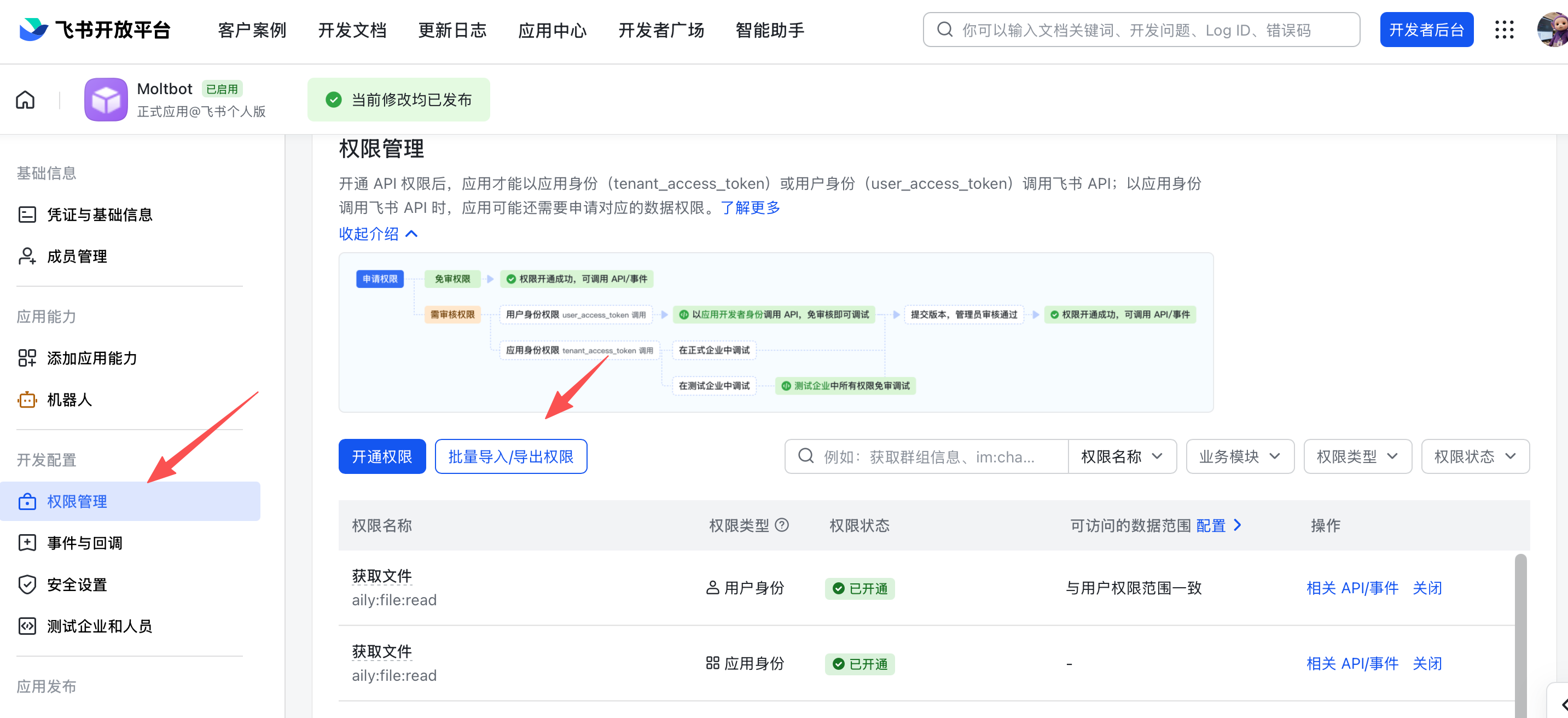
### 4\. Configure permissions
On **Permissions**, click **Batch import** and paste:
```json
{
"scopes": {
"tenant": [
"aily:file:read",
"aily:file:write",
"application:application.app_message_stats.overview:readonly",
"application:application:self_manage",
"application:bot.menu:write",
"cardkit:card:read",
"cardkit:card:write",
"contact:user.employee_id:readonly",
"corehr:file:download",
"event:ip_list",
"im:chat.access_event.bot_p2p_chat:read",
"im:chat.members:bot_access",
"im:message",
"im:message.group_at_msg:readonly",
"im:message.p2p_msg:readonly",
"im:message:readonly",
"im:message:send_as_bot",
"im:resource"
],
"user": ["aily:file:read", "aily:file:write", "im:chat.access_event.bot_p2p_chat:read"]
}
}
```
### 5\. Enable bot capability
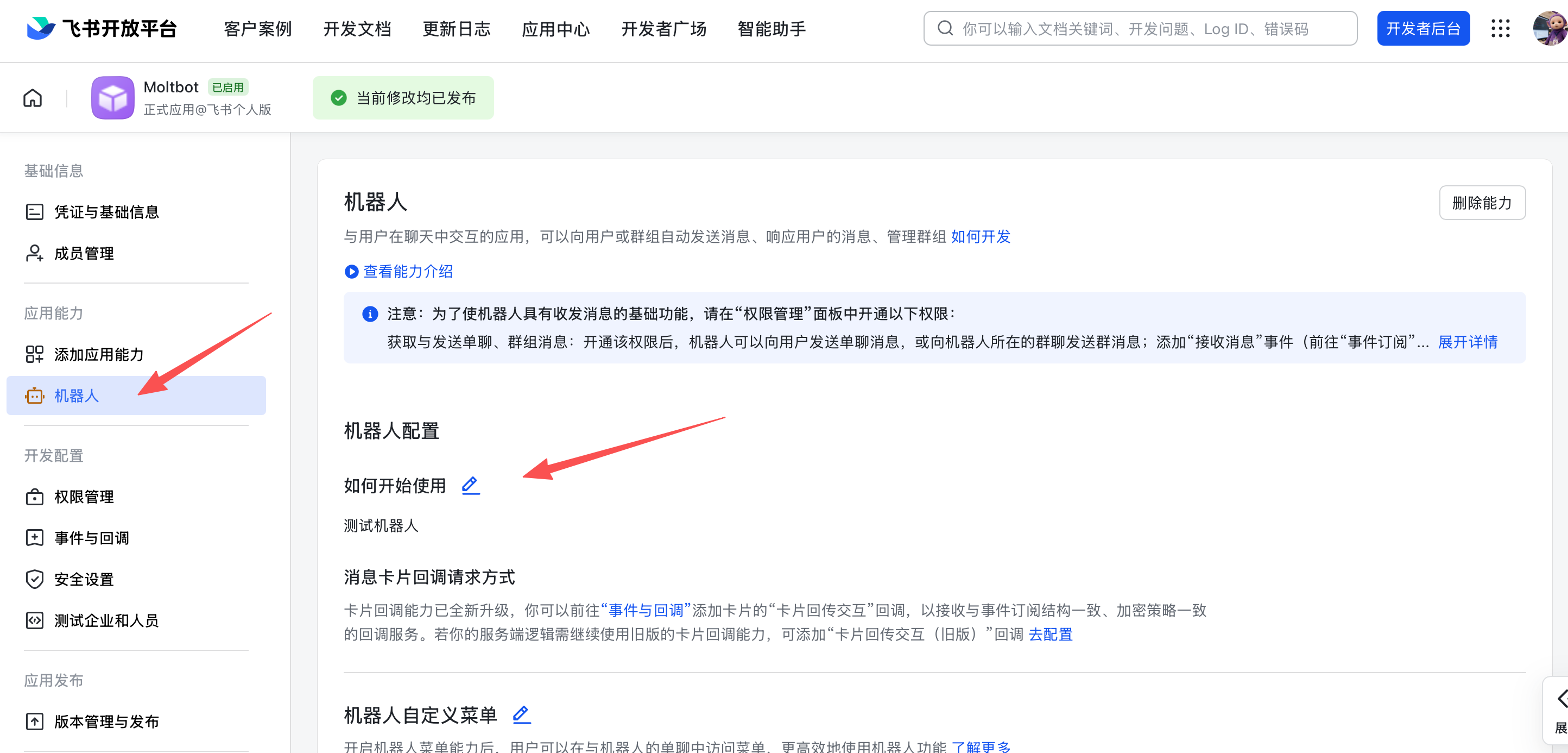
In **App Capability** > **Bot**:
1. Enable bot capability
2. Set the bot name
### 6\. Configure event subscription
⚠️ **Important:** before setting event subscription, make sure:
1. You already ran `openclaw channels add` for Feishu
2. The gateway is running (`openclaw gateway status`)
In **Event Subscription**:
1. Choose **Use long connection to receive events** (WebSocket)
2. Add the event: `im.message.receive_v1`
⚠️ If the gateway is not running, the long-connection setup may fail to save. 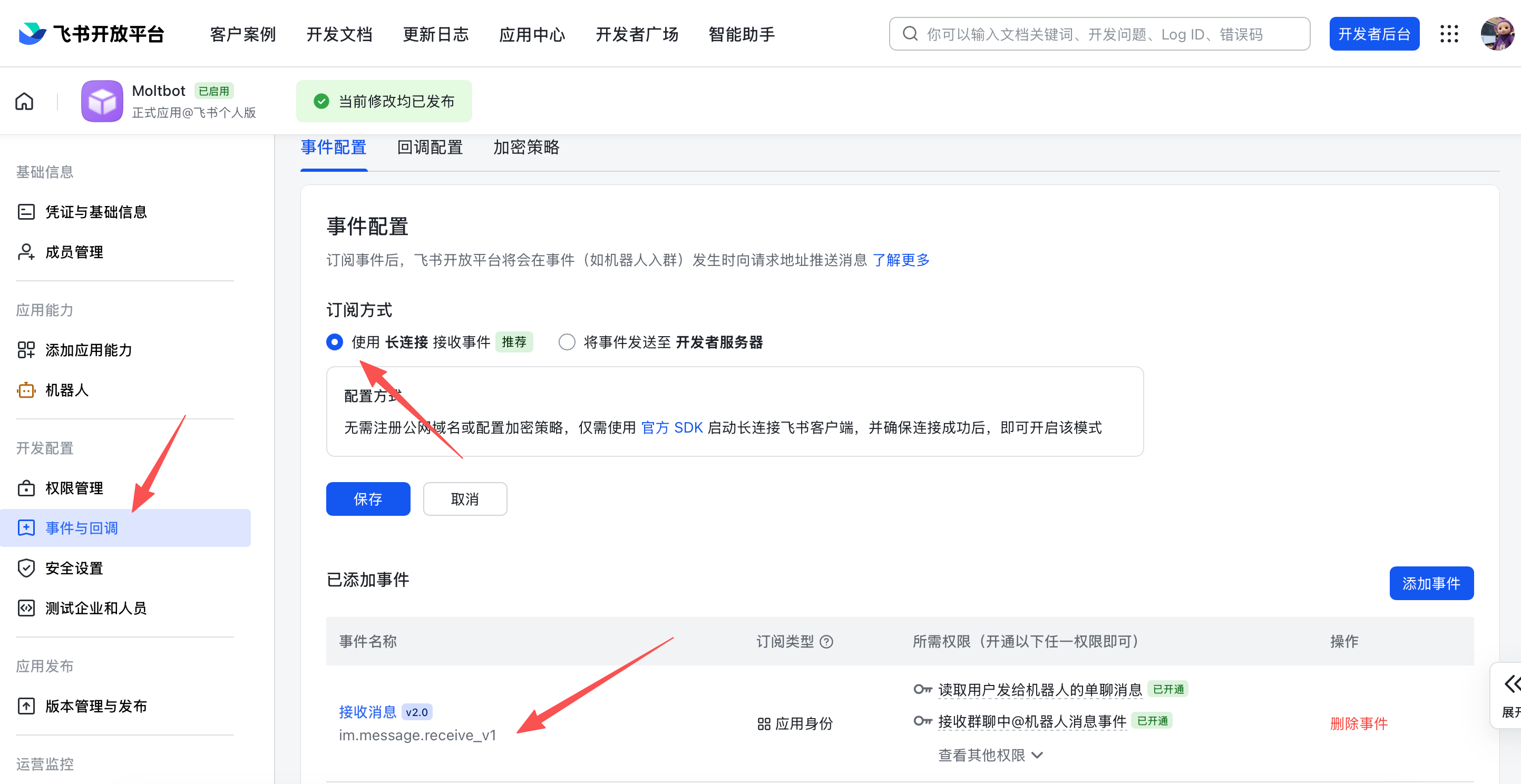
### 7\. Publish the app
1. Create a version in **Version Management & Release**
2. Submit for review and publish
3. Wait for admin approval (enterprise apps usually auto-approve)
* * *
## Step 2: Configure OpenClaw
### Configure with the wizard (recommended)
```bash
openclaw channels add
```
Choose **Feishu** and paste your App ID + App Secret.
### Configure via config file
Edit `~/.openclaw/openclaw.json`:
```json
{
channels: {
feishu: {
enabled: true,
dmPolicy: "pairing",
accounts: {
main: {
appId: "cli_xxx",
appSecret: "xxx",
botName: "My AI assistant",
},
},
},
},
}
```
If you use `connectionMode: "webhook"`, set `verificationToken`. The Feishu webhook server binds to `127.0.0.1` by default; set `webhookHost` only if you intentionally need a different bind address.
#### Verification Token (webhook mode)
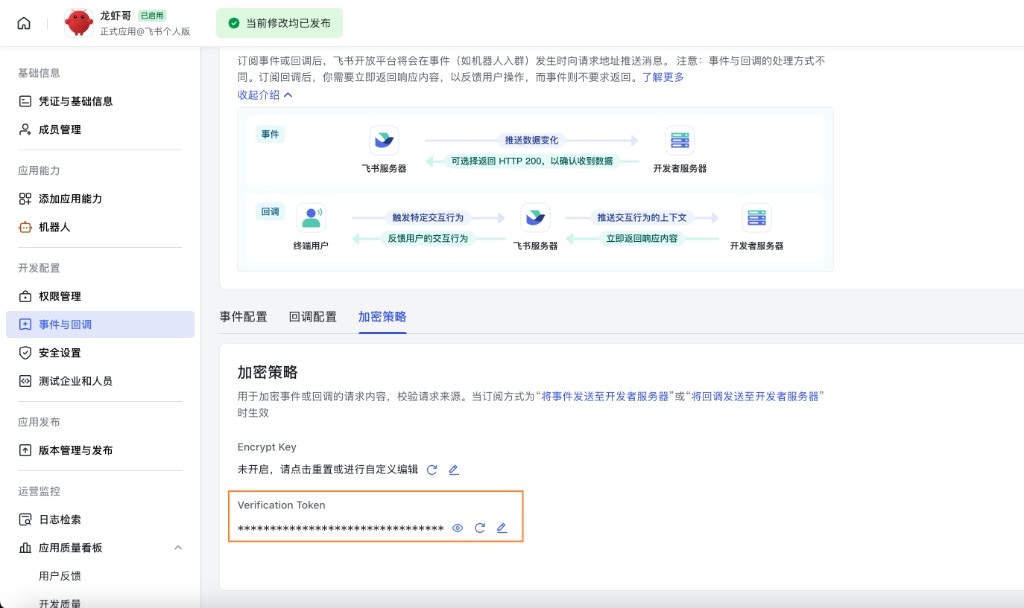
When using webhook mode, set `channels.feishu.verificationToken` in your config. To get the value:
1. In Feishu Open Platform, open your app
2. Go to **Development** → **Events & Callbacks** (开发配置 → 事件与回调)
3. Open the **Encryption** tab (加密策略)
4. Copy **Verification Token**
### Configure via environment variables
```bash
export FEISHU_APP_ID="cli_xxx"
export FEISHU_APP_SECRET="xxx"
```
### Lark (global) domain
If your tenant is on Lark (international), set the domain to `lark` (or a full domain string). You can set it at `channels.feishu.domain` or per account (`channels.feishu.accounts..domain`).
```json
{
channels: {
feishu: {
domain: "lark",
accounts: {
main: {
appId: "cli_xxx",
appSecret: "xxx",
},
},
},
},
}
```
### Quota optimization flags
You can reduce Feishu API usage with two optional flags:
- `typingIndicator` (default `true`): when `false`, skip typing reaction calls.
- `resolveSenderNames` (default `true`): when `false`, skip sender profile lookup calls.
Set them at top level or per account:
```json
{
channels: {
feishu: {
typingIndicator: false,
resolveSenderNames: false,
accounts: {
main: {
appId: "cli_xxx",
appSecret: "xxx",
typingIndicator: true,
resolveSenderNames: false,
},
},
},
},
}
```
* * *
## Step 3: Start + test
### 1\. Start the gateway
```bash
openclaw gateway
```
### 2\. Send a test message
In Feishu, find your bot and send a message.
### 3\. Approve pairing
By default, the bot replies with a pairing code. Approve it:
```bash
openclaw pairing approve feishu
```
After approval, you can chat normally.
* * *
## Overview
- **Feishu bot channel**: Feishu bot managed by the gateway
- **Deterministic routing**: replies always return to Feishu
- **Session isolation**: DMs share a main session; groups are isolated
- **WebSocket connection**: long connection via Feishu SDK, no public URL needed
* * *
## Access control
### Direct messages
- **Default**: `dmPolicy: "pairing"` (unknown users get a pairing code)
- **Approve pairing**:
Copy
```bash
openclaw pairing list feishu
openclaw pairing approve feishu
```
- **Allowlist mode**: set `channels.feishu.allowFrom` with allowed Open IDs
### Group chats
**1\. Group policy** (`channels.feishu.groupPolicy`):
- `"open"` = allow everyone in groups (default)
- `"allowlist"` = only allow `groupAllowFrom`
- `"disabled"` = disable group messages
**2\. Mention requirement** (`channels.feishu.groups..requireMention`):
- `true` = require @mention (default)
- `false` = respond without mentions
* * *
## Group configuration examples
### Allow all groups, require @mention (default)
```json
{
channels: {
feishu: {
groupPolicy: "open",
// Default requireMention: true
},
},
}
```
### Allow all groups, no @mention required
```json
{
channels: {
feishu: {
groups: {
oc_xxx: { requireMention: false },
},
},
},
}
```
### Allow specific groups only
```json
{
channels: {
feishu: {
groupPolicy: "allowlist",
// Feishu group IDs (chat_id) look like: oc_xxx
groupAllowFrom: ["oc_xxx", "oc_yyy"],
},
},
}
```
### Restrict which senders can message in a group (sender allowlist)
In addition to allowing the group itself, **all messages** in that group are gated by the sender open\_id: only users listed in `groups..allowFrom` have their messages processed; messages from other members are ignored (this is full sender-level gating, not only for control commands like /reset or /new).
```json
{
channels: {
feishu: {
groupPolicy: "allowlist",
groupAllowFrom: ["oc_xxx"],
groups: {
oc_xxx: {
// Feishu user IDs (open_id) look like: ou_xxx
allowFrom: ["ou_user1", "ou_user2"],
},
},
},
},
}
```
* * *
## Get group/user IDs
### Group IDs (chat\_id)
Group IDs look like `oc_xxx`. **Method 1 (recommended)**
1. Start the gateway and @mention the bot in the group
2. Run `openclaw logs --follow` and look for `chat_id`
**Method 2** Use the Feishu API debugger to list group chats.
### User IDs (open\_id)
User IDs look like `ou_xxx`. **Method 1 (recommended)**
1. Start the gateway and DM the bot
2. Run `openclaw logs --follow` and look for `open_id`
**Method 2** Check pairing requests for user Open IDs:
```bash
openclaw pairing list feishu
```
* * *
## Common commands
| Command | Description |
| --- | --- |
| `/status` | Show bot status |
| `/reset` | Reset the session |
| `/model` | Show/switch model |
> Note: Feishu does not support native command menus yet, so commands must be sent as text.
## Gateway management commands
| Command | Description |
| --- | --- |
| `openclaw gateway status` | Show gateway status |
| `openclaw gateway install` | Install/start gateway service |
| `openclaw gateway stop` | Stop gateway service |
| `openclaw gateway restart` | Restart gateway service |
| `openclaw logs --follow` | Tail gateway logs |
* * *
## Troubleshooting
### Bot does not respond in group chats
1. Ensure the bot is added to the group
2. Ensure you @mention the bot (default behavior)
3. Check `groupPolicy` is not set to `"disabled"`
4. Check logs: `openclaw logs --follow`
### Bot does not receive messages
1. Ensure the app is published and approved
2. Ensure event subscription includes `im.message.receive_v1`
3. Ensure **long connection** is enabled
4. Ensure app permissions are complete
5. Ensure the gateway is running: `openclaw gateway status`
6. Check logs: `openclaw logs --follow`
### App Secret leak
1. Reset the App Secret in Feishu Open Platform
2. Update the App Secret in your config
3. Restart the gateway
### Message send failures
1. Ensure the app has `im:message:send_as_bot` permission
2. Ensure the app is published
3. Check logs for detailed errors
* * *
## Advanced configuration
### Multiple accounts
```json
{
channels: {
feishu: {
defaultAccount: "main",
accounts: {
main: {
appId: "cli_xxx",
appSecret: "xxx",
botName: "Primary bot",
},
backup: {
appId: "cli_yyy",
appSecret: "yyy",
botName: "Backup bot",
enabled: false,
},
},
},
},
}
```
`defaultAccount` controls which Feishu account is used when outbound APIs do not specify an `accountId` explicitly.
### Message limits
- `textChunkLimit`: outbound text chunk size (default: 2000 chars)
- `mediaMaxMb`: media upload/download limit (default: 30MB)
### Streaming
Feishu supports streaming replies via interactive cards. When enabled, the bot updates a card as it generates text.
```json
{
channels: {
feishu: {
streaming: true, // enable streaming card output (default true)
blockStreaming: true, // enable block-level streaming (default true)
},
},
}
```
Set `streaming: false` to wait for the full reply before sending.
### Multi-agent routing
Use `bindings` to route Feishu DMs or groups to different agents.
```json
{
agents: {
list: [
{ id: "main" },
{
id: "clawd-fan",
workspace: "/home/user/clawd-fan",
agentDir: "/home/user/.openclaw/agents/clawd-fan/agent",
},
{
id: "clawd-xi",
workspace: "/home/user/clawd-xi",
agentDir: "/home/user/.openclaw/agents/clawd-xi/agent",
},
],
},
bindings: [
{
agentId: "main",
match: {
channel: "feishu",
peer: { kind: "direct", id: "ou_xxx" },
},
},
{
agentId: "clawd-fan",
match: {
channel: "feishu",
peer: { kind: "direct", id: "ou_yyy" },
},
},
{
agentId: "clawd-xi",
match: {
channel: "feishu",
peer: { kind: "group", id: "oc_zzz" },
},
},
],
}
```
Routing fields:
- `match.channel`: `"feishu"`
- `match.peer.kind`: `"direct"` or `"group"`
- `match.peer.id`: user Open ID (`ou_xxx`) or group ID (`oc_xxx`)
See [Get group/user IDs](#get-groupuser-ids) for lookup tips.
* * *
## Configuration reference
Full configuration: [Gateway configuration](/gateway/configuration) Key options:
| Setting | Description | Default |
| --- | --- | --- |
| `channels.feishu.enabled` | Enable/disable channel | `true` |
| `channels.feishu.domain` | API domain (`feishu` or `lark`) | `feishu` |
| `channels.feishu.connectionMode` | Event transport mode | `websocket` |
| `channels.feishu.defaultAccount` | Default account ID for outbound routing | `default` |
| `channels.feishu.verificationToken` | Required for webhook mode | \- |
| `channels.feishu.webhookPath` | Webhook route path | `/feishu/events` |
| `channels.feishu.webhookHost` | Webhook bind host | `127.0.0.1` |
| `channels.feishu.webhookPort` | Webhook bind port | `3000` |
| `channels.feishu.accounts..appId` | App ID | \- |
| `channels.feishu.accounts..appSecret` | App Secret | \- |
| `channels.feishu.accounts..domain` | Per-account API domain override | `feishu` |
| `channels.feishu.dmPolicy` | DM policy | `pairing` |
| `channels.feishu.allowFrom` | DM allowlist (open\_id list) | \- |
| `channels.feishu.groupPolicy` | Group policy | `open` |
| `channels.feishu.groupAllowFrom` | Group allowlist | \- |
| `channels.feishu.groups..requireMention` | Require @mention | `true` |
| `channels.feishu.groups..enabled` | Enable group | `true` |
| `channels.feishu.textChunkLimit` | Message chunk size | `2000` |
| `channels.feishu.mediaMaxMb` | Media size limit | `30` |
| `channels.feishu.streaming` | Enable streaming card output | `true` |
| `channels.feishu.blockStreaming` | Enable block streaming | `true` |
* * *
## dmPolicy reference
| Value | Behavior |
| --- | --- |
| `"pairing"` | **Default.** Unknown users get a pairing code; must be approved |
| `"allowlist"` | Only users in `allowFrom` can chat |
| `"open"` | Allow all users (requires `"*"` in allowFrom) |
| `"disabled"` | Disable DMs |
* * *
## Supported message types
### Receive
- ✅ Text
- ✅ Rich text (post)
- ✅ Images
- ✅ Files
- ✅ Audio
- ✅ Video
- ✅ Stickers
### Send
- ✅ Text
- ✅ Images
- ✅ Files
- ✅ Audio
- ⚠️ Rich text (partial support)
[Discord](/channels/discord)[Google Chat](/channels/googlechat)
---
## OpenClaw Google Chat Integration Setup and Configuration Guide
URL: https://openclawx.cloud/en/channels/googlechat
---
Messaging platforms
Google Chat
Status: ready for DMs + spaces via Google Chat API webhooks (HTTP only).
## Quick setup (beginner)
1. Create a Google Cloud project and enable the **Google Chat API**.
- Go to: [Google Chat API Credentials](https://console.cloud.google.com/apis/api/chat.googleapis.com/credentials)
- Enable the API if it is not already enabled.
2. Create a **Service Account**:
- Press **Create Credentials** > **Service Account**.
- Name it whatever you want (e.g., `openclaw-chat`).
- Leave permissions blank (press **Continue**).
- Leave principals with access blank (press **Done**).
3. Create and download the **JSON Key**:
- In the list of service accounts, click on the one you just created.
- Go to the **Keys** tab.
- Click **Add Key** > **Create new key**.
- Select **JSON** and press **Create**.
4. Store the downloaded JSON file on your gateway host (e.g., `~/.openclaw/googlechat-service-account.json`).
5. Create a Google Chat app in the [Google Cloud Console Chat Configuration](https://console.cloud.google.com/apis/api/chat.googleapis.com/hangouts-chat):
- Fill in the **Application info**:
- **App name**: (e.g. `OpenClaw`)
- **Avatar URL**: (e.g. `https://openclaw.ai/logo.png`)
- **Description**: (e.g. `Personal AI Assistant`)
- Enable **Interactive features**.
- Under **Functionality**, check **Join spaces and group conversations**.
- Under **Connection settings**, select **HTTP endpoint URL**.
- Under **Triggers**, select **Use a common HTTP endpoint URL for all triggers** and set it to your gateway’s public URL followed by `/googlechat`.
- *Tip: Run `openclaw status` to find your gateway’s public URL.*
- Under **Visibility**, check **Make this Chat app available to specific people and groups in `Your Domain`**.
- Enter your email address (e.g. `user@example.com`) in the text box.
- Click **Save** at the bottom.
6. **Enable the app status**:
- After saving, **refresh the page**.
- Look for the **App status** section (usually near the top or bottom after saving).
- Change the status to **Live - available to users**.
- Click **Save** again.
7. Configure OpenClaw with the service account path + webhook audience:
- Env: `GOOGLE_CHAT_SERVICE_ACCOUNT_FILE=/path/to/service-account.json`
- Or config: `channels.googlechat.serviceAccountFile: "/path/to/service-account.json"`.
8. Set the webhook audience type + value (matches your Chat app config).
9. Start the gateway. Google Chat will POST to your webhook path.
## Add to Google Chat
Once the gateway is running and your email is added to the visibility list:
1. Go to [Google Chat](https://chat.google.com/).
2. Click the **+** (plus) icon next to **Direct Messages**.
3. In the search bar (where you usually add people), type the **App name** you configured in the Google Cloud Console.
- **Note**: The bot will *not* appear in the “Marketplace” browse list because it is a private app. You must search for it by name.
4. Select your bot from the results.
5. Click **Add** or **Chat** to start a 1:1 conversation.
6. Send “Hello” to trigger the assistant!
## Public URL (Webhook-only)
Google Chat webhooks require a public HTTPS endpoint. For security, **only expose the `/googlechat` path** to the internet. Keep the OpenClaw dashboard and other sensitive endpoints on your private network.
### Option A: Tailscale Funnel (Recommended)
Use Tailscale Serve for the private dashboard and Funnel for the public webhook path. This keeps `/` private while exposing only `/googlechat`.
1. **Check what address your gateway is bound to:**
Copy
```bash
ss -tlnp | grep 18789
```
Note the IP address (e.g., `127.0.0.1`, `0.0.0.0`, or your Tailscale IP like `100.x.x.x`).
2. **Expose the dashboard to the tailnet only (port 8443):**
Copy
```bash
# If bound to localhost (127.0.0.1 or 0.0.0.0):
tailscale serve --bg --https 8443 http://127.0.0.1:18789
# If bound to Tailscale IP only (e.g., 100.106.161.80):
tailscale serve --bg --https 8443 http://100.106.161.80:18789
```
3. **Expose only the webhook path publicly:**
Copy
```bash
# If bound to localhost (127.0.0.1 or 0.0.0.0):
tailscale funnel --bg --set-path /googlechat http://127.0.0.1:18789/googlechat
# If bound to Tailscale IP only (e.g., 100.106.161.80):
tailscale funnel --bg --set-path /googlechat http://100.106.161.80:18789/googlechat
```
4. **Authorize the node for Funnel access:** If prompted, visit the authorization URL shown in the output to enable Funnel for this node in your tailnet policy.
5. **Verify the configuration:**
Copy
```
tailscale serve status
tailscale funnel status
```
Your public webhook URL will be: `https://..ts.net/googlechat` Your private dashboard stays tailnet-only: `https://..ts.net:8443/` Use the public URL (without `:8443`) in the Google Chat app config.
> Note: This configuration persists across reboots. To remove it later, run `tailscale funnel reset` and `tailscale serve reset`.
### Option B: Reverse Proxy (Caddy)
If you use a reverse proxy like Caddy, only proxy the specific path:
```
your-domain.com {
reverse_proxy /googlechat* localhost:18789
}
```
With this config, any request to `your-domain.com/` will be ignored or returned as 404, while `your-domain.com/googlechat` is safely routed to OpenClaw.
### Option C: Cloudflare Tunnel
Configure your tunnel’s ingress rules to only route the webhook path:
- **Path**: `/googlechat` -> `http://localhost:18789/googlechat`
- **Default Rule**: HTTP 404 (Not Found)
## How it works
1. Google Chat sends webhook POSTs to the gateway. Each request includes an `Authorization: Bearer ` header.
- OpenClaw verifies bearer auth before reading/parsing full webhook bodies when the header is present.
- Google Workspace Add-on requests that carry `authorizationEventObject.systemIdToken` in the body are supported via a stricter pre-auth body budget.
2. OpenClaw verifies the token against the configured `audienceType` + `audience`:
- `audienceType: "app-url"` → audience is your HTTPS webhook URL.
- `audienceType: "project-number"` → audience is the Cloud project number.
3. Messages are routed by space:
- DMs use session key `agent::googlechat:dm:`.
- Spaces use session key `agent::googlechat:group:`.
4. DM access is pairing by default. Unknown senders receive a pairing code; approve with:
- `openclaw pairing approve googlechat `
5. Group spaces require @-mention by default. Use `botUser` if mention detection needs the app’s user name.
## Targets
Use these identifiers for delivery and allowlists:
- Direct messages: `users/` (recommended).
- Raw email `name@example.com` is mutable and only used for direct allowlist matching when `channels.googlechat.dangerouslyAllowNameMatching: true`.
- Deprecated: `users/` is treated as a user id, not an email allowlist.
- Spaces: `spaces/`.
## Config highlights
```json
{
channels: {
googlechat: {
enabled: true,
serviceAccountFile: "/path/to/service-account.json",
// or serviceAccountRef: { source: "file", provider: "filemain", id: "/channels/googlechat/serviceAccount" }
audienceType: "app-url",
audience: "https://gateway.example.com/googlechat",
webhookPath: "/googlechat",
botUser: "users/1234567890", // optional; helps mention detection
dm: {
policy: "pairing",
allowFrom: ["users/1234567890"],
},
groupPolicy: "allowlist",
groups: {
"spaces/AAAA": {
allow: true,
requireMention: true,
users: ["users/1234567890"],
systemPrompt: "Short answers only.",
},
},
actions: { reactions: true },
typingIndicator: "message",
mediaMaxMb: 20,
},
},
}
```
Notes:
- Service account credentials can also be passed inline with `serviceAccount` (JSON string).
- `serviceAccountRef` is also supported (env/file SecretRef), including per-account refs under `channels.googlechat.accounts..serviceAccountRef`.
- Default webhook path is `/googlechat` if `webhookPath` isn’t set.
- `dangerouslyAllowNameMatching` re-enables mutable email principal matching for allowlists (break-glass compatibility mode).
- Reactions are available via the `reactions` tool and `channels action` when `actions.reactions` is enabled.
- `typingIndicator` supports `none`, `message` (default), and `reaction` (reaction requires user OAuth).
- Attachments are downloaded through the Chat API and stored in the media pipeline (size capped by `mediaMaxMb`).
Secrets reference details: [Secrets Management](/gateway/secrets).
## Troubleshooting
### 405 Method Not Allowed
If Google Cloud Logs Explorer shows errors like:
```bash
status code: 405, reason phrase: HTTP error response: HTTP/1.1 405 Method Not Allowed
```
This means the webhook handler isn’t registered. Common causes:
1. **Channel not configured**: The `channels.googlechat` section is missing from your config. Verify with:
Copy
```bash
openclaw config get channels.googlechat
```
If it returns “Config path not found”, add the configuration (see [Config highlights](#config-highlights)).
2. **Plugin not enabled**: Check plugin status:
Copy
```bash
openclaw plugins list | grep googlechat
```
If it shows “disabled”, add `plugins.entries.googlechat.enabled: true` to your config.
3. **Gateway not restarted**: After adding config, restart the gateway:
Copy
```bash
openclaw gateway restart
```
Verify the channel is running:
```bash
openclaw channels status
# Should show: Google Chat default: enabled, configured, ...
```
### Other issues
- Check `openclaw channels status --probe` for auth errors or missing audience config.
- If no messages arrive, confirm the Chat app’s webhook URL + event subscriptions.
- If mention gating blocks replies, set `botUser` to the app’s user resource name and verify `requireMention`.
- Use `openclaw logs --follow` while sending a test message to see if requests reach the gateway.
Related docs:
- [Gateway configuration](/gateway/configuration)
- [Security](/gateway/security)
- [Reactions](/tools/reactions)
[Feishu](/channels/feishu)[iMessage](/channels/imessage)
---
## Configure WhatsApp Group Messages for OpenClaw AI Agent
URL: https://openclawx.cloud/en/channels/group-messages
---
Configuration
Group Messages
Goal: let Clawd sit in WhatsApp groups, wake up only when pinged, and keep that thread separate from the personal DM session. Note: `agents.list[].groupChat.mentionPatterns` is now used by Telegram/Discord/Slack/iMessage as well; this doc focuses on WhatsApp-specific behavior. For multi-agent setups, set `agents.list[].groupChat.mentionPatterns` per agent (or use `messages.groupChat.mentionPatterns` as a global fallback).
## What’s implemented (2025-12-03)
- Activation modes: `mention` (default) or `always`. `mention` requires a ping (real WhatsApp @-mentions via `mentionedJids`, regex patterns, or the bot’s E.164 anywhere in the text). `always` wakes the agent on every message but it should reply only when it can add meaningful value; otherwise it returns the silent token `NO_REPLY`. Defaults can be set in config (`channels.whatsapp.groups`) and overridden per group via `/activation`. When `channels.whatsapp.groups` is set, it also acts as a group allowlist (include `"*"` to allow all).
- Group policy: `channels.whatsapp.groupPolicy` controls whether group messages are accepted (`open|disabled|allowlist`). `allowlist` uses `channels.whatsapp.groupAllowFrom` (fallback: explicit `channels.whatsapp.allowFrom`). Default is `allowlist` (blocked until you add senders).
- Per-group sessions: session keys look like `agent::whatsapp:group:` so commands such as `/verbose on` or `/think high` (sent as standalone messages) are scoped to that group; personal DM state is untouched. Heartbeats are skipped for group threads.
- Context injection: **pending-only** group messages (default 50) that *did not* trigger a run are prefixed under `[Chat messages since your last reply - for context]`, with the triggering line under `[Current message - respond to this]`. Messages already in the session are not re-injected.
- Sender surfacing: every group batch now ends with `[from: Sender Name (+E164)]` so Pi knows who is speaking.
- Ephemeral/view-once: we unwrap those before extracting text/mentions, so pings inside them still trigger.
- Group system prompt: on the first turn of a group session (and whenever `/activation` changes the mode) we inject a short blurb into the system prompt like `You are replying inside the WhatsApp group "". Group members: Alice (+44...), Bob (+43...), … Activation: trigger-only … Address the specific sender noted in the message context.` If metadata isn’t available we still tell the agent it’s a group chat.
## Config example (WhatsApp)
Add a `groupChat` block to `~/.openclaw/openclaw.json` so display-name pings work even when WhatsApp strips the visual `@` in the text body:
```json
{
channels: {
whatsapp: {
groups: {
"*": { requireMention: true },
},
},
},
agents: {
list: [
{
id: "main",
groupChat: {
historyLimit: 50,
mentionPatterns: ["@?openclaw", "\\+?15555550123"],
},
},
],
},
}
```
Notes:
- The regexes are case-insensitive; they cover a display-name ping like `@openclaw` and the raw number with or without `+`/spaces.
- WhatsApp still sends canonical mentions via `mentionedJids` when someone taps the contact, so the number fallback is rarely needed but is a useful safety net.
### Activation command (owner-only)
Use the group chat command:
- `/activation mention`
- `/activation always`
Only the owner number (from `channels.whatsapp.allowFrom`, or the bot’s own E.164 when unset) can change this. Send `/status` as a standalone message in the group to see the current activation mode.
## How to use
1. Add your WhatsApp account (the one running OpenClaw) to the group.
2. Say `@openclaw …` (or include the number). Only allowlisted senders can trigger it unless you set `groupPolicy: "open"`.
3. The agent prompt will include recent group context plus the trailing `[from: …]` marker so it can address the right person.
4. Session-level directives (`/verbose on`, `/think high`, `/new` or `/reset`, `/compact`) apply only to that group’s session; send them as standalone messages so they register. Your personal DM session remains independent.
## Testing / verification
- Manual smoke:
- Send an `@openclaw` ping in the group and confirm a reply that references the sender name.
- Send a second ping and verify the history block is included then cleared on the next turn.
- Check gateway logs (run with `--verbose`) to see `inbound web message` entries showing `from: ` and the `[from: …]` suffix.
## Known considerations
- Heartbeats are intentionally skipped for groups to avoid noisy broadcasts.
- Echo suppression uses the combined batch string; if you send identical text twice without mentions, only the first will get a response.
- Session store entries will appear as `agent::whatsapp:group:` in the session store (`~/.openclaw/agents//sessions/sessions.json` by default); a missing entry just means the group hasn’t triggered a run yet.
- Typing indicators in groups follow `agents.defaults.typingMode` (default: `message` when unmentioned).
[Pairing](/channels/pairing)[Groups](/channels/groups)
---
## OpenClaw Configuration Groups for WhatsApp Telegram Discord Slack
URL: https://openclawx.cloud/en/channels/groups
---
Configuration
Groups
OpenClaw treats group chats consistently across surfaces: WhatsApp, Telegram, Discord, Slack, Signal, iMessage, Microsoft Teams, Zalo.
## Beginner intro (2 minutes)
OpenClaw “lives” on your own messaging accounts. There is no separate WhatsApp bot user. If **you** are in a group, OpenClaw can see that group and respond there. Default behavior:
- Groups are restricted (`groupPolicy: "allowlist"`).
- Replies require a mention unless you explicitly disable mention gating.
Translation: allowlisted senders can trigger OpenClaw by mentioning it.
> TL;DR
>
> - **DM access** is controlled by `*.allowFrom`.
> - **Group access** is controlled by `*.groupPolicy` + allowlists (`*.groups`, `*.groupAllowFrom`).
> - **Reply triggering** is controlled by mention gating (`requireMention`, `/activation`).
Quick flow (what happens to a group message):
```
groupPolicy? disabled -> drop
groupPolicy? allowlist -> group allowed? no -> drop
requireMention? yes -> mentioned? no -> store for context only
otherwise -> reply
```
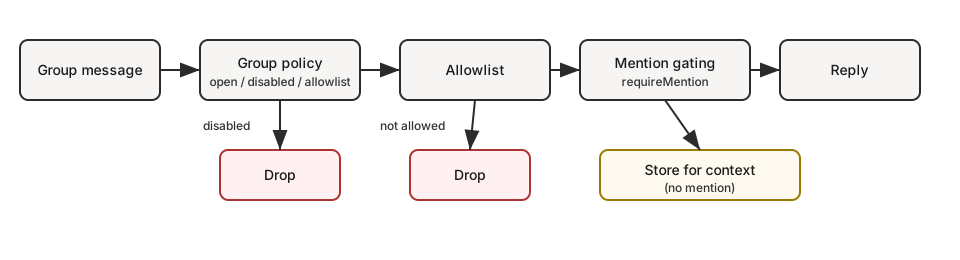 If you want…
| Goal | What to set |
| --- | --- |
| Allow all groups but only reply on @mentions | `groups: { "*": { requireMention: true } }` |
| Disable all group replies | `groupPolicy: "disabled"` |
| Only specific groups | `groups: { "": { ... } }` (no `"*"` key) |
| Only you can trigger in groups | `groupPolicy: "allowlist"`, `groupAllowFrom: ["+1555..."]` |
## Session keys
- Group sessions use `agent:::group:` session keys (rooms/channels use `agent:::channel:`).
- Telegram forum topics add `:topic:` to the group id so each topic has its own session.
- Direct chats use the main session (or per-sender if configured).
- Heartbeats are skipped for group sessions.
## Pattern: personal DMs + public groups (single agent)
Yes — this works well if your “personal” traffic is **DMs** and your “public” traffic is **groups**. Why: in single-agent mode, DMs typically land in the **main** session key (`agent:main:main`), while groups always use **non-main** session keys (`agent:main::group:`). If you enable sandboxing with `mode: "non-main"`, those group sessions run in Docker while your main DM session stays on-host. This gives you one agent “brain” (shared workspace + memory), but two execution postures:
- **DMs**: full tools (host)
- **Groups**: sandbox + restricted tools (Docker)
> If you need truly separate workspaces/personas (“personal” and “public” must never mix), use a second agent + bindings. See [Multi-Agent Routing](/concepts/multi-agent).
Example (DMs on host, groups sandboxed + messaging-only tools):
```json
{
agents: {
defaults: {
sandbox: {
mode: "non-main", // groups/channels are non-main -> sandboxed
scope: "session", // strongest isolation (one container per group/channel)
workspaceAccess: "none",
},
},
},
tools: {
sandbox: {
tools: {
// If allow is non-empty, everything else is blocked (deny still wins).
allow: ["group:messaging", "group:sessions"],
deny: ["group:runtime", "group:fs", "group:ui", "nodes", "cron", "gateway"],
},
},
},
}
```
Want “groups can only see folder X” instead of “no host access”? Keep `workspaceAccess: "none"` and mount only allowlisted paths into the sandbox:
```json
{
agents: {
defaults: {
sandbox: {
mode: "non-main",
scope: "session",
workspaceAccess: "none",
docker: {
binds: [
// hostPath:containerPath:mode
"/home/user/FriendsShared:/data:ro",
],
},
},
},
},
}
```
Related:
- Configuration keys and defaults: [Gateway configuration](/gateway/configuration#agentsdefaultssandbox)
- Debugging why a tool is blocked: [Sandbox vs Tool Policy vs Elevated](/gateway/sandbox-vs-tool-policy-vs-elevated)
- Bind mounts details: [Sandboxing](/gateway/sandboxing#custom-bind-mounts)
## Display labels
- UI labels use `displayName` when available, formatted as `:`.
- `#room` is reserved for rooms/channels; group chats use `g-` (lowercase, spaces -> `-`, keep `#@+._-`).
## Group policy
Control how group/room messages are handled per channel:
```json
{
channels: {
whatsapp: {
groupPolicy: "disabled", // "open" | "disabled" | "allowlist"
groupAllowFrom: ["+15551234567"],
},
telegram: {
groupPolicy: "disabled",
groupAllowFrom: ["123456789"], // numeric Telegram user id (wizard can resolve @username)
},
signal: {
groupPolicy: "disabled",
groupAllowFrom: ["+15551234567"],
},
imessage: {
groupPolicy: "disabled",
groupAllowFrom: ["chat_id:123"],
},
msteams: {
groupPolicy: "disabled",
groupAllowFrom: ["user@org.com"],
},
discord: {
groupPolicy: "allowlist",
guilds: {
GUILD_ID: { channels: { help: { allow: true } } },
},
},
slack: {
groupPolicy: "allowlist",
channels: { "#general": { allow: true } },
},
matrix: {
groupPolicy: "allowlist",
groupAllowFrom: ["@owner:example.org"],
groups: {
"!roomId:example.org": { allow: true },
"#alias:example.org": { allow: true },
},
},
},
}
```
| Policy | Behavior |
| --- | --- |
| `"open"` | Groups bypass allowlists; mention-gating still applies. |
| `"disabled"` | Block all group messages entirely. |
| `"allowlist"` | Only allow groups/rooms that match the configured allowlist. |
Notes:
- `groupPolicy` is separate from mention-gating (which requires @mentions).
- WhatsApp/Telegram/Signal/iMessage/Microsoft Teams/Zalo: use `groupAllowFrom` (fallback: explicit `allowFrom`).
- DM pairing approvals (`*-allowFrom` store entries) apply to DM access only; group sender authorization stays explicit to group allowlists.
- Discord: allowlist uses `channels.discord.guilds..channels`.
- Slack: allowlist uses `channels.slack.channels`.
- Matrix: allowlist uses `channels.matrix.groups` (room IDs, aliases, or names). Use `channels.matrix.groupAllowFrom` to restrict senders; per-room `users` allowlists are also supported.
- Group DMs are controlled separately (`channels.discord.dm.*`, `channels.slack.dm.*`).
- Telegram allowlist can match user IDs (`"123456789"`, `"telegram:123456789"`, `"tg:123456789"`) or usernames (`"@alice"` or `"alice"`); prefixes are case-insensitive.
- Default is `groupPolicy: "allowlist"`; if your group allowlist is empty, group messages are blocked.
- Runtime safety: when a provider block is completely missing (`channels.` absent), group policy falls back to a fail-closed mode (typically `allowlist`) instead of inheriting `channels.defaults.groupPolicy`.
Quick mental model (evaluation order for group messages):
1. `groupPolicy` (open/disabled/allowlist)
2. group allowlists (`*.groups`, `*.groupAllowFrom`, channel-specific allowlist)
3. mention gating (`requireMention`, `/activation`)
## Mention gating (default)
Group messages require a mention unless overridden per group. Defaults live per subsystem under `*.groups."*"`. Replying to a bot message counts as an implicit mention (when the channel supports reply metadata). This applies to Telegram, WhatsApp, Slack, Discord, and Microsoft Teams.
```json
{
channels: {
whatsapp: {
groups: {
"*": { requireMention: true },
"123@g.us": { requireMention: false },
},
},
telegram: {
groups: {
"*": { requireMention: true },
"123456789": { requireMention: false },
},
},
imessage: {
groups: {
"*": { requireMention: true },
"123": { requireMention: false },
},
},
},
agents: {
list: [
{
id: "main",
groupChat: {
mentionPatterns: ["@openclaw", "openclaw", "\\+15555550123"],
historyLimit: 50,
},
},
],
},
}
```
Notes:
- `mentionPatterns` are case-insensitive regexes.
- Surfaces that provide explicit mentions still pass; patterns are a fallback.
- Per-agent override: `agents.list[].groupChat.mentionPatterns` (useful when multiple agents share a group).
- Mention gating is only enforced when mention detection is possible (native mentions or `mentionPatterns` are configured).
- Discord defaults live in `channels.discord.guilds."*"` (overridable per guild/channel).
- Group history context is wrapped uniformly across channels and is **pending-only** (messages skipped due to mention gating); use `messages.groupChat.historyLimit` for the global default and `channels..historyLimit` (or `channels..accounts.*.historyLimit`) for overrides. Set `0` to disable.
## Group/channel tool restrictions (optional)
Some channel configs support restricting which tools are available **inside a specific group/room/channel**.
- `tools`: allow/deny tools for the whole group.
- `toolsBySender`: per-sender overrides within the group. Use explicit key prefixes: `id:`, `e164:`, `username:`, `name:`, and `"*"` wildcard. Legacy unprefixed keys are still accepted and matched as `id:` only.
Resolution order (most specific wins):
1. group/channel `toolsBySender` match
2. group/channel `tools`
3. default (`"*"`) `toolsBySender` match
4. default (`"*"`) `tools`
Example (Telegram):
```json
{
channels: {
telegram: {
groups: {
"*": { tools: { deny: ["exec"] } },
"-1001234567890": {
tools: { deny: ["exec", "read", "write"] },
toolsBySender: {
"id:123456789": { alsoAllow: ["exec"] },
},
},
},
},
},
}
```
Notes:
- Group/channel tool restrictions are applied in addition to global/agent tool policy (deny still wins).
- Some channels use different nesting for rooms/channels (e.g., Discord `guilds.*.channels.*`, Slack `channels.*`, MS Teams `teams.*.channels.*`).
## Group allowlists
When `channels.whatsapp.groups`, `channels.telegram.groups`, or `channels.imessage.groups` is configured, the keys act as a group allowlist. Use `"*"` to allow all groups while still setting default mention behavior. Common intents (copy/paste):
1. Disable all group replies
```json
{
channels: { whatsapp: { groupPolicy: "disabled" } },
}
```
2. Allow only specific groups (WhatsApp)
```json
{
channels: {
whatsapp: {
groups: {
"123@g.us": { requireMention: true },
"456@g.us": { requireMention: false },
},
},
},
}
```
3. Allow all groups but require mention (explicit)
```json
{
channels: {
whatsapp: {
groups: { "*": { requireMention: true } },
},
},
}
```
4. Only the owner can trigger in groups (WhatsApp)
```json
{
channels: {
whatsapp: {
groupPolicy: "allowlist",
groupAllowFrom: ["+15551234567"],
groups: { "*": { requireMention: true } },
},
},
}
```
## Activation (owner-only)
Group owners can toggle per-group activation:
- `/activation mention`
- `/activation always`
Owner is determined by `channels.whatsapp.allowFrom` (or the bot’s self E.164 when unset). Send the command as a standalone message. Other surfaces currently ignore `/activation`.
## Context fields
Group inbound payloads set:
- `ChatType=group`
- `GroupSubject` (if known)
- `GroupMembers` (if known)
- `WasMentioned` (mention gating result)
- Telegram forum topics also include `MessageThreadId` and `IsForum`.
The agent system prompt includes a group intro on the first turn of a new group session. It reminds the model to respond like a human, avoid Markdown tables, and avoid typing literal `\n` sequences.
## iMessage specifics
- Prefer `chat_id:` when routing or allowlisting.
- List chats: `imsg chats --limit 20`.
- Group replies always go back to the same `chat_id`.
## WhatsApp specifics
See [Group messages](/channels/group-messages) for WhatsApp-only behavior (history injection, mention handling details).
[Group Messages](/channels/group-messages)[Broadcast Groups](/channels/broadcast-groups)
---
## OpenClaw iMessage Channel Setup Configuration and Troubleshooting
URL: https://openclawx.cloud/en/channels/imessage
---
Messaging platforms
iMessage
> **⚠️** For new iMessage deployments, use [BlueBubbles](/channels/bluebubbles).The `imsg` integration is legacy and may be removed in a future release.
Status: legacy external CLI integration. Gateway spawns `imsg rpc` and communicates over JSON-RPC on stdio (no separate daemon/port).
## Quick setup
"test"
> ```
## Access control and routing
`channels.imessage.dmPolicy` controls direct messages:
- `pairing` (default)
- `allowlist`
- `open` (requires `allowFrom` to include `"*"`)
- `disabled`
Allowlist field: `channels.imessage.allowFrom`.Allowlist entries can be handles or chat targets (`chat_id:*`, `chat_guid:*`, `chat_identifier:*`).
`channels.imessage.groupPolicy` controls group handling:
- `allowlist` (default when configured)
- `open`
- `disabled`
Group sender allowlist: `channels.imessage.groupAllowFrom`.Runtime fallback: if `groupAllowFrom` is unset, iMessage group sender checks fall back to `allowFrom` when available. Runtime note: if `channels.imessage` is completely missing, runtime falls back to `groupPolicy="allowlist"` and logs a warning (even if `channels.defaults.groupPolicy` is set).Mention gating for groups:
- iMessage has no native mention metadata
- mention detection uses regex patterns (`agents.list[].groupChat.mentionPatterns`, fallback `messages.groupChat.mentionPatterns`)
- with no configured patterns, mention gating cannot be enforced
Control commands from authorized senders can bypass mention gating in groups.
- DMs use direct routing; groups use group routing.
- With default `session.dmScope=main`, iMessage DMs collapse into the agent main session.
- Group sessions are isolated (`agent::imessage:group:`).
- Replies route back to iMessage using originating channel/target metadata.
Group-ish thread behavior:Some multi-participant iMessage threads can arrive with `is_group=false`. If that `chat_id` is explicitly configured under `channels.imessage.groups`, OpenClaw treats it as group traffic (group gating + group session isolation).
## Deployment patterns
Use a dedicated Apple ID and macOS user so bot traffic is isolated from your personal Messages profile.Typical flow:
1. Create/sign in a dedicated macOS user.
2. Sign into Messages with the bot Apple ID in that user.
3. Install `imsg` in that user.
4. Create SSH wrapper so OpenClaw can run `imsg` in that user context.
5. Point `channels.imessage.accounts..cliPath` and `.dbPath` to that user profile.
First run may require GUI approvals (Automation + Full Disk Access) in that bot user session.
Common topology:
- gateway runs on Linux/VM
- iMessage + `imsg` runs on a Mac in your tailnet
- `cliPath` wrapper uses SSH to run `imsg`
- `remoteHost` enables SCP attachment fetches
Example:
```json
{
channels: {
imessage: {
enabled: true,
cliPath: "~/.openclaw/scripts/imsg-ssh",
remoteHost: "bot@mac-mini.tailnet-1234.ts.net",
includeAttachments: true,
dbPath: "/Users/bot/Library/Messages/chat.db",
},
},
}
```
```bash
#!/usr/bin/env bash
exec ssh -T bot@mac-mini.tailnet-1234.ts.net imsg "$@"
```
Use SSH keys so both SSH and SCP are non-interactive. Ensure the host key is trusted first (for example `ssh bot@mac-mini.tailnet-1234.ts.net`) so `known_hosts` is populated.
iMessage supports per-account config under `channels.imessage.accounts`.Each account can override fields such as `cliPath`, `dbPath`, `allowFrom`, `groupPolicy`, `mediaMaxMb`, history settings, and attachment root allowlists.
## Media, chunking, and delivery targets
- inbound attachment ingestion is optional: `channels.imessage.includeAttachments`
- remote attachment paths can be fetched via SCP when `remoteHost` is set
- attachment paths must match allowed roots:
- `channels.imessage.attachmentRoots` (local)
- `channels.imessage.remoteAttachmentRoots` (remote SCP mode)
- default root pattern: `/Users/*/Library/Messages/Attachments`
- SCP uses strict host-key checking (`StrictHostKeyChecking=yes`)
- outbound media size uses `channels.imessage.mediaMaxMb` (default 16 MB)
- text chunk limit: `channels.imessage.textChunkLimit` (default 4000)
- chunk mode: `channels.imessage.chunkMode`
- `length` (default)
- `newline` (paragraph-first splitting)
Preferred explicit targets:
- `chat_id:123` (recommended for stable routing)
- `chat_guid:...`
- `chat_identifier:...`
Handle targets are also supported:
- `imessage:+1555...`
- `sms:+1555...`
- `user@example.com`
```bash
imsg chats --limit 20
```
## Config writes
iMessage allows channel-initiated config writes by default (for `/config set|unset` when `commands.config: true`). Disable:
```json
{
channels: {
imessage: {
configWrites: false,
},
},
}
```
## Troubleshooting
Validate the binary and RPC support:
```bash
imsg rpc --help
openclaw channels status --probe
```
If probe reports RPC unsupported, update `imsg`.
Check:
- `channels.imessage.dmPolicy`
- `channels.imessage.allowFrom`
- pairing approvals (`openclaw pairing list imessage`)
Check:
- `channels.imessage.groupPolicy`
- `channels.imessage.groupAllowFrom`
- `channels.imessage.groups` allowlist behavior
- mention pattern configuration (`agents.list[].groupChat.mentionPatterns`)
Check:
- `channels.imessage.remoteHost`
- `channels.imessage.remoteAttachmentRoots`
- SSH/SCP key auth from the gateway host
- host key exists in `~/.ssh/known_hosts` on the gateway host
- remote path readability on the Mac running Messages
Re-run in an interactive GUI terminal in the same user/session context and approve prompts:
```bash
imsg chats --limit 1
imsg send "test"
```
Confirm Full Disk Access + Automation are granted for the process context that runs OpenClaw/`imsg`.
## Configuration reference pointers
- [Configuration reference - iMessage](/gateway/configuration-reference#imessage)
- [Gateway configuration](/gateway/configuration)
- [Pairing](/channels/pairing)
- [BlueBubbles](/channels/bluebubbles)
[Google Chat](/channels/googlechat)[IRC](/channels/irc)
---
## OpenClaw IRC Channel Setup Configuration and Security Guide
URL: https://openclawx.cloud/en/channels/irc
---
Messaging platforms
IRC
Use IRC when you want OpenClaw in classic channels (`#room`) and direct messages. IRC ships as an extension plugin, but it is configured in the main config under `channels.irc`.
## Quick start
1. Enable IRC config in `~/.openclaw/openclaw.json`.
2. Set at least:
```json
{
"channels": {
"irc": {
"enabled": true,
"host": "irc.libera.chat",
"port": 6697,
"tls": true,
"nick": "openclaw-bot",
"channels": ["#openclaw"]
}
}
}
```
3. Start/restart gateway:
```bash
openclaw gateway run
```
## Security defaults
- `channels.irc.dmPolicy` defaults to `"pairing"`.
- `channels.irc.groupPolicy` defaults to `"allowlist"`.
- With `groupPolicy="allowlist"`, set `channels.irc.groups` to define allowed channels.
- Use TLS (`channels.irc.tls=true`) unless you intentionally accept plaintext transport.
## Access control
There are two separate “gates” for IRC channels:
1. **Channel access** (`groupPolicy` + `groups`): whether the bot accepts messages from a channel at all.
2. **Sender access** (`groupAllowFrom` / per-channel `groups["#channel"].allowFrom`): who is allowed to trigger the bot inside that channel.
Config keys:
- DM allowlist (DM sender access): `channels.irc.allowFrom`
- Group sender allowlist (channel sender access): `channels.irc.groupAllowFrom`
- Per-channel controls (channel + sender + mention rules): `channels.irc.groups["#channel"]`
- `channels.irc.groupPolicy="open"` allows unconfigured channels (**still mention-gated by default**)
Allowlist entries should use stable sender identities (`nick!user@host`). Bare nick matching is mutable and only enabled when `channels.irc.dangerouslyAllowNameMatching: true`.
### Common gotcha: allowFrom is for DMs, not channels
If you see logs like:
- `irc: drop group sender alice!ident@host (policy=allowlist)`
…it means the sender wasn’t allowed for **group/channel** messages. Fix it by either:
- setting `channels.irc.groupAllowFrom` (global for all channels), or
- setting per-channel sender allowlists: `channels.irc.groups["#channel"].allowFrom`
Example (allow anyone in `#tuirc-dev` to talk to the bot):
```json
{
channels: {
irc: {
groupPolicy: "allowlist",
groups: {
"#tuirc-dev": { allowFrom: ["*"] },
},
},
},
}
```
## Reply triggering (mentions)
Even if a channel is allowed (via `groupPolicy` + `groups`) and the sender is allowed, OpenClaw defaults to **mention-gating** in group contexts. That means you may see logs like `drop channel … (missing-mention)` unless the message includes a mention pattern that matches the bot. To make the bot reply in an IRC channel **without needing a mention**, disable mention gating for that channel:
```json
{
channels: {
irc: {
groupPolicy: "allowlist",
groups: {
"#tuirc-dev": {
requireMention: false,
allowFrom: ["*"],
},
},
},
},
}
```
Or to allow **all** IRC channels (no per-channel allowlist) and still reply without mentions:
```json
{
channels: {
irc: {
groupPolicy: "open",
groups: {
"*": { requireMention: false, allowFrom: ["*"] },
},
},
},
}
```
## Security note (recommended for public channels)
If you allow `allowFrom: ["*"]` in a public channel, anyone can prompt the bot. To reduce risk, restrict tools for that channel.
### Same tools for everyone in the channel
```json
{
channels: {
irc: {
groups: {
"#tuirc-dev": {
allowFrom: ["*"],
tools: {
deny: ["group:runtime", "group:fs", "gateway", "nodes", "cron", "browser"],
},
},
},
},
},
}
```
### Different tools per sender (owner gets more power)
Use `toolsBySender` to apply a stricter policy to `"*"` and a looser one to your nick:
```json
{
channels: {
irc: {
groups: {
"#tuirc-dev": {
allowFrom: ["*"],
toolsBySender: {
"*": {
deny: ["group:runtime", "group:fs", "gateway", "nodes", "cron", "browser"],
},
"id:eigen": {
deny: ["gateway", "nodes", "cron"],
},
},
},
},
},
},
}
```
Notes:
- `toolsBySender` keys should use `id:` for IRC sender identity values: `id:eigen` or `id:eigen!~eigen@174.127.248.171` for stronger matching.
- Legacy unprefixed keys are still accepted and matched as `id:` only.
- The first matching sender policy wins; `"*"` is the wildcard fallback.
For more on group access vs mention-gating (and how they interact), see: [/channels/groups](/channels/groups).
## NickServ
To identify with NickServ after connect:
```json
{
"channels": {
"irc": {
"nickserv": {
"enabled": true,
"service": "NickServ",
"password": "your-nickserv-password"
}
}
}
}
```
Optional one-time registration on connect:
```json
{
"channels": {
"irc": {
"nickserv": {
"register": true,
"registerEmail": "bot@example.com"
}
}
}
}
```
Disable `register` after the nick is registered to avoid repeated REGISTER attempts.
## Environment variables
Default account supports:
- `IRC_HOST`
- `IRC_PORT`
- `IRC_TLS`
- `IRC_NICK`
- `IRC_USERNAME`
- `IRC_REALNAME`
- `IRC_PASSWORD`
- `IRC_CHANNELS` (comma-separated)
- `IRC_NICKSERV_PASSWORD`
- `IRC_NICKSERV_REGISTER_EMAIL`
## Troubleshooting
- If the bot connects but never replies in channels, verify `channels.irc.groups` **and** whether mention-gating is dropping messages (`missing-mention`). If you want it to reply without pings, set `requireMention:false` for the channel.
- If login fails, verify nick availability and server password.
- If TLS fails on a custom network, verify host/port and certificate setup.
[iMessage](/channels/imessage)[LINE](/channels/line)
---
## Connect LINE to OpenClaw via Messaging API Plugin
URL: https://openclawx.cloud/en/channels/line
---
Messaging platforms
LINE
LINE connects to OpenClaw via the LINE Messaging API. The plugin runs as a webhook receiver on the gateway and uses your channel access token + channel secret for authentication. Status: supported via plugin. Direct messages, group chats, media, locations, Flex messages, template messages, and quick replies are supported. Reactions and threads are not supported.
## Plugin required
Install the LINE plugin:
```bash
openclaw plugins install @openclaw/line
```
Local checkout (when running from a git repo):
```bash
openclaw plugins install ./extensions/line
```
## Setup
1. Create a LINE Developers account and open the Console: [https://developers.line.biz/console/](https://developers.line.biz/console/)
2. Create (or pick) a Provider and add a **Messaging API** channel.
3. Copy the **Channel access token** and **Channel secret** from the channel settings.
4. Enable **Use webhook** in the Messaging API settings.
5. Set the webhook URL to your gateway endpoint (HTTPS required):
```
https://gateway-host/line/webhook
```
The gateway responds to LINE’s webhook verification (GET) and inbound events (POST). If you need a custom path, set `channels.line.webhookPath` or `channels.line.accounts..webhookPath` and update the URL accordingly. Security note:
- LINE signature verification is body-dependent (HMAC over the raw body), so OpenClaw applies strict pre-auth body limits and timeout before verification.
## Configure
Minimal config:
```json
{
channels: {
line: {
enabled: true,
channelAccessToken: "LINE_CHANNEL_ACCESS_TOKEN",
channelSecret: "LINE_CHANNEL_SECRET",
dmPolicy: "pairing",
},
},
}
```
Env vars (default account only):
- `LINE_CHANNEL_ACCESS_TOKEN`
- `LINE_CHANNEL_SECRET`
Token/secret files:
```json
{
channels: {
line: {
tokenFile: "/path/to/line-token.txt",
secretFile: "/path/to/line-secret.txt",
},
},
}
```
Multiple accounts:
```json
{
channels: {
line: {
accounts: {
marketing: {
channelAccessToken: "...",
channelSecret: "...",
webhookPath: "/line/marketing",
},
},
},
},
}
```
## Access control
Direct messages default to pairing. Unknown senders get a pairing code and their messages are ignored until approved.
```bash
openclaw pairing list line
openclaw pairing approve line
```
Allowlists and policies:
- `channels.line.dmPolicy`: `pairing | allowlist | open | disabled`
- `channels.line.allowFrom`: allowlisted LINE user IDs for DMs
- `channels.line.groupPolicy`: `allowlist | open | disabled`
- `channels.line.groupAllowFrom`: allowlisted LINE user IDs for groups
- Per-group overrides: `channels.line.groups..allowFrom`
- Runtime note: if `channels.line` is completely missing, runtime falls back to `groupPolicy="allowlist"` for group checks (even if `channels.defaults.groupPolicy` is set).
LINE IDs are case-sensitive. Valid IDs look like:
- User: `U` + 32 hex chars
- Group: `C` + 32 hex chars
- Room: `R` + 32 hex chars
## Message behavior
- Text is chunked at 5000 characters.
- Markdown formatting is stripped; code blocks and tables are converted into Flex cards when possible.
- Streaming responses are buffered; LINE receives full chunks with a loading animation while the agent works.
- Media downloads are capped by `channels.line.mediaMaxMb` (default 10).
## Channel data (rich messages)
Use `channelData.line` to send quick replies, locations, Flex cards, or template messages.
```json
{
text: "Here you go",
channelData: {
line: {
quickReplies: ["Status", "Help"],
location: {
title: "Office",
address: "123 Main St",
latitude: 35.681236,
longitude: 139.767125,
},
flexMessage: {
altText: "Status card",
contents: {
/* Flex payload */
},
},
templateMessage: {
type: "confirm",
text: "Proceed?",
confirmLabel: "Yes",
confirmData: "yes",
cancelLabel: "No",
cancelData: "no",
},
},
},
}
```
The LINE plugin also ships a `/card` command for Flex message presets:
```bash
/card info "Welcome" "Thanks for joining!"
```
## Troubleshooting
- **Webhook verification fails:** ensure the webhook URL is HTTPS and the `channelSecret` matches the LINE console.
- **No inbound events:** confirm the webhook path matches `channels.line.webhookPath` and that the gateway is reachable from LINE.
- **Media download errors:** raise `channels.line.mediaMaxMb` if media exceeds the default limit.
[IRC](/channels/irc)[Matrix](/channels/matrix)
---
## Location Parsing for Chat Channels in OpenClaw Documentation
URL: https://openclawx.cloud/en/channels/location
---
Configuration
Channel Location Parsing
OpenClaw normalizes shared locations from chat channels into:
- human-readable text appended to the inbound body, and
- structured fields in the auto-reply context payload.
Currently supported:
- **Telegram** (location pins + venues + live locations)
- **WhatsApp** (locationMessage + liveLocationMessage)
- **Matrix** (`m.location` with `geo_uri`)
## Text formatting
Locations are rendered as friendly lines without brackets:
- Pin:
- `📍 48.858844, 2.294351 ±12m`
- Named place:
- `📍 Eiffel Tower — Champ de Mars, Paris (48.858844, 2.294351 ±12m)`
- Live share:
- `🛰 Live location: 48.858844, 2.294351 ±12m`
If the channel includes a caption/comment, it is appended on the next line:
```
📍 48.858844, 2.294351 ±12m
Meet here
```
## Context fields
When a location is present, these fields are added to `ctx`:
- `LocationLat` (number)
- `LocationLon` (number)
- `LocationAccuracy` (number, meters; optional)
- `LocationName` (string; optional)
- `LocationAddress` (string; optional)
- `LocationSource` (`pin | place | live`)
- `LocationIsLive` (boolean)
## Channel notes
- **Telegram**: venues map to `LocationName/LocationAddress`; live locations use `live_period`.
- **WhatsApp**: `locationMessage.comment` and `liveLocationMessage.caption` are appended as the caption line.
- **Matrix**: `geo_uri` is parsed as a pin location; altitude is ignored and `LocationIsLive` is always false.
[Channel Routing](/channels/channel-routing)[Channel Troubleshooting](/channels/troubleshooting)
---
## OpenClaw Matrix Plugin Setup Configuration and Encryption Guide
URL: https://openclawx.cloud/en/channels/matrix
---
Messaging platforms
Matrix
Matrix is an open, decentralized messaging protocol. OpenClaw connects as a Matrix **user** on any homeserver, so you need a Matrix account for the bot. Once it is logged in, you can DM the bot directly or invite it to rooms (Matrix “groups”). Beeper is a valid client option too, but it requires E2EE to be enabled. Status: supported via plugin (@vector-im/matrix-bot-sdk). Direct messages, rooms, threads, media, reactions, polls (send + poll-start as text), location, and E2EE (with crypto support).
## Plugin required
Matrix ships as a plugin and is not bundled with the core install. Install via CLI (npm registry):
```bash
openclaw plugins install @openclaw/matrix
```
Local checkout (when running from a git repo):
```bash
openclaw plugins install ./extensions/matrix
```
If you choose Matrix during configure/onboarding and a git checkout is detected, OpenClaw will offer the local install path automatically. Details: [Plugins](/tools/plugin)
## Setup
1. Install the Matrix plugin:
- From npm: `openclaw plugins install @openclaw/matrix`
- From a local checkout: `openclaw plugins install ./extensions/matrix`
2. Create a Matrix account on a homeserver:
- Browse hosting options at [https://matrix.org/ecosystem/hosting/](https://matrix.org/ecosystem/hosting/)
- Or host it yourself.
3. Get an access token for the bot account:
- Use the Matrix login API with `curl` at your home server:
Copy
```bash
curl --request POST \
--url https://matrix.example.org/_matrix/client/v3/login \
--header 'Content-Type: application/json' \
--data '{
"type": "m.login.password",
"identifier": {
"type": "m.id.user",
"user": "your-user-name"
},
"password": "your-password"
}'
```
- Replace `matrix.example.org` with your homeserver URL.
- Or set `channels.matrix.userId` + `channels.matrix.password`: OpenClaw calls the same login endpoint, stores the access token in `~/.openclaw/credentials/matrix/credentials.json`, and reuses it on next start.
4. Configure credentials:
- Env: `MATRIX_HOMESERVER`, `MATRIX_ACCESS_TOKEN` (or `MATRIX_USER_ID` + `MATRIX_PASSWORD`)
- Or config: `channels.matrix.*`
- If both are set, config takes precedence.
- With access token: user ID is fetched automatically via `/whoami`.
- When set, `channels.matrix.userId` should be the full Matrix ID (example: `@bot:example.org`).
5. Restart the gateway (or finish onboarding).
6. Start a DM with the bot or invite it to a room from any Matrix client (Element, Beeper, etc.; see [https://matrix.org/ecosystem/clients/](https://matrix.org/ecosystem/clients/)). Beeper requires E2EE, so set `channels.matrix.encryption: true` and verify the device.
Minimal config (access token, user ID auto-fetched):
```json
{
channels: {
matrix: {
enabled: true,
homeserver: "https://matrix.example.org",
accessToken: "syt_***",
dm: { policy: "pairing" },
},
},
}
```
E2EE config (end to end encryption enabled):
```json
{
channels: {
matrix: {
enabled: true,
homeserver: "https://matrix.example.org",
accessToken: "syt_***",
encryption: true,
dm: { policy: "pairing" },
},
},
}
```
## Encryption (E2EE)
End-to-end encryption is **supported** via the Rust crypto SDK. Enable with `channels.matrix.encryption: true`:
- If the crypto module loads, encrypted rooms are decrypted automatically.
- Outbound media is encrypted when sending to encrypted rooms.
- On first connection, OpenClaw requests device verification from your other sessions.
- Verify the device in another Matrix client (Element, etc.) to enable key sharing.
- If the crypto module cannot be loaded, E2EE is disabled and encrypted rooms will not decrypt; OpenClaw logs a warning.
- If you see missing crypto module errors (for example, `@matrix-org/matrix-sdk-crypto-nodejs-*`), allow build scripts for `@matrix-org/matrix-sdk-crypto-nodejs` and run `pnpm rebuild @matrix-org/matrix-sdk-crypto-nodejs` or fetch the binary with `node node_modules/@matrix-org/matrix-sdk-crypto-nodejs/download-lib.js`.
Crypto state is stored per account + access token in `~/.openclaw/matrix/accounts//__//crypto/` (SQLite database). Sync state lives alongside it in `bot-storage.json`. If the access token (device) changes, a new store is created and the bot must be re-verified for encrypted rooms. **Device verification:** When E2EE is enabled, the bot will request verification from your other sessions on startup. Open Element (or another client) and approve the verification request to establish trust. Once verified, the bot can decrypt messages in encrypted rooms.
## Multi-account
Multi-account support: use `channels.matrix.accounts` with per-account credentials and optional `name`. See [`gateway/configuration`](/gateway/configuration#telegramaccounts--discordaccounts--slackaccounts--signalaccounts--imessageaccounts) for the shared pattern. Each account runs as a separate Matrix user on any homeserver. Per-account config inherits from the top-level `channels.matrix` settings and can override any option (DM policy, groups, encryption, etc.).
```json
{
channels: {
matrix: {
enabled: true,
dm: { policy: "pairing" },
accounts: {
assistant: {
name: "Main assistant",
homeserver: "https://matrix.example.org",
accessToken: "syt_assistant_***",
encryption: true,
},
alerts: {
name: "Alerts bot",
homeserver: "https://matrix.example.org",
accessToken: "syt_alerts_***",
dm: { policy: "allowlist", allowFrom: ["@admin:example.org"] },
},
},
},
},
}
```
Notes:
- Account startup is serialized to avoid race conditions with concurrent module imports.
- Env variables (`MATRIX_HOMESERVER`, `MATRIX_ACCESS_TOKEN`, etc.) only apply to the **default** account.
- Base channel settings (DM policy, group policy, mention gating, etc.) apply to all accounts unless overridden per account.
- Use `bindings[].match.accountId` to route each account to a different agent.
- Crypto state is stored per account + access token (separate key stores per account).
## Routing model
- Replies always go back to Matrix.
- DMs share the agent’s main session; rooms map to group sessions.
## Access control (DMs)
- Default: `channels.matrix.dm.policy = "pairing"`. Unknown senders get a pairing code.
- Approve via:
- `openclaw pairing list matrix`
- `openclaw pairing approve matrix `
- Public DMs: `channels.matrix.dm.policy="open"` plus `channels.matrix.dm.allowFrom=["*"]`.
- `channels.matrix.dm.allowFrom` accepts full Matrix user IDs (example: `@user:server`). The wizard resolves display names to user IDs when directory search finds a single exact match.
- Do not use display names or bare localparts (example: `"Alice"` or `"alice"`). They are ambiguous and are ignored for allowlist matching. Use full `@user:server` IDs.
## Rooms (groups)
- Default: `channels.matrix.groupPolicy = "allowlist"` (mention-gated). Use `channels.defaults.groupPolicy` to override the default when unset.
- Runtime note: if `channels.matrix` is completely missing, runtime falls back to `groupPolicy="allowlist"` for room checks (even if `channels.defaults.groupPolicy` is set).
- Allowlist rooms with `channels.matrix.groups` (room IDs or aliases; names are resolved to IDs when directory search finds a single exact match):
```json
{
channels: {
matrix: {
groupPolicy: "allowlist",
groups: {
"!roomId:example.org": { allow: true },
"#alias:example.org": { allow: true },
},
groupAllowFrom: ["@owner:example.org"],
},
},
}
```
- `requireMention: false` enables auto-reply in that room.
- `groups."*"` can set defaults for mention gating across rooms.
- `groupAllowFrom` restricts which senders can trigger the bot in rooms (full Matrix user IDs).
- Per-room `users` allowlists can further restrict senders inside a specific room (use full Matrix user IDs).
- The configure wizard prompts for room allowlists (room IDs, aliases, or names) and resolves names only on an exact, unique match.
- On startup, OpenClaw resolves room/user names in allowlists to IDs and logs the mapping; unresolved entries are ignored for allowlist matching.
- Invites are auto-joined by default; control with `channels.matrix.autoJoin` and `channels.matrix.autoJoinAllowlist`.
- To allow **no rooms**, set `channels.matrix.groupPolicy: "disabled"` (or keep an empty allowlist).
- Legacy key: `channels.matrix.rooms` (same shape as `groups`).
## Threads
- Reply threading is supported.
- `channels.matrix.threadReplies` controls whether replies stay in threads:
- `off`, `inbound` (default), `always`
- `channels.matrix.replyToMode` controls reply-to metadata when not replying in a thread:
- `off` (default), `first`, `all`
## Capabilities
| Feature | Status |
| --- | --- |
| Direct messages | ✅ Supported |
| Rooms | ✅ Supported |
| Threads | ✅ Supported |
| Media | ✅ Supported |
| E2EE | ✅ Supported (crypto module required) |
| Reactions | ✅ Supported (send/read via tools) |
| Polls | ✅ Send supported; inbound poll starts are converted to text (responses/ends ignored) |
| Location | ✅ Supported (geo URI; altitude ignored) |
| Native commands | ✅ Supported |
## Troubleshooting
Run this ladder first:
```bash
openclaw status
openclaw gateway status
openclaw logs --follow
openclaw doctor
openclaw channels status --probe
```
Then confirm DM pairing state if needed:
```bash
openclaw pairing list matrix
```
Common failures:
- Logged in but room messages ignored: room blocked by `groupPolicy` or room allowlist.
- DMs ignored: sender pending approval when `channels.matrix.dm.policy="pairing"`.
- Encrypted rooms fail: crypto support or encryption settings mismatch.
For triage flow: [/channels/troubleshooting](/channels/troubleshooting).
## Configuration reference (Matrix)
Full configuration: [Configuration](/gateway/configuration) Provider options:
- `channels.matrix.enabled`: enable/disable channel startup.
- `channels.matrix.homeserver`: homeserver URL.
- `channels.matrix.userId`: Matrix user ID (optional with access token).
- `channels.matrix.accessToken`: access token.
- `channels.matrix.password`: password for login (token stored).
- `channels.matrix.deviceName`: device display name.
- `channels.matrix.encryption`: enable E2EE (default: false).
- `channels.matrix.initialSyncLimit`: initial sync limit.
- `channels.matrix.threadReplies`: `off | inbound | always` (default: inbound).
- `channels.matrix.textChunkLimit`: outbound text chunk size (chars).
- `channels.matrix.chunkMode`: `length` (default) or `newline` to split on blank lines (paragraph boundaries) before length chunking.
- `channels.matrix.dm.policy`: `pairing | allowlist | open | disabled` (default: pairing).
- `channels.matrix.dm.allowFrom`: DM allowlist (full Matrix user IDs). `open` requires `"*"`. The wizard resolves names to IDs when possible.
- `channels.matrix.groupPolicy`: `allowlist | open | disabled` (default: allowlist).
- `channels.matrix.groupAllowFrom`: allowlisted senders for group messages (full Matrix user IDs).
- `channels.matrix.allowlistOnly`: force allowlist rules for DMs + rooms.
- `channels.matrix.groups`: group allowlist + per-room settings map.
- `channels.matrix.rooms`: legacy group allowlist/config.
- `channels.matrix.replyToMode`: reply-to mode for threads/tags.
- `channels.matrix.mediaMaxMb`: inbound/outbound media cap (MB).
- `channels.matrix.autoJoin`: invite handling (`always | allowlist | off`, default: always).
- `channels.matrix.autoJoinAllowlist`: allowed room IDs/aliases for auto-join.
- `channels.matrix.accounts`: multi-account configuration keyed by account ID (each account inherits top-level settings).
- `channels.matrix.actions`: per-action tool gating (reactions/messages/pins/memberInfo/channelInfo).
[LINE](/channels/line)[Mattermost](/channels/mattermost)
---
## OpenClaw Mattermost Integration Setup and Configuration Guide
URL: https://openclawx.cloud/en/channels/mattermost
---
Messaging platforms
Mattermost
Status: supported via plugin (bot token + WebSocket events). Channels, groups, and DMs are supported. Mattermost is a self-hostable team messaging platform; see the official site at [mattermost.com](https://mattermost.com) for product details and downloads.
## Plugin required
Mattermost ships as a plugin and is not bundled with the core install. Install via CLI (npm registry):
```bash
openclaw plugins install @openclaw/mattermost
```
Local checkout (when running from a git repo):
```bash
openclaw plugins install ./extensions/mattermost
```
If you choose Mattermost during configure/onboarding and a git checkout is detected, OpenClaw will offer the local install path automatically. Details: [Plugins](/tools/plugin)
## Quick setup
1. Install the Mattermost plugin.
2. Create a Mattermost bot account and copy the **bot token**.
3. Copy the Mattermost **base URL** (e.g., `https://chat.example.com`).
4. Configure OpenClaw and start the gateway.
Minimal config:
```json
{
channels: {
mattermost: {
enabled: true,
botToken: "mm-token",
baseUrl: "https://chat.example.com",
dmPolicy: "pairing",
},
},
}
```
## Native slash commands
Native slash commands are opt-in. When enabled, OpenClaw registers `oc_*` slash commands via the Mattermost API and receives callback POSTs on the gateway HTTP server.
```json
{
channels: {
mattermost: {
commands: {
native: true,
nativeSkills: true,
callbackPath: "/api/channels/mattermost/command",
// Use when Mattermost cannot reach the gateway directly (reverse proxy/public URL).
callbackUrl: "https://gateway.example.com/api/channels/mattermost/command",
},
},
},
}
```
Notes:
- `native: "auto"` defaults to disabled for Mattermost. Set `native: true` to enable.
- If `callbackUrl` is omitted, OpenClaw derives one from gateway host/port + `callbackPath`.
- For multi-account setups, `commands` can be set at the top level or under `channels.mattermost.accounts..commands` (account values override top-level fields).
- Command callbacks are validated with per-command tokens and fail closed when token checks fail.
- Reachability requirement: the callback endpoint must be reachable from the Mattermost server.
- Do not set `callbackUrl` to `localhost` unless Mattermost runs on the same host/network namespace as OpenClaw.
- Do not set `callbackUrl` to your Mattermost base URL unless that URL reverse-proxies `/api/channels/mattermost/command` to OpenClaw.
- A quick check is `curl https:///api/channels/mattermost/command`; a GET should return `405 Method Not Allowed` from OpenClaw, not `404`.
- Mattermost egress allowlist requirement:
- If your callback targets private/tailnet/internal addresses, set Mattermost `ServiceSettings.AllowedUntrustedInternalConnections` to include the callback host/domain.
- Use host/domain entries, not full URLs.
- Good: `gateway.tailnet-name.ts.net`
- Bad: `https://gateway.tailnet-name.ts.net`
## Environment variables (default account)
Set these on the gateway host if you prefer env vars:
- `MATTERMOST_BOT_TOKEN=...`
- `MATTERMOST_URL=https://chat.example.com`
Env vars apply only to the **default** account (`default`). Other accounts must use config values.
## Chat modes
Mattermost responds to DMs automatically. Channel behavior is controlled by `chatmode`:
- `oncall` (default): respond only when @mentioned in channels.
- `onmessage`: respond to every channel message.
- `onchar`: respond when a message starts with a trigger prefix.
Config example:
```json
{
channels: {
mattermost: {
chatmode: "onchar",
oncharPrefixes: [">", "!"],
},
},
}
```
Notes:
- `onchar` still responds to explicit @mentions.
- `channels.mattermost.requireMention` is honored for legacy configs but `chatmode` is preferred.
## Access control (DMs)
- Default: `channels.mattermost.dmPolicy = "pairing"` (unknown senders get a pairing code).
- Approve via:
- `openclaw pairing list mattermost`
- `openclaw pairing approve mattermost `
- Public DMs: `channels.mattermost.dmPolicy="open"` plus `channels.mattermost.allowFrom=["*"]`.
## Channels (groups)
- Default: `channels.mattermost.groupPolicy = "allowlist"` (mention-gated).
- Allowlist senders with `channels.mattermost.groupAllowFrom` (user IDs recommended).
- `@username` matching is mutable and only enabled when `channels.mattermost.dangerouslyAllowNameMatching: true`.
- Open channels: `channels.mattermost.groupPolicy="open"` (mention-gated).
- Runtime note: if `channels.mattermost` is completely missing, runtime falls back to `groupPolicy="allowlist"` for group checks (even if `channels.defaults.groupPolicy` is set).
## Targets for outbound delivery
Use these target formats with `openclaw message send` or cron/webhooks:
- `channel:` for a channel
- `user:` for a DM
- `@username` for a DM (resolved via the Mattermost API)
Bare IDs are treated as channels.
## Reactions (message tool)
- Use `message action=react` with `channel=mattermost`.
- `messageId` is the Mattermost post id.
- `emoji` accepts names like `thumbsup` or `:+1:` (colons are optional).
- Set `remove=true` (boolean) to remove a reaction.
- Reaction add/remove events are forwarded as system events to the routed agent session.
Examples:
```bash
message action=react channel=mattermost target=channel: messageId= emoji=thumbsup
message action=react channel=mattermost target=channel: messageId= emoji=thumbsup remove=true
```
Config:
- `channels.mattermost.actions.reactions`: enable/disable reaction actions (default true).
- Per-account override: `channels.mattermost.accounts..actions.reactions`.
## Interactive buttons (message tool)
Send messages with clickable buttons. When a user clicks a button, the agent receives the selection and can respond. Enable buttons by adding `inlineButtons` to the channel capabilities:
```json
{
channels: {
mattermost: {
capabilities: ["inlineButtons"],
},
},
}
```
Use `message action=send` with a `buttons` parameter. Buttons are a 2D array (rows of buttons):
```bash
message action=send channel=mattermost target=channel: buttons=[[{"text":"Yes","callback_data":"yes"},{"text":"No","callback_data":"no"}]]
```
Button fields:
- `text` (required): display label.
- `callback_data` (required): value sent back on click (used as the action ID).
- `style` (optional): `"default"`, `"primary"`, or `"danger"`.
When a user clicks a button:
1. All buttons are replaced with a confirmation line (e.g., ”✓ **Yes** selected by @user”).
2. The agent receives the selection as an inbound message and responds.
Notes:
- Button callbacks use HMAC-SHA256 verification (automatic, no config needed).
- Mattermost strips callback data from its API responses (security feature), so all buttons are removed on click — partial removal is not possible.
- Action IDs containing hyphens or underscores are sanitized automatically (Mattermost routing limitation).
Config:
- `channels.mattermost.capabilities`: array of capability strings. Add `"inlineButtons"` to enable the buttons tool description in the agent system prompt.
- `channels.mattermost.interactions.callbackBaseUrl`: optional external base URL for button callbacks (for example `https://gateway.example.com`). Use this when Mattermost cannot reach the gateway at its bind host directly.
- In multi-account setups, you can also set the same field under `channels.mattermost.accounts..interactions.callbackBaseUrl`.
- If `interactions.callbackBaseUrl` is omitted, OpenClaw derives the callback URL from `gateway.customBindHost` + `gateway.port`, then falls back to `http://localhost:`.
- Reachability rule: the button callback URL must be reachable from the Mattermost server. `localhost` only works when Mattermost and OpenClaw run on the same host/network namespace.
- If your callback target is private/tailnet/internal, add its host/domain to Mattermost `ServiceSettings.AllowedUntrustedInternalConnections`.
### Direct API integration (external scripts)
External scripts and webhooks can post buttons directly via the Mattermost REST API instead of going through the agent’s `message` tool. Use `buildButtonAttachments()` from the extension when possible; if posting raw JSON, follow these rules: **Payload structure:**
```json
{
channel_id: "",
message: "Choose an option:",
props: {
attachments: [
{
actions: [
{
id: "mybutton01", // alphanumeric only — see below
type: "button", // required, or clicks are silently ignored
name: "Approve", // display label
style: "primary", // optional: "default", "primary", "danger"
integration: {
url: "https://gateway.example.com/mattermost/interactions/default",
context: {
action_id: "mybutton01", // must match button id (for name lookup)
action: "approve",
// ... any custom fields ...
_token: "", // see HMAC section below
},
},
},
],
},
],
},
}
```
**Critical rules:**
1. Attachments go in `props.attachments`, not top-level `attachments` (silently ignored).
2. Every action needs `type: "button"` — without it, clicks are swallowed silently.
3. Every action needs an `id` field — Mattermost ignores actions without IDs.
4. Action `id` must be **alphanumeric only** (`[a-zA-Z0-9]`). Hyphens and underscores break Mattermost’s server-side action routing (returns 404). Strip them before use.
5. `context.action_id` must match the button’s `id` so the confirmation message shows the button name (e.g., “Approve”) instead of a raw ID.
6. `context.action_id` is required — the interaction handler returns 400 without it.
**HMAC token generation:** The gateway verifies button clicks with HMAC-SHA256. External scripts must generate tokens that match the gateway’s verification logic:
1. Derive the secret from the bot token: `HMAC-SHA256(key="openclaw-mattermost-interactions", data=botToken)`
2. Build the context object with all fields **except** `_token`.
3. Serialize with **sorted keys** and **no spaces** (the gateway uses `JSON.stringify` with sorted keys, which produces compact output).
4. Sign: `HMAC-SHA256(key=secret, data=serializedContext)`
5. Add the resulting hex digest as `_token` in the context.
Python example:
```typescript
import hmac, hashlib, json
secret = hmac.new(
b"openclaw-mattermost-interactions",
bot_token.encode(), hashlib.sha256
).hexdigest()
ctx = {"action_id": "mybutton01", "action": "approve"}
payload = json.dumps(ctx, sort_keys=True, separators=(",", ":"))
token = hmac.new(secret.encode(), payload.encode(), hashlib.sha256).hexdigest()
context = {**ctx, "_token": token}
```
Common HMAC pitfalls:
- Python’s `json.dumps` adds spaces by default (`{"key": "val"}`). Use `separators=(",", ":")` to match JavaScript’s compact output (`{"key":"val"}`).
- Always sign **all** context fields (minus `_token`). The gateway strips `_token` then signs everything remaining. Signing a subset causes silent verification failure.
- Use `sort_keys=True` — the gateway sorts keys before signing, and Mattermost may reorder context fields when storing the payload.
- Derive the secret from the bot token (deterministic), not random bytes. The secret must be the same across the process that creates buttons and the gateway that verifies.
## Directory adapter
The Mattermost plugin includes a directory adapter that resolves channel and user names via the Mattermost API. This enables `#channel-name` and `@username` targets in `openclaw message send` and cron/webhook deliveries. No configuration is needed — the adapter uses the bot token from the account config.
## Multi-account
Mattermost supports multiple accounts under `channels.mattermost.accounts`:
```json
{
channels: {
mattermost: {
accounts: {
default: { name: "Primary", botToken: "mm-token", baseUrl: "https://chat.example.com" },
alerts: { name: "Alerts", botToken: "mm-token-2", baseUrl: "https://alerts.example.com" },
},
},
},
}
```
## Troubleshooting
- No replies in channels: ensure the bot is in the channel and mention it (oncall), use a trigger prefix (onchar), or set `chatmode: "onmessage"`.
- Auth errors: check the bot token, base URL, and whether the account is enabled.
- Multi-account issues: env vars only apply to the `default` account.
- Buttons appear as white boxes: the agent may be sending malformed button data. Check that each button has both `text` and `callback_data` fields.
- Buttons render but clicks do nothing: verify `AllowedUntrustedInternalConnections` in Mattermost server config includes `127.0.0.1 localhost`, and that `EnablePostActionIntegration` is `true` in ServiceSettings.
- Buttons return 404 on click: the button `id` likely contains hyphens or underscores. Mattermost’s action router breaks on non-alphanumeric IDs. Use `[a-zA-Z0-9]` only.
- Gateway logs `invalid _token`: HMAC mismatch. Check that you sign all context fields (not a subset), use sorted keys, and use compact JSON (no spaces). See the HMAC section above.
- Gateway logs `missing _token in context`: the `_token` field is not in the button’s context. Ensure it is included when building the integration payload.
- Confirmation shows raw ID instead of button name: `context.action_id` does not match the button’s `id`. Set both to the same sanitized value.
- Agent doesn’t know about buttons: add `capabilities: ["inlineButtons"]` to the Mattermost channel config.
[Matrix](/channels/matrix)[Microsoft Teams](/channels/msteams)
---
## Microsoft Teams Integration Setup Guide for OpenClaw AI
URL: https://openclawx.cloud/en/channels/msteams
---
Messaging platforms
Microsoft Teams
> “Abandon all hope, ye who enter here.”
Updated: 2026-01-21 Status: text + DM attachments are supported; channel/group file sending requires `sharePointSiteId` + Graph permissions (see [Sending files in group chats](#sending-files-in-group-chats)). Polls are sent via Adaptive Cards.
## Plugin required
Microsoft Teams ships as a plugin and is not bundled with the core install. **Breaking change (2026.1.15):** MS Teams moved out of core. If you use it, you must install the plugin. Explainable: keeps core installs lighter and lets MS Teams dependencies update independently. Install via CLI (npm registry):
```bash
openclaw plugins install @openclaw/msteams
```
Local checkout (when running from a git repo):
```bash
openclaw plugins install ./extensions/msteams
```
If you choose Teams during configure/onboarding and a git checkout is detected, OpenClaw will offer the local install path automatically. Details: [Plugins](/tools/plugin)
## Quick setup (beginner)
1. Install the Microsoft Teams plugin.
2. Create an **Azure Bot** (App ID + client secret + tenant ID).
3. Configure OpenClaw with those credentials.
4. Expose `/api/messages` (port 3978 by default) via a public URL or tunnel.
5. Install the Teams app package and start the gateway.
Minimal config:
```json
{
channels: {
msteams: {
enabled: true,
appId: "",
appPassword: "",
tenantId: "",
webhook: { port: 3978, path: "/api/messages" },
},
},
}
```
Note: group chats are blocked by default (`channels.msteams.groupPolicy: "allowlist"`). To allow group replies, set `channels.msteams.groupAllowFrom` (or use `groupPolicy: "open"` to allow any member, mention-gated).
## Goals
- Talk to OpenClaw via Teams DMs, group chats, or channels.
- Keep routing deterministic: replies always go back to the channel they arrived on.
- Default to safe channel behavior (mentions required unless configured otherwise).
## Config writes
By default, Microsoft Teams is allowed to write config updates triggered by `/config set|unset` (requires `commands.config: true`). Disable with:
```json
{
channels: { msteams: { configWrites: false } },
}
```
## Access control (DMs + groups)
**DM access**
- Default: `channels.msteams.dmPolicy = "pairing"`. Unknown senders are ignored until approved.
- `channels.msteams.allowFrom` should use stable AAD object IDs.
- UPNs/display names are mutable; direct matching is disabled by default and only enabled with `channels.msteams.dangerouslyAllowNameMatching: true`.
- The wizard can resolve names to IDs via Microsoft Graph when credentials allow.
**Group access**
- Default: `channels.msteams.groupPolicy = "allowlist"` (blocked unless you add `groupAllowFrom`). Use `channels.defaults.groupPolicy` to override the default when unset.
- `channels.msteams.groupAllowFrom` controls which senders can trigger in group chats/channels (falls back to `channels.msteams.allowFrom`).
- Set `groupPolicy: "open"` to allow any member (still mention‑gated by default).
- To allow **no channels**, set `channels.msteams.groupPolicy: "disabled"`.
Example:
```json
{
channels: {
msteams: {
groupPolicy: "allowlist",
groupAllowFrom: ["user@org.com"],
},
},
}
```
**Teams + channel allowlist**
- Scope group/channel replies by listing teams and channels under `channels.msteams.teams`.
- Keys can be team IDs or names; channel keys can be conversation IDs or names.
- When `groupPolicy="allowlist"` and a teams allowlist is present, only listed teams/channels are accepted (mention‑gated).
- The configure wizard accepts `Team/Channel` entries and stores them for you.
- On startup, OpenClaw resolves team/channel and user allowlist names to IDs (when Graph permissions allow) and logs the mapping; unresolved entries are kept as typed.
Example:
```json
{
channels: {
msteams: {
groupPolicy: "allowlist",
teams: {
"My Team": {
channels: {
General: { requireMention: true },
},
},
},
},
},
}
```
## How it works
1. Install the Microsoft Teams plugin.
2. Create an **Azure Bot** (App ID + secret + tenant ID).
3. Build a **Teams app package** that references the bot and includes the RSC permissions below.
4. Upload/install the Teams app into a team (or personal scope for DMs).
5. Configure `msteams` in `~/.openclaw/openclaw.json` (or env vars) and start the gateway.
6. The gateway listens for Bot Framework webhook traffic on `/api/messages` by default.
## Azure Bot Setup (Prerequisites)
Before configuring OpenClaw, you need to create an Azure Bot resource.
### Step 1: Create Azure Bot
1. Go to [Create Azure Bot](https://portal.azure.com/#create/Microsoft.AzureBot)
2. Fill in the **Basics** tab:
| Field | Value |
| --- | --- |
| **Bot handle** | Your bot name, e.g., `openclaw-msteams` (must be unique) |
| **Subscription** | Select your Azure subscription |
| **Resource group** | Create new or use existing |
| **Pricing tier** | **Free** for dev/testing |
| **Type of App** | **Single Tenant** (recommended - see note below) |
| **Creation type** | **Create new Microsoft App ID** |
> **Deprecation notice:** Creation of new multi-tenant bots was deprecated after 2025-07-31. Use **Single Tenant** for new bots.
3. Click **Review + create** → **Create** (wait ~1-2 minutes)
### Step 2: Get Credentials
1. Go to your Azure Bot resource → **Configuration**
2. Copy **Microsoft App ID** → this is your `appId`
3. Click **Manage Password** → go to the App Registration
4. Under **Certificates & secrets** → **New client secret** → copy the **Value** → this is your `appPassword`
5. Go to **Overview** → copy **Directory (tenant) ID** → this is your `tenantId`
### Step 3: Configure Messaging Endpoint
1. In Azure Bot → **Configuration**
2. Set **Messaging endpoint** to your webhook URL:
- Production: `https://your-domain.com/api/messages`
- Local dev: Use a tunnel (see [Local Development](#local-development-tunneling) below)
### Step 4: Enable Teams Channel
1. In Azure Bot → **Channels**
2. Click **Microsoft Teams** → Configure → Save
3. Accept the Terms of Service
## Local Development (Tunneling)
Teams can’t reach `localhost`. Use a tunnel for local development: **Option A: ngrok**
```bash
ngrok http 3978
# Copy the https URL, e.g., https://abc123.ngrok.io
# Set messaging endpoint to: https://abc123.ngrok.io/api/messages
```
**Option B: Tailscale Funnel**
```bash
tailscale funnel 3978
# Use your Tailscale funnel URL as the messaging endpoint
```
## Teams Developer Portal (Alternative)
Instead of manually creating a manifest ZIP, you can use the [Teams Developer Portal](https://dev.teams.microsoft.com/apps):
1. Click **\+ New app**
2. Fill in basic info (name, description, developer info)
3. Go to **App features** → **Bot**
4. Select **Enter a bot ID manually** and paste your Azure Bot App ID
5. Check scopes: **Personal**, **Team**, **Group Chat**
6. Click **Distribute** → **Download app package**
7. In Teams: **Apps** → **Manage your apps** → **Upload a custom app** → select the ZIP
This is often easier than hand-editing JSON manifests.
## Testing the Bot
**Option A: Azure Web Chat (verify webhook first)**
1. In Azure Portal → your Azure Bot resource → **Test in Web Chat**
2. Send a message - you should see a response
3. This confirms your webhook endpoint works before Teams setup
**Option B: Teams (after app installation)**
1. Install the Teams app (sideload or org catalog)
2. Find the bot in Teams and send a DM
3. Check gateway logs for incoming activity
## Setup (minimal text-only)
1. **Install the Microsoft Teams plugin**
- From npm: `openclaw plugins install @openclaw/msteams`
- From a local checkout: `openclaw plugins install ./extensions/msteams`
2. **Bot registration**
- Create an Azure Bot (see above) and note:
- App ID
- Client secret (App password)
- Tenant ID (single-tenant)
3. **Teams app manifest**
- Include a `bot` entry with `botId = `.
- Scopes: `personal`, `team`, `groupChat`.
- `supportsFiles: true` (required for personal scope file handling).
- Add RSC permissions (below).
- Create icons: `outline.png` (32x32) and `color.png` (192x192).
- Zip all three files together: `manifest.json`, `outline.png`, `color.png`.
4. **Configure OpenClaw**
Copy
```json
{
"msteams": {
"enabled": true,
"appId": "",
"appPassword": "",
"tenantId": "",
"webhook": { "port": 3978, "path": "/api/messages" }
}
}
```
You can also use environment variables instead of config keys:
- `MSTEAMS_APP_ID`
- `MSTEAMS_APP_PASSWORD`
- `MSTEAMS_TENANT_ID`
5. **Bot endpoint**
- Set the Azure Bot Messaging Endpoint to:
- `https://:3978/api/messages` (or your chosen path/port).
6. **Run the gateway**
- The Teams channel starts automatically when the plugin is installed and `msteams` config exists with credentials.
## History context
- `channels.msteams.historyLimit` controls how many recent channel/group messages are wrapped into the prompt.
- Falls back to `messages.groupChat.historyLimit`. Set `0` to disable (default 50).
- DM history can be limited with `channels.msteams.dmHistoryLimit` (user turns). Per-user overrides: `channels.msteams.dms[""].historyLimit`.
## Current Teams RSC Permissions (Manifest)
These are the **existing resourceSpecific permissions** in our Teams app manifest. They only apply inside the team/chat where the app is installed. **For channels (team scope):**
- `ChannelMessage.Read.Group` (Application) - receive all channel messages without @mention
- `ChannelMessage.Send.Group` (Application)
- `Member.Read.Group` (Application)
- `Owner.Read.Group` (Application)
- `ChannelSettings.Read.Group` (Application)
- `TeamMember.Read.Group` (Application)
- `TeamSettings.Read.Group` (Application)
**For group chats:**
- `ChatMessage.Read.Chat` (Application) - receive all group chat messages without @mention
## Example Teams Manifest (redacted)
Minimal, valid example with the required fields. Replace IDs and URLs.
```json
{
"$schema": "https://developer.microsoft.com/en-us/json-schemas/teams/v1.23/MicrosoftTeams.schema.json",
"manifestVersion": "1.23",
"version": "1.0.0",
"id": "00000000-0000-0000-0000-000000000000",
"name": { "short": "OpenClaw" },
"developer": {
"name": "Your Org",
"websiteUrl": "https://example.com",
"privacyUrl": "https://example.com/privacy",
"termsOfUseUrl": "https://example.com/terms"
},
"description": { "short": "OpenClaw in Teams", "full": "OpenClaw in Teams" },
"icons": { "outline": "outline.png", "color": "color.png" },
"accentColor": "#5B6DEF",
"bots": [
{
"botId": "11111111-1111-1111-1111-111111111111",
"scopes": ["personal", "team", "groupChat"],
"isNotificationOnly": false,
"supportsCalling": false,
"supportsVideo": false,
"supportsFiles": true
}
],
"webApplicationInfo": {
"id": "11111111-1111-1111-1111-111111111111"
},
"authorization": {
"permissions": {
"resourceSpecific": [
{ "name": "ChannelMessage.Read.Group", "type": "Application" },
{ "name": "ChannelMessage.Send.Group", "type": "Application" },
{ "name": "Member.Read.Group", "type": "Application" },
{ "name": "Owner.Read.Group", "type": "Application" },
{ "name": "ChannelSettings.Read.Group", "type": "Application" },
{ "name": "TeamMember.Read.Group", "type": "Application" },
{ "name": "TeamSettings.Read.Group", "type": "Application" },
{ "name": "ChatMessage.Read.Chat", "type": "Application" }
]
}
}
}
```
### Manifest caveats (must-have fields)
- `bots[].botId` **must** match the Azure Bot App ID.
- `webApplicationInfo.id` **must** match the Azure Bot App ID.
- `bots[].scopes` must include the surfaces you plan to use (`personal`, `team`, `groupChat`).
- `bots[].supportsFiles: true` is required for file handling in personal scope.
- `authorization.permissions.resourceSpecific` must include channel read/send if you want channel traffic.
### Updating an existing app
To update an already-installed Teams app (e.g., to add RSC permissions):
1. Update your `manifest.json` with the new settings
2. **Increment the `version` field** (e.g., `1.0.0` → `1.1.0`)
3. **Re-zip** the manifest with icons (`manifest.json`, `outline.png`, `color.png`)
4. Upload the new zip:
- **Option A (Teams Admin Center):** Teams Admin Center → Teams apps → Manage apps → find your app → Upload new version
- **Option B (Sideload):** In Teams → Apps → Manage your apps → Upload a custom app
5. **For team channels:** Reinstall the app in each team for new permissions to take effect
6. **Fully quit and relaunch Teams** (not just close the window) to clear cached app metadata
## Capabilities: RSC only vs Graph
### With Teams RSC only (app installed, no Graph API permissions)
Works:
- Read channel message **text** content.
- Send channel message **text** content.
- Receive **personal (DM)** file attachments.
Does NOT work:
- Channel/group **image or file contents** (payload only includes HTML stub).
- Downloading attachments stored in SharePoint/OneDrive.
- Reading message history (beyond the live webhook event).
### With Teams RSC + Microsoft Graph Application permissions
Adds:
- Downloading hosted contents (images pasted into messages).
- Downloading file attachments stored in SharePoint/OneDrive.
- Reading channel/chat message history via Graph.
### RSC vs Graph API
| Capability | RSC Permissions | Graph API |
| --- | --- | --- |
| **Real-time messages** | Yes (via webhook) | No (polling only) |
| **Historical messages** | No | Yes (can query history) |
| **Setup complexity** | App manifest only | Requires admin consent + token flow |
| **Works offline** | No (must be running) | Yes (query anytime) |
**Bottom line:** RSC is for real-time listening; Graph API is for historical access. For catching up on missed messages while offline, you need Graph API with `ChannelMessage.Read.All` (requires admin consent).
## Graph-enabled media + history (required for channels)
If you need images/files in **channels** or want to fetch **message history**, you must enable Microsoft Graph permissions and grant admin consent.
1. In Entra ID (Azure AD) **App Registration**, add Microsoft Graph **Application permissions**:
- `ChannelMessage.Read.All` (channel attachments + history)
- `Chat.Read.All` or `ChatMessage.Read.All` (group chats)
2. **Grant admin consent** for the tenant.
3. Bump the Teams app **manifest version**, re-upload, and **reinstall the app in Teams**.
4. **Fully quit and relaunch Teams** to clear cached app metadata.
**Additional permission for user mentions:** User @mentions work out of the box for users in the conversation. However, if you want to dynamically search and mention users who are **not in the current conversation**, add `User.Read.All` (Application) permission and grant admin consent.
## Known Limitations
### Webhook timeouts
Teams delivers messages via HTTP webhook. If processing takes too long (e.g., slow LLM responses), you may see:
- Gateway timeouts
- Teams retrying the message (causing duplicates)
- Dropped replies
OpenClaw handles this by returning quickly and sending replies proactively, but very slow responses may still cause issues.
### Formatting
Teams markdown is more limited than Slack or Discord:
- Basic formatting works: **bold**, *italic*, `code`, links
- Complex markdown (tables, nested lists) may not render correctly
- Adaptive Cards are supported for polls and arbitrary card sends (see below)
## Configuration
Key settings (see `/gateway/configuration` for shared channel patterns):
- `channels.msteams.enabled`: enable/disable the channel.
- `channels.msteams.appId`, `channels.msteams.appPassword`, `channels.msteams.tenantId`: bot credentials.
- `channels.msteams.webhook.port` (default `3978`)
- `channels.msteams.webhook.path` (default `/api/messages`)
- `channels.msteams.dmPolicy`: `pairing | allowlist | open | disabled` (default: pairing)
- `channels.msteams.allowFrom`: DM allowlist (AAD object IDs recommended). The wizard resolves names to IDs during setup when Graph access is available.
- `channels.msteams.dangerouslyAllowNameMatching`: break-glass toggle to re-enable mutable UPN/display-name matching.
- `channels.msteams.textChunkLimit`: outbound text chunk size.
- `channels.msteams.chunkMode`: `length` (default) or `newline` to split on blank lines (paragraph boundaries) before length chunking.
- `channels.msteams.mediaAllowHosts`: allowlist for inbound attachment hosts (defaults to Microsoft/Teams domains).
- `channels.msteams.mediaAuthAllowHosts`: allowlist for attaching Authorization headers on media retries (defaults to Graph + Bot Framework hosts).
- `channels.msteams.requireMention`: require @mention in channels/groups (default true).
- `channels.msteams.replyStyle`: `thread | top-level` (see [Reply Style](#reply-style-threads-vs-posts)).
- `channels.msteams.teams..replyStyle`: per-team override.
- `channels.msteams.teams..requireMention`: per-team override.
- `channels.msteams.teams..tools`: default per-team tool policy overrides (`allow`/`deny`/`alsoAllow`) used when a channel override is missing.
- `channels.msteams.teams..toolsBySender`: default per-team per-sender tool policy overrides (`"*"` wildcard supported).
- `channels.msteams.teams..channels..replyStyle`: per-channel override.
- `channels.msteams.teams..channels..requireMention`: per-channel override.
- `channels.msteams.teams..channels..tools`: per-channel tool policy overrides (`allow`/`deny`/`alsoAllow`).
- `channels.msteams.teams..channels..toolsBySender`: per-channel per-sender tool policy overrides (`"*"` wildcard supported).
- `toolsBySender` keys should use explicit prefixes: `id:`, `e164:`, `username:`, `name:` (legacy unprefixed keys still map to `id:` only).
- `channels.msteams.sharePointSiteId`: SharePoint site ID for file uploads in group chats/channels (see [Sending files in group chats](#sending-files-in-group-chats)).
## Routing & Sessions
- Session keys follow the standard agent format (see [/concepts/session](/concepts/session)):
- Direct messages share the main session (`agent::`).
- Channel/group messages use conversation id:
- `agent::msteams:channel:`
- `agent::msteams:group:`
## Reply Style: Threads vs Posts
Teams recently introduced two channel UI styles over the same underlying data model:
| Style | Description | Recommended `replyStyle` |
| --- | --- | --- |
| **Posts** (classic) | Messages appear as cards with threaded replies underneath | `thread` (default) |
| **Threads** (Slack-like) | Messages flow linearly, more like Slack | `top-level` |
**The problem:** The Teams API does not expose which UI style a channel uses. If you use the wrong `replyStyle`:
- `thread` in a Threads-style channel → replies appear nested awkwardly
- `top-level` in a Posts-style channel → replies appear as separate top-level posts instead of in-thread
**Solution:** Configure `replyStyle` per-channel based on how the channel is set up:
```json
{
"msteams": {
"replyStyle": "thread",
"teams": {
"19:abc...@thread.tacv2": {
"channels": {
"19:xyz...@thread.tacv2": {
"replyStyle": "top-level"
}
}
}
}
}
}
```
## Attachments & Images
**Current limitations:**
- **DMs:** Images and file attachments work via Teams bot file APIs.
- **Channels/groups:** Attachments live in M365 storage (SharePoint/OneDrive). The webhook payload only includes an HTML stub, not the actual file bytes. **Graph API permissions are required** to download channel attachments.
Without Graph permissions, channel messages with images will be received as text-only (the image content is not accessible to the bot). By default, OpenClaw only downloads media from Microsoft/Teams hostnames. Override with `channels.msteams.mediaAllowHosts` (use `["*"]` to allow any host). Authorization headers are only attached for hosts in `channels.msteams.mediaAuthAllowHosts` (defaults to Graph + Bot Framework hosts). Keep this list strict (avoid multi-tenant suffixes).
## Sending files in group chats
Bots can send files in DMs using the FileConsentCard flow (built-in). However, **sending files in group chats/channels** requires additional setup:
| Context | How files are sent | Setup needed |
| --- | --- | --- |
| **DMs** | FileConsentCard → user accepts → bot uploads | Works out of the box |
| **Group chats/channels** | Upload to SharePoint → share link | Requires `sharePointSiteId` + Graph permissions |
| **Images (any context)** | Base64-encoded inline | Works out of the box |
### Why group chats need SharePoint
Bots don’t have a personal OneDrive drive (the `/me/drive` Graph API endpoint doesn’t work for application identities). To send files in group chats/channels, the bot uploads to a **SharePoint site** and creates a sharing link.
### Setup
1. **Add Graph API permissions** in Entra ID (Azure AD) → App Registration:
- `Sites.ReadWrite.All` (Application) - upload files to SharePoint
- `Chat.Read.All` (Application) - optional, enables per-user sharing links
2. **Grant admin consent** for the tenant.
3. **Get your SharePoint site ID:**
Copy
```bash
# Via Graph Explorer or curl with a valid token:
curl -H "Authorization: Bearer $TOKEN" \
"https://graph.microsoft.com/v1.0/sites/{hostname}:/{site-path}"
# Example: for a site at "contoso.sharepoint.com/sites/BotFiles"
curl -H "Authorization: Bearer $TOKEN" \
"https://graph.microsoft.com/v1.0/sites/contoso.sharepoint.com:/sites/BotFiles"
# Response includes: "id": "contoso.sharepoint.com,guid1,guid2"
```
4. **Configure OpenClaw:**
Copy
```json
{
channels: {
msteams: {
// ... other config ...
sharePointSiteId: "contoso.sharepoint.com,guid1,guid2",
},
},
}
```
### Sharing behavior
| Permission | Sharing behavior |
| --- | --- |
| `Sites.ReadWrite.All` only | Organization-wide sharing link (anyone in org can access) |
| `Sites.ReadWrite.All` + `Chat.Read.All` | Per-user sharing link (only chat members can access) |
Per-user sharing is more secure as only the chat participants can access the file. If `Chat.Read.All` permission is missing, the bot falls back to organization-wide sharing.
### Fallback behavior
| Scenario | Result |
| --- | --- |
| Group chat + file + `sharePointSiteId` configured | Upload to SharePoint, send sharing link |
| Group chat + file + no `sharePointSiteId` | Attempt OneDrive upload (may fail), send text only |
| Personal chat + file | FileConsentCard flow (works without SharePoint) |
| Any context + image | Base64-encoded inline (works without SharePoint) |
### Files stored location
Uploaded files are stored in a `/OpenClawShared/` folder in the configured SharePoint site’s default document library.
## Polls (Adaptive Cards)
OpenClaw sends Teams polls as Adaptive Cards (there is no native Teams poll API).
- CLI: `openclaw message poll --channel msteams --target conversation: ...`
- Votes are recorded by the gateway in `~/.openclaw/msteams-polls.json`.
- The gateway must stay online to record votes.
- Polls do not auto-post result summaries yet (inspect the store file if needed).
## Adaptive Cards (arbitrary)
Send any Adaptive Card JSON to Teams users or conversations using the `message` tool or CLI. The `card` parameter accepts an Adaptive Card JSON object. When `card` is provided, the message text is optional. **Agent tool:**
```json
{
"action": "send",
"channel": "msteams",
"target": "user:",
"card": {
"type": "AdaptiveCard",
"version": "1.5",
"body": [{ "type": "TextBlock", "text": "Hello!" }]
}
}
```
**CLI:**
```bash
openclaw message send --channel msteams \
--target "conversation:19:abc...@thread.tacv2" \
--card '{"type":"AdaptiveCard","version":"1.5","body":[{"type":"TextBlock","text":"Hello!"}]}'
```
See [Adaptive Cards documentation](https://adaptivecards.io/) for card schema and examples. For target format details, see [Target formats](#target-formats) below.
## Target formats
MSTeams targets use prefixes to distinguish between users and conversations:
| Target type | Format | Example |
| --- | --- | --- |
| User (by ID) | `user:` | `user:40a1a0ed-4ff2-4164-a219-55518990c197` |
| User (by name) | `user:` | `user:John Smith` (requires Graph API) |
| Group/channel | `conversation:` | `conversation:19:abc123...@thread.tacv2` |
| Group/channel (raw) | `` | `19:abc123...@thread.tacv2` (if contains `@thread`) |
**CLI examples:**
```bash
# Send to a user by ID
openclaw message send --channel msteams --target "user:40a1a0ed-..." --message "Hello"
# Send to a user by display name (triggers Graph API lookup)
openclaw message send --channel msteams --target "user:John Smith" --message "Hello"
# Send to a group chat or channel
openclaw message send --channel msteams --target "conversation:19:abc...@thread.tacv2" --message "Hello"
# Send an Adaptive Card to a conversation
openclaw message send --channel msteams --target "conversation:19:abc...@thread.tacv2" \
--card '{"type":"AdaptiveCard","version":"1.5","body":[{"type":"TextBlock","text":"Hello"}]}'
```
**Agent tool examples:**
```json
{
"action": "send",
"channel": "msteams",
"target": "user:John Smith",
"message": "Hello!"
}
```
```json
{
"action": "send",
"channel": "msteams",
"target": "conversation:19:abc...@thread.tacv2",
"card": {
"type": "AdaptiveCard",
"version": "1.5",
"body": [{ "type": "TextBlock", "text": "Hello" }]
}
}
```
Note: Without the `user:` prefix, names default to group/team resolution. Always use `user:` when targeting people by display name.
## Proactive messaging
- Proactive messages are only possible **after** a user has interacted, because we store conversation references at that point.
- See `/gateway/configuration` for `dmPolicy` and allowlist gating.
## Team and Channel IDs (Common Gotcha)
The `groupId` query parameter in Teams URLs is **NOT** the team ID used for configuration. Extract IDs from the URL path instead: **Team URL:**
```
https://teams.microsoft.com/l/team/19%3ABk4j...%40thread.tacv2/conversations?groupId=...
└────────────────────────────┘
Team ID (URL-decode this)
```
**Channel URL:**
```
https://teams.microsoft.com/l/channel/19%3A15bc...%40thread.tacv2/ChannelName?groupId=...
└─────────────────────────┘
Channel ID (URL-decode this)
```
**For config:**
- Team ID = path segment after `/team/` (URL-decoded, e.g., `19:Bk4j...@thread.tacv2`)
- Channel ID = path segment after `/channel/` (URL-decoded)
- **Ignore** the `groupId` query parameter
## Private Channels
Bots have limited support in private channels:
| Feature | Standard Channels | Private Channels |
| --- | --- | --- |
| Bot installation | Yes | Limited |
| Real-time messages (webhook) | Yes | May not work |
| RSC permissions | Yes | May behave differently |
| @mentions | Yes | If bot is accessible |
| Graph API history | Yes | Yes (with permissions) |
**Workarounds if private channels don’t work:**
1. Use standard channels for bot interactions
2. Use DMs - users can always message the bot directly
3. Use Graph API for historical access (requires `ChannelMessage.Read.All`)
## Troubleshooting
### Common issues
- **Images not showing in channels:** Graph permissions or admin consent missing. Reinstall the Teams app and fully quit/reopen Teams.
- **No responses in channel:** mentions are required by default; set `channels.msteams.requireMention=false` or configure per team/channel.
- **Version mismatch (Teams still shows old manifest):** remove + re-add the app and fully quit Teams to refresh.
- **401 Unauthorized from webhook:** Expected when testing manually without Azure JWT - means endpoint is reachable but auth failed. Use Azure Web Chat to test properly.
### Manifest upload errors
- **“Icon file cannot be empty”:** The manifest references icon files that are 0 bytes. Create valid PNG icons (32x32 for `outline.png`, 192x192 for `color.png`).
- **“webApplicationInfo.Id already in use”:** The app is still installed in another team/chat. Find and uninstall it first, or wait 5-10 minutes for propagation.
- **“Something went wrong” on upload:** Upload via [https://admin.teams.microsoft.com](https://admin.teams.microsoft.com) instead, open browser DevTools (F12) → Network tab, and check the response body for the actual error.
- **Sideload failing:** Try “Upload an app to your org’s app catalog” instead of “Upload a custom app” - this often bypasses sideload restrictions.
### RSC permissions not working
1. Verify `webApplicationInfo.id` matches your bot’s App ID exactly
2. Re-upload the app and reinstall in the team/chat
3. Check if your org admin has blocked RSC permissions
4. Confirm you’re using the right scope: `ChannelMessage.Read.Group` for teams, `ChatMessage.Read.Chat` for group chats
## References
- [Create Azure Bot](https://learn.microsoft.com/en-us/azure/bot-service/bot-service-quickstart-registration) - Azure Bot setup guide
- [Teams Developer Portal](https://dev.teams.microsoft.com/apps) - create/manage Teams apps
- [Teams app manifest schema](https://learn.microsoft.com/en-us/microsoftteams/platform/resources/schema/manifest-schema)
- [Receive channel messages with RSC](https://learn.microsoft.com/en-us/microsoftteams/platform/bots/how-to/conversations/channel-messages-with-rsc)
- [RSC permissions reference](https://learn.microsoft.com/en-us/microsoftteams/platform/graph-api/rsc/resource-specific-consent)
- [Teams bot file handling](https://learn.microsoft.com/en-us/microsoftteams/platform/bots/how-to/bots-filesv4) (channel/group requires Graph)
- [Proactive messaging](https://learn.microsoft.com/en-us/microsoftteams/platform/bots/how-to/conversations/send-proactive-messages)
[Mattermost](/channels/mattermost)[Nextcloud Talk](/channels/nextcloud-talk)
---
## OpenClaw Nextcloud Talk Plugin Setup and Configuration Guide
URL: https://openclawx.cloud/en/channels/nextcloud-talk
---
Messaging platforms
Nextcloud Talk
Status: supported via plugin (webhook bot). Direct messages, rooms, reactions, and markdown messages are supported.
## Plugin required
Nextcloud Talk ships as a plugin and is not bundled with the core install. Install via CLI (npm registry):
```bash
openclaw plugins install @openclaw/nextcloud-talk
```
Local checkout (when running from a git repo):
```bash
openclaw plugins install ./extensions/nextcloud-talk
```
If you choose Nextcloud Talk during configure/onboarding and a git checkout is detected, OpenClaw will offer the local install path automatically. Details: [Plugins](/tools/plugin)
## Quick setup (beginner)
1. Install the Nextcloud Talk plugin.
2. On your Nextcloud server, create a bot:
Copy
```bash
./occ talk:bot:install "OpenClaw" "" "" --feature reaction
```
3. Enable the bot in the target room settings.
4. Configure OpenClaw:
- Config: `channels.nextcloud-talk.baseUrl` + `channels.nextcloud-talk.botSecret`
- Or env: `NEXTCLOUD_TALK_BOT_SECRET` (default account only)
5. Restart the gateway (or finish onboarding).
Minimal config:
```json
{
channels: {
"nextcloud-talk": {
enabled: true,
baseUrl: "https://cloud.example.com",
botSecret: "shared-secret",
dmPolicy: "pairing",
},
},
}
```
## Notes
- Bots cannot initiate DMs. The user must message the bot first.
- Webhook URL must be reachable by the Gateway; set `webhookPublicUrl` if behind a proxy.
- Media uploads are not supported by the bot API; media is sent as URLs.
- The webhook payload does not distinguish DMs vs rooms; set `apiUser` + `apiPassword` to enable room-type lookups (otherwise DMs are treated as rooms).
## Access control (DMs)
- Default: `channels.nextcloud-talk.dmPolicy = "pairing"`. Unknown senders get a pairing code.
- Approve via:
- `openclaw pairing list nextcloud-talk`
- `openclaw pairing approve nextcloud-talk `
- Public DMs: `channels.nextcloud-talk.dmPolicy="open"` plus `channels.nextcloud-talk.allowFrom=["*"]`.
- `allowFrom` matches Nextcloud user IDs only; display names are ignored.
## Rooms (groups)
- Default: `channels.nextcloud-talk.groupPolicy = "allowlist"` (mention-gated).
- Allowlist rooms with `channels.nextcloud-talk.rooms`:
```json
{
channels: {
"nextcloud-talk": {
rooms: {
"room-token": { requireMention: true },
},
},
},
}
```
- To allow no rooms, keep the allowlist empty or set `channels.nextcloud-talk.groupPolicy="disabled"`.
## Capabilities
| Feature | Status |
| --- | --- |
| Direct messages | Supported |
| Rooms | Supported |
| Threads | Not supported |
| Media | URL-only |
| Reactions | Supported |
| Native commands | Not supported |
## Configuration reference (Nextcloud Talk)
Full configuration: [Configuration](/gateway/configuration) Provider options:
- `channels.nextcloud-talk.enabled`: enable/disable channel startup.
- `channels.nextcloud-talk.baseUrl`: Nextcloud instance URL.
- `channels.nextcloud-talk.botSecret`: bot shared secret.
- `channels.nextcloud-talk.botSecretFile`: secret file path.
- `channels.nextcloud-talk.apiUser`: API user for room lookups (DM detection).
- `channels.nextcloud-talk.apiPassword`: API/app password for room lookups.
- `channels.nextcloud-talk.apiPasswordFile`: API password file path.
- `channels.nextcloud-talk.webhookPort`: webhook listener port (default: 8788).
- `channels.nextcloud-talk.webhookHost`: webhook host (default: 0.0.0.0).
- `channels.nextcloud-talk.webhookPath`: webhook path (default: /nextcloud-talk-webhook).
- `channels.nextcloud-talk.webhookPublicUrl`: externally reachable webhook URL.
- `channels.nextcloud-talk.dmPolicy`: `pairing | allowlist | open | disabled`.
- `channels.nextcloud-talk.allowFrom`: DM allowlist (user IDs). `open` requires `"*"`.
- `channels.nextcloud-talk.groupPolicy`: `allowlist | open | disabled`.
- `channels.nextcloud-talk.groupAllowFrom`: group allowlist (user IDs).
- `channels.nextcloud-talk.rooms`: per-room settings and allowlist.
- `channels.nextcloud-talk.historyLimit`: group history limit (0 disables).
- `channels.nextcloud-talk.dmHistoryLimit`: DM history limit (0 disables).
- `channels.nextcloud-talk.dms`: per-DM overrides (historyLimit).
- `channels.nextcloud-talk.textChunkLimit`: outbound text chunk size (chars).
- `channels.nextcloud-talk.chunkMode`: `length` (default) or `newline` to split on blank lines (paragraph boundaries) before length chunking.
- `channels.nextcloud-talk.blockStreaming`: disable block streaming for this channel.
- `channels.nextcloud-talk.blockStreamingCoalesce`: block streaming coalesce tuning.
- `channels.nextcloud-talk.mediaMaxMb`: inbound media cap (MB).
[Microsoft Teams](/channels/msteams)[Nostr](/channels/nostr)
---
## OpenClaw Nostr Channel Setup Configuration and Usage Guide
URL: https://openclawx.cloud/en/channels/nostr
---
Messaging platforms
Nostr
**Status:** Optional plugin (disabled by default). Nostr is a decentralized protocol for social networking. This channel enables OpenClaw to receive and respond to encrypted direct messages (DMs) via NIP-04.
## Install (on demand)
### Onboarding (recommended)
- The onboarding wizard (`openclaw onboard`) and `openclaw channels add` list optional channel plugins.
- Selecting Nostr prompts you to install the plugin on demand.
Install defaults:
- **Dev channel + git checkout available:** uses the local plugin path.
- **Stable/Beta:** downloads from npm.
You can always override the choice in the prompt.
### Manual install
```bash
openclaw plugins install @openclaw/nostr
```
Use a local checkout (dev workflows):
```bash
openclaw plugins install --link /extensions/nostr
```
Restart the Gateway after installing or enabling plugins.
## Quick setup
1. Generate a Nostr keypair (if needed):
```bash
# Using nak
nak key generate
```
2. Add to config:
```json
{
"channels": {
"nostr": {
"privateKey": "${NOSTR_PRIVATE_KEY}"
}
}
}
```
3. Export the key:
```bash
export NOSTR_PRIVATE_KEY="nsec1..."
```
4. Restart the Gateway.
## Configuration reference
| Key | Type | Default | Description |
| --- | --- | --- | --- |
| `privateKey` | string | required | Private key in `nsec` or hex format |
| `relays` | string\[\] | `['wss://relay.damus.io', 'wss://nos.lol']` | Relay URLs (WebSocket) |
| `dmPolicy` | string | `pairing` | DM access policy |
| `allowFrom` | string\[\] | `[]` | Allowed sender pubkeys |
| `enabled` | boolean | `true` | Enable/disable channel |
| `name` | string | \- | Display name |
| `profile` | object | \- | NIP-01 profile metadata |
## Profile metadata
Profile data is published as a NIP-01 `kind:0` event. You can manage it from the Control UI (Channels -> Nostr -> Profile) or set it directly in config. Example:
```json
{
"channels": {
"nostr": {
"privateKey": "${NOSTR_PRIVATE_KEY}",
"profile": {
"name": "openclaw",
"displayName": "OpenClaw",
"about": "Personal assistant DM bot",
"picture": "https://example.com/avatar.png",
"banner": "https://example.com/banner.png",
"website": "https://example.com",
"nip05": "openclaw@example.com",
"lud16": "openclaw@example.com"
}
}
}
}
```
Notes:
- Profile URLs must use `https://`.
- Importing from relays merges fields and preserves local overrides.
## Access control
### DM policies
- **pairing** (default): unknown senders get a pairing code.
- **allowlist**: only pubkeys in `allowFrom` can DM.
- **open**: public inbound DMs (requires `allowFrom: ["*"]`).
- **disabled**: ignore inbound DMs.
### Allowlist example
```json
{
"channels": {
"nostr": {
"privateKey": "${NOSTR_PRIVATE_KEY}",
"dmPolicy": "allowlist",
"allowFrom": ["npub1abc...", "npub1xyz..."]
}
}
}
```
## Key formats
Accepted formats:
- **Private key:** `nsec...` or 64-char hex
- **Pubkeys (`allowFrom`):** `npub...` or hex
## Relays
Defaults: `relay.damus.io` and `nos.lol`.
```json
{
"channels": {
"nostr": {
"privateKey": "${NOSTR_PRIVATE_KEY}",
"relays": ["wss://relay.damus.io", "wss://relay.primal.net", "wss://nostr.wine"]
}
}
}
```
Tips:
- Use 2-3 relays for redundancy.
- Avoid too many relays (latency, duplication).
- Paid relays can improve reliability.
- Local relays are fine for testing (`ws://localhost:7777`).
## Protocol support
| NIP | Status | Description |
| --- | --- | --- |
| NIP-01 | Supported | Basic event format + profile metadata |
| NIP-04 | Supported | Encrypted DMs (`kind:4`) |
| NIP-17 | Planned | Gift-wrapped DMs |
| NIP-44 | Planned | Versioned encryption |
## Testing
### Local relay
```bash
# Start strfry
docker run -p 7777:7777 ghcr.io/hoytech/strfry
```
```json
{
"channels": {
"nostr": {
"privateKey": "${NOSTR_PRIVATE_KEY}",
"relays": ["ws://localhost:7777"]
}
}
}
```
### Manual test
1. Note the bot pubkey (npub) from logs.
2. Open a Nostr client (Damus, Amethyst, etc.).
3. DM the bot pubkey.
4. Verify the response.
## Troubleshooting
### Not receiving messages
- Verify the private key is valid.
- Ensure relay URLs are reachable and use `wss://` (or `ws://` for local).
- Confirm `enabled` is not `false`.
- Check Gateway logs for relay connection errors.
### Not sending responses
- Check relay accepts writes.
- Verify outbound connectivity.
- Watch for relay rate limits.
### Duplicate responses
- Expected when using multiple relays.
- Messages are deduplicated by event ID; only the first delivery triggers a response.
## Security
- Never commit private keys.
- Use environment variables for keys.
- Consider `allowlist` for production bots.
## Limitations (MVP)
- Direct messages only (no group chats).
- No media attachments.
- NIP-04 only (NIP-17 gift-wrap planned).
[Nextcloud Talk](/channels/nextcloud-talk)[Signal](/channels/signal)
---
## OpenClaw Pairing Guide for DM and Node Device Security
URL: https://openclawx.cloud/en/channels/pairing
---
Configuration
Pairing
“Pairing” is OpenClaw’s explicit **owner approval** step. It is used in two places:
1. **DM pairing** (who is allowed to talk to the bot)
2. **Node pairing** (which devices/nodes are allowed to join the gateway network)
Security context: [Security](/gateway/security)
## 1) DM pairing (inbound chat access)
When a channel is configured with DM policy `pairing`, unknown senders get a short code and their message is **not processed** until you approve. Default DM policies are documented in: [Security](/gateway/security) Pairing codes:
- 8 characters, uppercase, no ambiguous chars (`0O1I`).
- **Expire after 1 hour**. The bot only sends the pairing message when a new request is created (roughly once per hour per sender).
- Pending DM pairing requests are capped at **3 per channel** by default; additional requests are ignored until one expires or is approved.
### Approve a sender
```bash
openclaw pairing list telegram
openclaw pairing approve telegram
```
Supported channels: `telegram`, `whatsapp`, `signal`, `imessage`, `discord`, `slack`, `feishu`.
### Where the state lives
Stored under `~/.openclaw/credentials/`:
- Pending requests: `-pairing.json`
- Approved allowlist store:
- Default account: `-allowFrom.json`
- Non-default account: `--allowFrom.json`
Account scoping behavior:
- Non-default accounts read/write only their scoped allowlist file.
- Default account uses the channel-scoped unscoped allowlist file.
Treat these as sensitive (they gate access to your assistant).
## 2) Node device pairing (iOS/Android/macOS/headless nodes)
Nodes connect to the Gateway as **devices** with `role: node`. The Gateway creates a device pairing request that must be approved.
### Pair via Telegram (recommended for iOS)
If you use the `device-pair` plugin, you can do first-time device pairing entirely from Telegram:
1. In Telegram, message your bot: `/pair`
2. The bot replies with two messages: an instruction message and a separate **setup code** message (easy to copy/paste in Telegram).
3. On your phone, open the OpenClaw iOS app → Settings → Gateway.
4. Paste the setup code and connect.
5. Back in Telegram: `/pair approve`
The setup code is a base64-encoded JSON payload that contains:
- `url`: the Gateway WebSocket URL (`ws://...` or `wss://...`)
- `token`: a short-lived pairing token
Treat the setup code like a password while it is valid.
### Approve a node device
```bash
openclaw devices list
openclaw devices approve
openclaw devices reject
```
### Node pairing state storage
Stored under `~/.openclaw/devices/`:
- `pending.json` (short-lived; pending requests expire)
- `paired.json` (paired devices + tokens)
### Notes
- The legacy `node.pair.*` API (CLI: `openclaw nodes pending/approve`) is a separate gateway-owned pairing store. WS nodes still require device pairing.
## Related docs
- Security model + prompt injection: [Security](/gateway/security)
- Updating safely (run doctor): [Updating](/install/updating)
- Channel configs:
- Telegram: [Telegram](/channels/telegram)
- WhatsApp: [WhatsApp](/channels/whatsapp)
- Signal: [Signal](/channels/signal)
- BlueBubbles (iMessage): [BlueBubbles](/channels/bluebubbles)
- iMessage (legacy): [iMessage](/channels/imessage)
- Discord: [Discord](/channels/discord)
- Slack: [Slack](/channels/slack)
[Zalo Personal](/channels/zalouser)[Group Messages](/channels/group-messages)
---
## OpenClaw QQ Bot Integration
URL: https://openclawx.cloud/en/channels/qq
---
Messaging platforms
QQ
QQ channel integration lets users talk to OpenClaw in QQ (Tencent) private chat. You create a bot in the [QQ Open Platform](https://qq.open.tencent.com/), then configure the App ID and App Secret in OpenClaw.
**Full documentation is available in Chinese.** See the [QQ integration guide in Chinese](../zh/channels/qq) for step-by-step instructions (QQ 开放平台注册、创建机器人、配置 AppID/AppSecret、IP 白名单与回调、OpenClaw 通道配置).
* * *
## Quick reference
- **Create a QQ bot** at the QQ Open Platform and copy **App ID** and **App Secret**.
- **Configure OpenClaw**: In your deployment’s channel config (or config file), add the QQ channel with `appId` and `appSecret`.
- **Webhook mode**: If you use a webhook for events, set the request URL in the QQ platform and add the required IP allowlist. Enable C2C (private chat) events.
[Feishu](/en/channels/feishu) | [WeCom](/en/channels/wecom) | [Discord](/en/channels/discord) | [Google Chat](/en/channels/googlechat)
---
## OpenClaw Signal Channel Setup and Configuration Guide
URL: https://openclawx.cloud/en/channels/signal
---
Messaging platforms
Signal
Status: external CLI integration. Gateway talks to `signal-cli` over HTTP JSON-RPC + SSE.
## Prerequisites
- OpenClaw installed on your server (Linux flow below tested on Ubuntu 24).
- `signal-cli` available on the host where the gateway runs.
- A phone number that can receive one verification SMS (for SMS registration path).
- Browser access for Signal captcha (`signalcaptchas.org`) during registration.
## Quick setup (beginner)
1. Use a **separate Signal number** for the bot (recommended).
2. Install `signal-cli` (Java required if you use the JVM build).
3. Choose one setup path:
- **Path A (QR link):** `signal-cli link -n "OpenClaw"` and scan with Signal.
- **Path B (SMS register):** register a dedicated number with captcha + SMS verification.
4. Configure OpenClaw and restart the gateway.
5. Send a first DM and approve pairing (`openclaw pairing approve signal `).
Minimal config:
```json
{
channels: {
signal: {
enabled: true,
account: "+15551234567",
cliPath: "signal-cli",
dmPolicy: "pairing",
allowFrom: ["+15557654321"],
},
},
}
```
Field reference:
| Field | Description |
| --- | --- |
| `account` | Bot phone number in E.164 format (`+15551234567`) |
| `cliPath` | Path to `signal-cli` (`signal-cli` if on `PATH`) |
| `dmPolicy` | DM access policy (`pairing` recommended) |
| `allowFrom` | Phone numbers or `uuid:` values allowed to DM |
## What it is
- Signal channel via `signal-cli` (not embedded libsignal).
- Deterministic routing: replies always go back to Signal.
- DMs share the agent’s main session; groups are isolated (`agent::signal:group:`).
## Config writes
By default, Signal is allowed to write config updates triggered by `/config set|unset` (requires `commands.config: true`). Disable with:
```json
{
channels: { signal: { configWrites: false } },
}
```
## The number model (important)
- The gateway connects to a **Signal device** (the `signal-cli` account).
- If you run the bot on **your personal Signal account**, it will ignore your own messages (loop protection).
- For “I text the bot and it replies,” use a **separate bot number**.
## Setup path A: link existing Signal account (QR)
1. Install `signal-cli` (JVM or native build).
2. Link a bot account:
- `signal-cli link -n "OpenClaw"` then scan the QR in Signal.
3. Configure Signal and start the gateway.
Example:
```json
{
channels: {
signal: {
enabled: true,
account: "+15551234567",
cliPath: "signal-cli",
dmPolicy: "pairing",
allowFrom: ["+15557654321"],
},
},
}
```
Multi-account support: use `channels.signal.accounts` with per-account config and optional `name`. See [`gateway/configuration`](/gateway/configuration#telegramaccounts--discordaccounts--slackaccounts--signalaccounts--imessageaccounts) for the shared pattern.
## Setup path B: register dedicated bot number (SMS, Linux)
Use this when you want a dedicated bot number instead of linking an existing Signal app account.
1. Get a number that can receive SMS (or voice verification for landlines).
- Use a dedicated bot number to avoid account/session conflicts.
2. Install `signal-cli` on the gateway host:
```
VERSION=$(curl -Ls -o /dev/null -w %{url_effective} https://github.com/AsamK/signal-cli/releases/latest | sed -e 's/^.*\/v//')
curl -L -O "https://github.com/AsamK/signal-cli/releases/download/v${VERSION}/signal-cli-${VERSION}-Linux-native.tar.gz"
sudo tar xf "signal-cli-${VERSION}-Linux-native.tar.gz" -C /opt
sudo ln -sf /opt/signal-cli /usr/local/bin/
signal-cli --version
```
If you use the JVM build (`signal-cli-${VERSION}.tar.gz`), install JRE 25+ first. Keep `signal-cli` updated; upstream notes that old releases can break as Signal server APIs change.
3. Register and verify the number:
```bash
signal-cli -a + register
```
If captcha is required:
1. Open `https://signalcaptchas.org/registration/generate.html`.
2. Complete captcha, copy the `signalcaptcha://...` link target from “Open Signal”.
3. Run from the same external IP as the browser session when possible.
4. Run registration again immediately (captcha tokens expire quickly):
```bash
signal-cli -a + register --captcha ''
signal-cli -a + verify
```
4. Configure OpenClaw, restart gateway, verify channel:
```bash
# If you run the gateway as a user systemd service:
systemctl --user restart openclaw-gateway
# Then verify:
openclaw doctor
openclaw channels status --probe
```
5. Pair your DM sender:
- Send any message to the bot number.
- Approve code on the server: `openclaw pairing approve signal `.
- Save the bot number as a contact on your phone to avoid “Unknown contact”.
Important: registering a phone number account with `signal-cli` can de-authenticate the main Signal app session for that number. Prefer a dedicated bot number, or use QR link mode if you need to keep your existing phone app setup. Upstream references:
- `signal-cli` README: `https://github.com/AsamK/signal-cli`
- Captcha flow: `https://github.com/AsamK/signal-cli/wiki/Registration-with-captcha`
- Linking flow: `https://github.com/AsamK/signal-cli/wiki/Linking-other-devices-(Provisioning)`
## External daemon mode (httpUrl)
If you want to manage `signal-cli` yourself (slow JVM cold starts, container init, or shared CPUs), run the daemon separately and point OpenClaw at it:
```json
{
channels: {
signal: {
httpUrl: "http://127.0.0.1:8080",
autoStart: false,
},
},
}
```
This skips auto-spawn and the startup wait inside OpenClaw. For slow starts when auto-spawning, set `channels.signal.startupTimeoutMs`.
## Access control (DMs + groups)
DMs:
- Default: `channels.signal.dmPolicy = "pairing"`.
- Unknown senders receive a pairing code; messages are ignored until approved (codes expire after 1 hour).
- Approve via:
- `openclaw pairing list signal`
- `openclaw pairing approve signal `
- Pairing is the default token exchange for Signal DMs. Details: [Pairing](/channels/pairing)
- UUID-only senders (from `sourceUuid`) are stored as `uuid:` in `channels.signal.allowFrom`.
Groups:
- `channels.signal.groupPolicy = open | allowlist | disabled`.
- `channels.signal.groupAllowFrom` controls who can trigger in groups when `allowlist` is set.
- Runtime note: if `channels.signal` is completely missing, runtime falls back to `groupPolicy="allowlist"` for group checks (even if `channels.defaults.groupPolicy` is set).
## How it works (behavior)
- `signal-cli` runs as a daemon; the gateway reads events via SSE.
- Inbound messages are normalized into the shared channel envelope.
- Replies always route back to the same number or group.
## Media + limits
- Outbound text is chunked to `channels.signal.textChunkLimit` (default 4000).
- Optional newline chunking: set `channels.signal.chunkMode="newline"` to split on blank lines (paragraph boundaries) before length chunking.
- Attachments supported (base64 fetched from `signal-cli`).
- Default media cap: `channels.signal.mediaMaxMb` (default 8).
- Use `channels.signal.ignoreAttachments` to skip downloading media.
- Group history context uses `channels.signal.historyLimit` (or `channels.signal.accounts.*.historyLimit`), falling back to `messages.groupChat.historyLimit`. Set `0` to disable (default 50).
## Typing + read receipts
- **Typing indicators**: OpenClaw sends typing signals via `signal-cli sendTyping` and refreshes them while a reply is running.
- **Read receipts**: when `channels.signal.sendReadReceipts` is true, OpenClaw forwards read receipts for allowed DMs.
- Signal-cli does not expose read receipts for groups.
## Reactions (message tool)
- Use `message action=react` with `channel=signal`.
- Targets: sender E.164 or UUID (use `uuid:` from pairing output; bare UUID works too).
- `messageId` is the Signal timestamp for the message you’re reacting to.
- Group reactions require `targetAuthor` or `targetAuthorUuid`.
Examples:
```bash
message action=react channel=signal target=uuid:123e4567-e89b-12d3-a456-426614174000 messageId=1737630212345 emoji=🔥
message action=react channel=signal target=+15551234567 messageId=1737630212345 emoji=🔥 remove=true
message action=react channel=signal target=signal:group: targetAuthor=uuid: messageId=1737630212345 emoji=✅
```
Config:
- `channels.signal.actions.reactions`: enable/disable reaction actions (default true).
- `channels.signal.reactionLevel`: `off | ack | minimal | extensive`.
- `off`/`ack` disables agent reactions (message tool `react` will error).
- `minimal`/`extensive` enables agent reactions and sets the guidance level.
- Per-account overrides: `channels.signal.accounts..actions.reactions`, `channels.signal.accounts..reactionLevel`.
## Delivery targets (CLI/cron)
- DMs: `signal:+15551234567` (or plain E.164).
- UUID DMs: `uuid:` (or bare UUID).
- Groups: `signal:group:`.
- Usernames: `username:` (if supported by your Signal account).
## Troubleshooting
Run this ladder first:
```bash
openclaw status
openclaw gateway status
openclaw logs --follow
openclaw doctor
openclaw channels status --probe
```
Then confirm DM pairing state if needed:
```bash
openclaw pairing list signal
```
Common failures:
- Daemon reachable but no replies: verify account/daemon settings (`httpUrl`, `account`) and receive mode.
- DMs ignored: sender is pending pairing approval.
- Group messages ignored: group sender/mention gating blocks delivery.
- Config validation errors after edits: run `openclaw doctor --fix`.
- Signal missing from diagnostics: confirm `channels.signal.enabled: true`.
Extra checks:
```bash
openclaw pairing list signal
pgrep -af signal-cli
grep -i "signal" "/tmp/openclaw/openclaw-$(date +%Y-%m-%d).log" | tail -20
```
For triage flow: [/channels/troubleshooting](/channels/troubleshooting).
## Security notes
- `signal-cli` stores account keys locally (typically `~/.local/share/signal-cli/data/`).
- Back up Signal account state before server migration or rebuild.
- Keep `channels.signal.dmPolicy: "pairing"` unless you explicitly want broader DM access.
- SMS verification is only needed for registration or recovery flows, but losing control of the number/account can complicate re-registration.
## Configuration reference (Signal)
Full configuration: [Configuration](/gateway/configuration) Provider options:
- `channels.signal.enabled`: enable/disable channel startup.
- `channels.signal.account`: E.164 for the bot account.
- `channels.signal.cliPath`: path to `signal-cli`.
- `channels.signal.httpUrl`: full daemon URL (overrides host/port).
- `channels.signal.httpHost`, `channels.signal.httpPort`: daemon bind (default 127.0.0.1:8080).
- `channels.signal.autoStart`: auto-spawn daemon (default true if `httpUrl` unset).
- `channels.signal.startupTimeoutMs`: startup wait timeout in ms (cap 120000).
- `channels.signal.receiveMode`: `on-start | manual`.
- `channels.signal.ignoreAttachments`: skip attachment downloads.
- `channels.signal.ignoreStories`: ignore stories from the daemon.
- `channels.signal.sendReadReceipts`: forward read receipts.
- `channels.signal.dmPolicy`: `pairing | allowlist | open | disabled` (default: pairing).
- `channels.signal.allowFrom`: DM allowlist (E.164 or `uuid:`). `open` requires `"*"`. Signal has no usernames; use phone/UUID ids.
- `channels.signal.groupPolicy`: `open | allowlist | disabled` (default: allowlist).
- `channels.signal.groupAllowFrom`: group sender allowlist.
- `channels.signal.historyLimit`: max group messages to include as context (0 disables).
- `channels.signal.dmHistoryLimit`: DM history limit in user turns. Per-user overrides: `channels.signal.dms[""].historyLimit`.
- `channels.signal.textChunkLimit`: outbound chunk size (chars).
- `channels.signal.chunkMode`: `length` (default) or `newline` to split on blank lines (paragraph boundaries) before length chunking.
- `channels.signal.mediaMaxMb`: inbound/outbound media cap (MB).
Related global options:
- `agents.list[].groupChat.mentionPatterns` (Signal does not support native mentions).
- `messages.groupChat.mentionPatterns` (global fallback).
- `messages.responsePrefix`.
[Nostr](/channels/nostr)[Synology Chat](/channels/synology-chat)
---
## OpenClaw Slack Integration Setup Configuration and Usage Guide
URL: https://openclawx.cloud/en/channels/slack
---
Messaging platforms
Slack
Status: production-ready for DMs + channels via Slack app integrations. Default mode is Socket Mode; HTTP Events API mode is also supported.
## Quick setup
`channels.slack.dmPolicy` controls DM access (legacy: `channels.slack.dm.policy`):
- `pairing` (default)
- `allowlist`
- `open` (requires `channels.slack.allowFrom` to include `"*"`; legacy: `channels.slack.dm.allowFrom`)
- `disabled`
DM flags:
- `dm.enabled` (default true)
- `channels.slack.allowFrom` (preferred)
- `dm.allowFrom` (legacy)
- `dm.groupEnabled` (group DMs default false)
- `dm.groupChannels` (optional MPIM allowlist)
Multi-account precedence:
- `channels.slack.accounts.default.allowFrom` applies only to the `default` account.
- Named accounts inherit `channels.slack.allowFrom` when their own `allowFrom` is unset.
- Named accounts do not inherit `channels.slack.accounts.default.allowFrom`.
Pairing in DMs uses `openclaw pairing approve slack `.
`channels.slack.groupPolicy` controls channel handling:
- `open`
- `allowlist`
- `disabled`
Channel allowlist lives under `channels.slack.channels`.Runtime note: if `channels.slack` is completely missing (env-only setup), runtime falls back to `groupPolicy="allowlist"` and logs a warning (even if `channels.defaults.groupPolicy` is set).Name/ID resolution:
- channel allowlist entries and DM allowlist entries are resolved at startup when token access allows
- unresolved entries are kept as configured
- inbound authorization matching is ID-first by default; direct username/slug matching requires `channels.slack.dangerouslyAllowNameMatching: true`
Channel messages are mention-gated by default.Mention sources:
- explicit app mention (`<@botId>`)
- mention regex patterns (`agents.list[].groupChat.mentionPatterns`, fallback `messages.groupChat.mentionPatterns`)
- implicit reply-to-bot thread behavior
Per-channel controls (`channels.slack.channels.`):
- `requireMention`
- `users` (allowlist)
- `allowBots`
- `skills`
- `systemPrompt`
- `tools`, `toolsBySender`
- `toolsBySender` key format: `id:`, `e164:`, `username:`, `name:`, or `"*"` wildcard (legacy unprefixed keys still map to `id:` only)
## Commands and slash behavior
- Native command auto-mode is **off** for Slack (`commands.native: "auto"` does not enable Slack native commands).
- Enable native Slack command handlers with `channels.slack.commands.native: true` (or global `commands.native: true`).
- When native commands are enabled, register matching slash commands in Slack (`/` names), with one exception:
- register `/agentstatus` for the status command (Slack reserves `/status`)
- If native commands are not enabled, you can run a single configured slash command via `channels.slack.slashCommand`.
- Native arg menus now adapt their rendering strategy:
- up to 5 options: button blocks
- 6-100 options: static select menu
- more than 100 options: external select with async option filtering when interactivity options handlers are available
- if encoded option values exceed Slack limits, the flow falls back to buttons
- For long option payloads, Slash command argument menus use a confirm dialog before dispatching a selected value.
Default slash command settings:
- `enabled: false`
- `name: "openclaw"`
- `sessionPrefix: "slack:slash"`
- `ephemeral: true`
Slash sessions use isolated keys:
- `agent::slack:slash:`
and still route command execution against the target conversation session (`CommandTargetSessionKey`).
## Threading, sessions, and reply tags
- DMs route as `direct`; channels as `channel`; MPIMs as `group`.
- With default `session.dmScope=main`, Slack DMs collapse to agent main session.
- Channel sessions: `agent::slack:channel:`.
- Thread replies can create thread session suffixes (`:thread:`) when applicable.
- `channels.slack.thread.historyScope` default is `thread`; `thread.inheritParent` default is `false`.
- `channels.slack.thread.initialHistoryLimit` controls how many existing thread messages are fetched when a new thread session starts (default `20`; set `0` to disable).
Reply threading controls:
- `channels.slack.replyToMode`: `off|first|all` (default `off`)
- `channels.slack.replyToModeByChatType`: per `direct|group|channel`
- legacy fallback for direct chats: `channels.slack.dm.replyToMode`
Manual reply tags are supported:
- `[[reply_to_current]]`
- `[[reply_to:]]`
Note: `replyToMode="off"` disables **all** reply threading in Slack, including explicit `[[reply_to_*]]` tags. This differs from Telegram, where explicit tags are still honored in `"off"` mode. The difference reflects the platform threading models: Slack threads hide messages from the channel, while Telegram replies remain visible in the main chat flow.
## Media, chunking, and delivery
Slack file attachments are downloaded from Slack-hosted private URLs (token-authenticated request flow) and written to the media store when fetch succeeds and size limits permit.Runtime inbound size cap defaults to `20MB` unless overridden by `channels.slack.mediaMaxMb`.
- text chunks use `channels.slack.textChunkLimit` (default 4000)
- `channels.slack.chunkMode="newline"` enables paragraph-first splitting
- file sends use Slack upload APIs and can include thread replies (`thread_ts`)
- outbound media cap follows `channels.slack.mediaMaxMb` when configured; otherwise channel sends use MIME-kind defaults from media pipeline
Preferred explicit targets:
- `user:` for DMs
- `channel:` for channels
Slack DMs are opened via Slack conversation APIs when sending to user targets.
## Actions and gates
Slack actions are controlled by `channels.slack.actions.*`. Available action groups in current Slack tooling:
| Group | Default |
| --- | --- |
| messages | enabled |
| reactions | enabled |
| pins | enabled |
| memberInfo | enabled |
| emojiList | enabled |
## Events and operational behavior
- Message edits/deletes/thread broadcasts are mapped into system events.
- Reaction add/remove events are mapped into system events.
- Member join/leave, channel created/renamed, and pin add/remove events are mapped into system events.
- Assistant thread status updates (for “is typing…” indicators in threads) use `assistant.threads.setStatus` and require bot scope `assistant:write`.
- `channel_id_changed` can migrate channel config keys when `configWrites` is enabled.
- Channel topic/purpose metadata is treated as untrusted context and can be injected into routing context.
- Block actions and modal interactions emit structured `Slack interaction: ...` system events with rich payload fields:
- block actions: selected values, labels, picker values, and `workflow_*` metadata
- modal `view_submission` and `view_closed` events with routed channel metadata and form inputs
## Ack reactions
`ackReaction` sends an acknowledgement emoji while OpenClaw is processing an inbound message. Resolution order:
- `channels.slack.accounts..ackReaction`
- `channels.slack.ackReaction`
- `messages.ackReaction`
- agent identity emoji fallback (`agents.list[].identity.emoji`, else ”👀”)
Notes:
- Slack expects shortcodes (for example `"eyes"`).
- Use `""` to disable the reaction for the Slack account or globally.
## Typing reaction fallback
`typingReaction` adds a temporary reaction to the inbound Slack message while OpenClaw is processing a reply, then removes it when the run finishes. This is a useful fallback when Slack native assistant typing is unavailable, especially in DMs. Resolution order:
- `channels.slack.accounts..typingReaction`
- `channels.slack.typingReaction`
Notes:
- Slack expects shortcodes (for example `"hourglass_flowing_sand"`).
- The reaction is best-effort and cleanup is attempted automatically after the reply or failure path completes.
## Manifest and scope checklist
```json
{
"display_information": {
"name": "OpenClaw",
"description": "Slack connector for OpenClaw"
},
"features": {
"bot_user": {
"display_name": "OpenClaw",
"always_online": false
},
"app_home": {
"messages_tab_enabled": true,
"messages_tab_read_only_enabled": false
},
"slash_commands": [
{
"command": "/openclaw",
"description": "Send a message to OpenClaw",
"should_escape": false
}
]
},
"oauth_config": {
"scopes": {
"bot": [
"chat:write",
"channels:history",
"channels:read",
"groups:history",
"im:history",
"im:read",
"im:write",
"mpim:history",
"mpim:read",
"mpim:write",
"users:read",
"app_mentions:read",
"assistant:write",
"reactions:read",
"reactions:write",
"pins:read",
"pins:write",
"emoji:read",
"commands",
"files:read",
"files:write"
]
}
},
"settings": {
"socket_mode_enabled": true,
"event_subscriptions": {
"bot_events": [
"app_mention",
"message.channels",
"message.groups",
"message.im",
"message.mpim",
"reaction_added",
"reaction_removed",
"member_joined_channel",
"member_left_channel",
"channel_rename",
"pin_added",
"pin_removed"
]
}
}
}
```
If you configure `channels.slack.userToken`, typical read scopes are:
- `channels:history`, `groups:history`, `im:history`, `mpim:history`
- `channels:read`, `groups:read`, `im:read`, `mpim:read`
- `users:read`
- `reactions:read`
- `pins:read`
- `emoji:read`
- `search:read` (if you depend on Slack search reads)
## Troubleshooting
Check, in order:
- `groupPolicy`
- channel allowlist (`channels.slack.channels`)
- `requireMention`
- per-channel `users` allowlist
Useful commands:
```bash
openclaw channels status --probe
openclaw logs --follow
openclaw doctor
```
Check:
- `channels.slack.dm.enabled`
- `channels.slack.dmPolicy` (or legacy `channels.slack.dm.policy`)
- pairing approvals / allowlist entries
```bash
openclaw pairing list slack
```
Validate bot + app tokens and Socket Mode enablement in Slack app settings.
Validate:
- signing secret
- webhook path
- Slack Request URLs (Events + Interactivity + Slash Commands)
- unique `webhookPath` per HTTP account
Verify whether you intended:
- native command mode (`channels.slack.commands.native: true`) with matching slash commands registered in Slack
- or single slash command mode (`channels.slack.slashCommand.enabled: true`)
Also check `commands.useAccessGroups` and channel/user allowlists.
## Text streaming
OpenClaw supports Slack native text streaming via the Agents and AI Apps API. `channels.slack.streaming` controls live preview behavior:
- `off`: disable live preview streaming.
- `partial` (default): replace preview text with the latest partial output.
- `block`: append chunked preview updates.
- `progress`: show progress status text while generating, then send final text.
`channels.slack.nativeStreaming` controls Slack’s native streaming API (`chat.startStream` / `chat.appendStream` / `chat.stopStream`) when `streaming` is `partial` (default: `true`). Disable native Slack streaming (keep draft preview behavior):
```yaml
channels:
slack:
streaming: partial
nativeStreaming: false
```
Legacy keys:
- `channels.slack.streamMode` (`replace | status_final | append`) is auto-migrated to `channels.slack.streaming`.
- boolean `channels.slack.streaming` is auto-migrated to `channels.slack.nativeStreaming`.
### Requirements
1. Enable **Agents and AI Apps** in your Slack app settings.
2. Ensure the app has the `assistant:write` scope.
3. A reply thread must be available for that message. Thread selection still follows `replyToMode`.
### Behavior
- First text chunk starts a stream (`chat.startStream`).
- Later text chunks append to the same stream (`chat.appendStream`).
- End of reply finalizes stream (`chat.stopStream`).
- Media and non-text payloads fall back to normal delivery.
- If streaming fails mid-reply, OpenClaw falls back to normal delivery for remaining payloads.
## Configuration reference pointers
Primary reference:
- [Configuration reference - Slack](/gateway/configuration-reference#slack) High-signal Slack fields:
- mode/auth: `mode`, `botToken`, `appToken`, `signingSecret`, `webhookPath`, `accounts.*`
- DM access: `dm.enabled`, `dmPolicy`, `allowFrom` (legacy: `dm.policy`, `dm.allowFrom`), `dm.groupEnabled`, `dm.groupChannels`
- compatibility toggle: `dangerouslyAllowNameMatching` (break-glass; keep off unless needed)
- channel access: `groupPolicy`, `channels.*`, `channels.*.users`, `channels.*.requireMention`
- threading/history: `replyToMode`, `replyToModeByChatType`, `thread.*`, `historyLimit`, `dmHistoryLimit`, `dms.*.historyLimit`
- delivery: `textChunkLimit`, `chunkMode`, `mediaMaxMb`, `streaming`, `nativeStreaming`
- ops/features: `configWrites`, `commands.native`, `slashCommand.*`, `actions.*`, `userToken`, `userTokenReadOnly`
## Related
- [Pairing](/channels/pairing)
- [Channel routing](/channels/channel-routing)
- [Troubleshooting](/channels/troubleshooting)
- [Configuration](/gateway/configuration)
- [Slash commands](/tools/slash-commands)
[Synology Chat](/channels/synology-chat)[Telegram](/channels/telegram)
---
## OpenClaw Synology Chat Plugin Setup and Configuration Guide
URL: https://openclawx.cloud/en/channels/synology-chat
---
Messaging platforms
Synology Chat
Status: supported via plugin as a direct-message channel using Synology Chat webhooks. The plugin accepts inbound messages from Synology Chat outgoing webhooks and sends replies through a Synology Chat incoming webhook.
## Plugin required
Synology Chat is plugin-based and not part of the default core channel install. Install from a local checkout:
```bash
openclaw plugins install ./extensions/synology-chat
```
Details: [Plugins](/tools/plugin)
## Quick setup
1. Install and enable the Synology Chat plugin.
2. In Synology Chat integrations:
- Create an incoming webhook and copy its URL.
- Create an outgoing webhook with your secret token.
3. Point the outgoing webhook URL to your OpenClaw gateway:
- `https://gateway-host/webhook/synology` by default.
- Or your custom `channels.synology-chat.webhookPath`.
4. Configure `channels.synology-chat` in OpenClaw.
5. Restart gateway and send a DM to the Synology Chat bot.
Minimal config:
```json
{
channels: {
"synology-chat": {
enabled: true,
token: "synology-outgoing-token",
incomingUrl: "https://nas.example.com/webapi/entry.cgi?api=SYNO.Chat.External&method=incoming&version=2&token=...",
webhookPath: "/webhook/synology",
dmPolicy: "allowlist",
allowedUserIds: ["123456"],
rateLimitPerMinute: 30,
allowInsecureSsl: false,
},
},
}
```
## Environment variables
For the default account, you can use env vars:
- `SYNOLOGY_CHAT_TOKEN`
- `SYNOLOGY_CHAT_INCOMING_URL`
- `SYNOLOGY_NAS_HOST`
- `SYNOLOGY_ALLOWED_USER_IDS` (comma-separated)
- `SYNOLOGY_RATE_LIMIT`
- `OPENCLAW_BOT_NAME`
Config values override env vars.
## DM policy and access control
- `dmPolicy: "allowlist"` is the recommended default.
- `allowedUserIds` accepts a list (or comma-separated string) of Synology user IDs.
- In `allowlist` mode, an empty `allowedUserIds` list is treated as misconfiguration and the webhook route will not start (use `dmPolicy: "open"` for allow-all).
- `dmPolicy: "open"` allows any sender.
- `dmPolicy: "disabled"` blocks DMs.
- Pairing approvals work with:
- `openclaw pairing list synology-chat`
- `openclaw pairing approve synology-chat `
## Outbound delivery
Use numeric Synology Chat user IDs as targets. Examples:
```bash
openclaw message send --channel synology-chat --target 123456 --text "Hello from OpenClaw"
openclaw message send --channel synology-chat --target synology-chat:123456 --text "Hello again"
```
Media sends are supported by URL-based file delivery.
## Multi-account
Multiple Synology Chat accounts are supported under `channels.synology-chat.accounts`. Each account can override token, incoming URL, webhook path, DM policy, and limits.
```json
{
channels: {
"synology-chat": {
enabled: true,
accounts: {
default: {
token: "token-a",
incomingUrl: "https://nas-a.example.com/...token=...",
},
alerts: {
token: "token-b",
incomingUrl: "https://nas-b.example.com/...token=...",
webhookPath: "/webhook/synology-alerts",
dmPolicy: "allowlist",
allowedUserIds: ["987654"],
},
},
},
},
}
```
## Security notes
- Keep `token` secret and rotate it if leaked.
- Keep `allowInsecureSsl: false` unless you explicitly trust a self-signed local NAS cert.
- Inbound webhook requests are token-verified and rate-limited per sender.
- Prefer `dmPolicy: "allowlist"` for production.
[Signal](/channels/signal)[Slack](/channels/slack)
---
## Telegram Bot Setup and Configuration for OpenClaw AI
URL: https://openclawx.cloud/en/channels/telegram
---
Messaging platforms
Telegram
Status: production-ready for bot DMs + groups via grammY. Long polling is the default mode; webhook mode is optional.
## Quick setup
### Step 1: Create the bot token in BotFather
Open Telegram and chat with **@BotFather** (confirm the handle is exactly `@BotFather`).Run `/newbot`, follow prompts, and save the token.
### Step 2: Configure token and DM policy
```json
{
channels: {
telegram: {
enabled: true,
botToken: "123:abc",
dmPolicy: "pairing",
groups: { "*": { requireMention: true } },
},
},
}
```
Env fallback: `TELEGRAM_BOT_TOKEN=...` (default account only). Telegram does **not** use `openclaw channels login telegram`; configure token in config/env, then start gateway.
### Step 3: Start gateway and approve first DM
```bash
openclaw gateway
openclaw pairing list telegram
openclaw pairing approve telegram
```
Pairing codes expire after 1 hour.
### Step 4: Add the bot to a group
Add the bot to your group, then set `channels.telegram.groups` and `groupPolicy` to match your access model.
> **ℹ️** Token resolution order is account-aware. In practice, config values win over env fallback, and `TELEGRAM_BOT_TOKEN` only applies to the default account.
## Telegram side settings
Telegram bots default to **Privacy Mode**, which limits what group messages they receive.If the bot must see all group messages, either:
- disable privacy mode via `/setprivacy`, or
- make the bot a group admin.
When toggling privacy mode, remove + re-add the bot in each group so Telegram applies the change.
Admin status is controlled in Telegram group settings.Admin bots receive all group messages, which is useful for always-on group behavior.
- `/setjoingroups` to allow/deny group adds
- `/setprivacy` for group visibility behavior
## Access control and activation
/getUpdates"', lang: 'bash' }, { label: 'Group policy and allowlists', code: '{\n channels: {\n telegram: {\n groups: {\n "-1001234567890": {\n groupPolicy: "open",\n requireMention: false,\n },\n },\n },\n },\n}', lang: 'json' }, { label: 'Mention behavior', code: '{\n channels: {\n telegram: {\n groups: {\n "*": { requireMention: false },\n },\n },\n },\n}', lang: 'json' }]} />
## Runtime behavior
- Telegram is owned by the gateway process.
- Routing is deterministic: Telegram inbound replies back to Telegram (the model does not pick channels).
- Inbound messages normalize into the shared channel envelope with reply metadata and media placeholders.
- Group sessions are isolated by group ID. Forum topics append `:topic:` to keep topics isolated.
- DM messages can carry `message_thread_id`; OpenClaw routes them with thread-aware session keys and preserves thread ID for replies.
- Long polling uses grammY runner with per-chat/per-thread sequencing. Overall runner sink concurrency uses `agents.defaults.maxConcurrent`.
- Telegram Bot API has no read-receipt support (`sendReadReceipts` does not apply).
## Feature reference
OpenClaw can stream partial replies in real time:
- direct chats: Telegram native draft streaming via `sendMessageDraft`
- groups/topics: preview message + `editMessageText`
Requirement:
- `channels.telegram.streaming` is `off | partial | block | progress` (default: `partial`)
- `progress` maps to `partial` on Telegram (compat with cross-channel naming)
- legacy `channels.telegram.streamMode` and boolean `streaming` values are auto-mapped
Telegram enabled `sendMessageDraft` for all bots in Bot API 9.5 (March 1, 2026).For text-only replies:
- DM: OpenClaw updates the draft in place (no extra preview message)
- group/topic: OpenClaw keeps the same preview message and performs a final edit in place (no second message)
For complex replies (for example media payloads), OpenClaw falls back to normal final delivery and then cleans up the preview message.Preview streaming is separate from block streaming. When block streaming is explicitly enabled for Telegram, OpenClaw skips the preview stream to avoid double-streaming.If native draft transport is unavailable/rejected, OpenClaw automatically falls back to `sendMessage` + `editMessageText`.Telegram-only reasoning stream:
- `/reasoning stream` sends reasoning to the live preview while generating
- final answer is sent without reasoning text
Outbound text uses Telegram `parse_mode: "HTML"`.
- Markdown-ish text is rendered to Telegram-safe HTML.
- Raw model HTML is escaped to reduce Telegram parse failures.
- If Telegram rejects parsed HTML, OpenClaw retries as plain text.
Link previews are enabled by default and can be disabled with `channels.telegram.linkPreview: false`.
Telegram command menu registration is handled at startup with `setMyCommands`.Native command defaults:
- `commands.native: "auto"` enables native commands for Telegram
Add custom command menu entries:
```json
{
channels: {
telegram: {
customCommands: [
{ command: "backup", description: "Git backup" },
{ command: "generate", description: "Create an image" },
],
},
},
}
```
Rules:
- names are normalized (strip leading `/`, lowercase)
- valid pattern: `a-z`, `0-9`, `_`, length `1..32`
- custom commands cannot override native commands
- conflicts/duplicates are skipped and logged
Notes:
- custom commands are menu entries only; they do not auto-implement behavior
- plugin/skill commands can still work when typed even if not shown in Telegram menu
If native commands are disabled, built-ins are removed. Custom/plugin commands may still register if configured.Common setup failure:
- `setMyCommands failed` usually means outbound DNS/HTTPS to `api.telegram.org` is blocked.
### Device pairing commands (device-pair plugin)
When the `device-pair` plugin is installed:
1. `/pair` generates setup code
2. paste code in iOS app
3. `/pair approve` approves latest pending request
More details: [Pairing](/channels/pairing#pair-via-telegram-recommended-for-ios).
Configure inline keyboard scope:
```json
{
channels: {
telegram: {
capabilities: {
inlineButtons: "allowlist",
},
},
},
}
```
Per-account override:
```json
{
channels: {
telegram: {
accounts: {
main: {
capabilities: {
inlineButtons: "allowlist",
},
},
},
},
},
}
```
Scopes:
- `off`
- `dm`
- `group`
- `all`
- `allowlist` (default)
Legacy `capabilities: ["inlineButtons"]` maps to `inlineButtons: "all"`.Message action example:
```json
{
action: "send",
channel: "telegram",
to: "123456789",
message: "Choose an option:",
buttons: [
[
{ text: "Yes", callback_data: "yes" },
{ text: "No", callback_data: "no" },
],
[{ text: "Cancel", callback_data: "cancel" }],
],
}
```
Callback clicks are passed to the agent as text: `callback_data: `
Telegram tool actions include:
- `sendMessage` (`to`, `content`, optional `mediaUrl`, `replyToMessageId`, `messageThreadId`)
- `react` (`chatId`, `messageId`, `emoji`)
- `deleteMessage` (`chatId`, `messageId`)
- `editMessage` (`chatId`, `messageId`, `content`)
- `createForumTopic` (`chatId`, `name`, optional `iconColor`, `iconCustomEmojiId`)
Channel message actions expose ergonomic aliases (`send`, `react`, `delete`, `edit`, `sticker`, `sticker-search`, `topic-create`).Gating controls:
- `channels.telegram.actions.sendMessage`
- `channels.telegram.actions.deleteMessage`
- `channels.telegram.actions.reactions`
- `channels.telegram.actions.sticker` (default: disabled)
Note: `edit` and `topic-create` are currently enabled by default and do not have separate `channels.telegram.actions.*` toggles.Reaction removal semantics: [/tools/reactions](/tools/reactions)
Telegram supports explicit reply threading tags in generated output:
- `[[reply_to_current]]` replies to the triggering message
- `[[reply_to:]]` replies to a specific Telegram message ID
`channels.telegram.replyToMode` controls handling:
- `off` (default)
- `first`
- `all`
Note: `off` disables implicit reply threading. Explicit `[[reply_to_*]]` tags are still honored.
Forum supergroups:
- topic session keys append `:topic:`
- replies and typing target the topic thread
- topic config path: `channels.telegram.groups..topics.`
General topic (`threadId=1`) special-case:
- message sends omit `message_thread_id` (Telegram rejects `sendMessage(...thread_id=1)`)
- typing actions still include `message_thread_id`
Topic inheritance: topic entries inherit group settings unless overridden (`requireMention`, `allowFrom`, `skills`, `systemPrompt`, `enabled`, `groupPolicy`). `agentId` is topic-only and does not inherit from group defaults.**Per-topic agent routing**: Each topic can route to a different agent by setting `agentId` in the topic config. This gives each topic its own isolated workspace, memory, and session. Example:
```json
{
channels: {
telegram: {
groups: {
"-1001234567890": {
topics: {
"1": { agentId: "main" }, // General topic → main agent
"3": { agentId: "zu" }, // Dev topic → zu agent
"5": { agentId: "coder" } // Code review → coder agent
}
}
}
}
}
}
```
Each topic then has its own session key: `agent:zu:telegram:group:-1001234567890:topic:3`**Persistent ACP topic binding**: Forum topics can pin ACP harness sessions through top-level typed ACP bindings:
- `bindings[]` with `type: "acp"` and `match.channel: "telegram"`
Example:
```json
{
agents: {
list: [
{
id: "codex",
runtime: {
type: "acp",
acp: {
agent: "codex",
backend: "acpx",
mode: "persistent",
cwd: "/workspace/openclaw",
},
},
},
],
},
bindings: [
{
type: "acp",
agentId: "codex",
match: {
channel: "telegram",
accountId: "default",
peer: { kind: "group", id: "-1001234567890:topic:42" },
},
},
],
channels: {
telegram: {
groups: {
"-1001234567890": {
topics: {
"42": {
requireMention: false,
},
},
},
},
},
},
}
```
This is currently scoped to forum topics in groups and supergroups.**Thread-bound ACP spawn from chat**:
- `/acp spawn --thread here|auto` can bind the current Telegram topic to a new ACP session.
- Follow-up topic messages route to the bound ACP session directly (no `/acp steer` required).
- OpenClaw pins the spawn confirmation message in-topic after a successful bind.
- Requires `channels.telegram.threadBindings.spawnAcpSessions=true`.
Template context includes:
- `MessageThreadId`
- `IsForum`
DM thread behavior:
- private chats with `message_thread_id` keep DM routing but use thread-aware session keys/reply targets.
### Audio messages
Telegram distinguishes voice notes vs audio files.
- default: audio file behavior
- tag `[[audio_as_voice]]` in agent reply to force voice-note send
Message action example:
```json
{
action: "send",
channel: "telegram",
to: "123456789",
media: "https://example.com/voice.ogg",
asVoice: true,
}
```
### Video messages
Telegram distinguishes video files vs video notes.Message action example:
```json
{
action: "send",
channel: "telegram",
to: "123456789",
media: "https://example.com/video.mp4",
asVideoNote: true,
}
```
Video notes do not support captions; provided message text is sent separately.
### Stickers
Inbound sticker handling:
- static WEBP: downloaded and processed (placeholder ``)
- animated TGS: skipped
- video WEBM: skipped
Sticker context fields:
- `Sticker.emoji`
- `Sticker.setName`
- `Sticker.fileId`
- `Sticker.fileUniqueId`
- `Sticker.cachedDescription`
Sticker cache file:
- `~/.openclaw/telegram/sticker-cache.json`
Stickers are described once (when possible) and cached to reduce repeated vision calls.Enable sticker actions:
```json
{
channels: {
telegram: {
actions: {
sticker: true,
},
},
},
}
```
Send sticker action:
```json
{
action: "sticker",
channel: "telegram",
to: "123456789",
fileId: "CAACAgIAAxkBAAI...",
}
```
Search cached stickers:
```json
{
action: "sticker-search",
channel: "telegram",
query: "cat waving",
limit: 5,
}
```
Telegram reactions arrive as `message_reaction` updates (separate from message payloads).When enabled, OpenClaw enqueues system events like:
- `Telegram reaction added: 👍 by Alice (@alice) on msg 42`
Config:
- `channels.telegram.reactionNotifications`: `off | own | all` (default: `own`)
- `channels.telegram.reactionLevel`: `off | ack | minimal | extensive` (default: `minimal`)
Notes:
- `own` means user reactions to bot-sent messages only (best-effort via sent-message cache).
- Reaction events still respect Telegram access controls (`dmPolicy`, `allowFrom`, `groupPolicy`, `groupAllowFrom`); unauthorized senders are dropped.
- Telegram does not provide thread IDs in reaction updates.
- non-forum groups route to group chat session
- forum groups route to the group general-topic session (`:topic:1`), not the exact originating topic
`allowed_updates` for polling/webhook include `message_reaction` automatically.
`ackReaction` sends an acknowledgement emoji while OpenClaw is processing an inbound message.Resolution order:
- `channels.telegram.accounts..ackReaction`
- `channels.telegram.ackReaction`
- `messages.ackReaction`
- agent identity emoji fallback (`agents.list[].identity.emoji`, else ”👀”)
Notes:
- Telegram expects unicode emoji (for example ”👀”).
- Use `""` to disable the reaction for a channel or account.
Channel config writes are enabled by default (`configWrites !== false`).Telegram-triggered writes include:
- group migration events (`migrate_to_chat_id`) to update `channels.telegram.groups`
- `/config set` and `/config unset` (requires command enablement)
Disable:
```json
{
channels: {
telegram: {
configWrites: false,
},
},
}
```
Default: long polling.Webhook mode:
- set `channels.telegram.webhookUrl`
- set `channels.telegram.webhookSecret` (required when webhook URL is set)
- optional `channels.telegram.webhookPath` (default `/telegram-webhook`)
- optional `channels.telegram.webhookHost` (default `127.0.0.1`)
- optional `channels.telegram.webhookPort` (default `8787`)
Default local listener for webhook mode binds to `127.0.0.1:8787`.If your public endpoint differs, place a reverse proxy in front and point `webhookUrl` at the public URL. Set `webhookHost` (for example `0.0.0.0`) when you intentionally need external ingress.
- `channels.telegram.textChunkLimit` default is 4000.
- `channels.telegram.chunkMode="newline"` prefers paragraph boundaries (blank lines) before length splitting.
- `channels.telegram.mediaMaxMb` (default 100) caps inbound and outbound Telegram media size.
- `channels.telegram.timeoutSeconds` overrides Telegram API client timeout (if unset, grammY default applies).
- group context history uses `channels.telegram.historyLimit` or `messages.groupChat.historyLimit` (default 50); `0` disables.
- DM history controls:
- `channels.telegram.dmHistoryLimit`
- `channels.telegram.dms[""].historyLimit`
- `channels.telegram.retry` config applies to Telegram send helpers (CLI/tools/actions) for recoverable outbound API errors.
CLI send target can be numeric chat ID or username:
```bash
openclaw message send --channel telegram --target 123456789 --message "hi"
openclaw message send --channel telegram --target @name --message "hi"
```
Telegram polls use `openclaw message poll` and support forum topics:
```bash
openclaw message poll --channel telegram --target 123456789 \
--poll-question "Ship it?" --poll-option "Yes" --poll-option "No"
openclaw message poll --channel telegram --target -1001234567890:topic:42 \
--poll-question "Pick a time" --poll-option "10am" --poll-option "2pm" \
--poll-duration-seconds 300 --poll-public
```
Telegram-only poll flags:
- `--poll-duration-seconds` (5-600)
- `--poll-anonymous`
- `--poll-public`
- `--thread-id` for forum topics (or use a `:topic:` target)
Action gating:
- `channels.telegram.actions.sendMessage=false` disables outbound Telegram messages, including polls
- `channels.telegram.actions.poll=false` disables Telegram poll creation while leaving regular sends enabled
## Troubleshooting
- If `requireMention=false`, Telegram privacy mode must allow full visibility.
- BotFather: `/setprivacy` -> Disable
- then remove + re-add bot to group
- `openclaw channels status` warns when config expects unmentioned group messages.
- `openclaw channels status --probe` can check explicit numeric group IDs; wildcard `"*"` cannot be membership-probed.
- quick session test: `/activation always`.
- when `channels.telegram.groups` exists, group must be listed (or include `"*"`)
- verify bot membership in group
- review logs: `openclaw logs --follow` for skip reasons
- authorize your sender identity (pairing and/or numeric `allowFrom`)
- command authorization still applies even when group policy is `open`
- `setMyCommands failed` usually indicates DNS/HTTPS reachability issues to `api.telegram.org`
- Node 22+ + custom fetch/proxy can trigger immediate abort behavior if AbortSignal types mismatch.
- Some hosts resolve `api.telegram.org` to IPv6 first; broken IPv6 egress can cause intermittent Telegram API failures.
- If logs include `TypeError: fetch failed` or `Network request for 'getUpdates' failed!`, OpenClaw now retries these as recoverable network errors.
- On VPS hosts with unstable direct egress/TLS, route Telegram API calls through `channels.telegram.proxy`:
```yaml
channels:
telegram:
proxy: socks5://:@proxy-host:1080
```
- Node 22+ defaults to `autoSelectFamily=true` (except WSL2) and `dnsResultOrder=ipv4first`.
- If your host is WSL2 or explicitly works better with IPv4-only behavior, force family selection:
```yaml
channels:
telegram:
network:
autoSelectFamily: false
```
- Environment overrides (temporary):
- `OPENCLAW_TELEGRAM_DISABLE_AUTO_SELECT_FAMILY=1`
- `OPENCLAW_TELEGRAM_ENABLE_AUTO_SELECT_FAMILY=1`
- `OPENCLAW_TELEGRAM_DNS_RESULT_ORDER=ipv4first`
- Validate DNS answers:
```bash
dig +short api.telegram.org A
dig +short api.telegram.org AAAA
```
More help: [Channel troubleshooting](/channels/troubleshooting).
## Telegram config reference pointers
Primary reference:
- `channels.telegram.enabled`: enable/disable channel startup.
- `channels.telegram.botToken`: bot token (BotFather).
- `channels.telegram.tokenFile`: read token from file path.
- `channels.telegram.dmPolicy`: `pairing | allowlist | open | disabled` (default: pairing).
- `channels.telegram.allowFrom`: DM allowlist (numeric Telegram user IDs). `allowlist` requires at least one sender ID. `open` requires `"*"`. `openclaw doctor --fix` can resolve legacy `@username` entries to IDs and can recover allowlist entries from pairing-store files in allowlist migration flows.
- `channels.telegram.actions.poll`: enable or disable Telegram poll creation (default: enabled; still requires `sendMessage`).
- `channels.telegram.defaultTo`: default Telegram target used by CLI `--deliver` when no explicit `--reply-to` is provided.
- `channels.telegram.groupPolicy`: `open | allowlist | disabled` (default: allowlist).
- `channels.telegram.groupAllowFrom`: group sender allowlist (numeric Telegram user IDs). `openclaw doctor --fix` can resolve legacy `@username` entries to IDs. Non-numeric entries are ignored at auth time. Group auth does not use DM pairing-store fallback (`2026.2.25+`).
- Multi-account precedence:
- When two or more account IDs are configured, set `channels.telegram.defaultAccount` (or include `channels.telegram.accounts.default`) to make default routing explicit.
- If neither is set, OpenClaw falls back to the first normalized account ID and `openclaw doctor` warns.
- `channels.telegram.accounts.default.allowFrom` and `channels.telegram.accounts.default.groupAllowFrom` apply only to the `default` account.
- Named accounts inherit `channels.telegram.allowFrom` and `channels.telegram.groupAllowFrom` when account-level values are unset.
- Named accounts do not inherit `channels.telegram.accounts.default.allowFrom` / `groupAllowFrom`.
- `channels.telegram.groups`: per-group defaults + allowlist (use `"*"` for global defaults).
- `channels.telegram.groups..groupPolicy`: per-group override for groupPolicy (`open | allowlist | disabled`).
- `channels.telegram.groups..requireMention`: mention gating default.
- `channels.telegram.groups..skills`: skill filter (omit = all skills, empty = none).
- `channels.telegram.groups..allowFrom`: per-group sender allowlist override.
- `channels.telegram.groups..systemPrompt`: extra system prompt for the group.
- `channels.telegram.groups..enabled`: disable the group when `false`.
- `channels.telegram.groups..topics..*`: per-topic overrides (group fields + topic-only `agentId`).
- `channels.telegram.groups..topics..agentId`: route this topic to a specific agent (overrides group-level and binding routing).
- `channels.telegram.groups..topics..groupPolicy`: per-topic override for groupPolicy (`open | allowlist | disabled`).
- `channels.telegram.groups..topics..requireMention`: per-topic mention gating override.
- top-level `bindings[]` with `type: "acp"` and canonical topic id `chatId:topic:topicId` in `match.peer.id`: persistent ACP topic binding fields (see [ACP Agents](/tools/acp-agents#channel-specific-settings)).
- `channels.telegram.direct..topics..agentId`: route DM topics to a specific agent (same behavior as forum topics).
- `channels.telegram.capabilities.inlineButtons`: `off | dm | group | all | allowlist` (default: allowlist).
- `channels.telegram.accounts..capabilities.inlineButtons`: per-account override.
- `channels.telegram.commands.nativeSkills`: enable/disable Telegram native skills commands.
- `channels.telegram.replyToMode`: `off | first | all` (default: `off`).
- `channels.telegram.textChunkLimit`: outbound chunk size (chars).
- `channels.telegram.chunkMode`: `length` (default) or `newline` to split on blank lines (paragraph boundaries) before length chunking.
- `channels.telegram.linkPreview`: toggle link previews for outbound messages (default: true).
- `channels.telegram.streaming`: `off | partial | block | progress` (live stream preview; default: `partial`; `progress` maps to `partial`; `block` is legacy preview mode compatibility). In DMs, `partial` uses native `sendMessageDraft` when available.
- `channels.telegram.mediaMaxMb`: inbound/outbound Telegram media cap (MB, default: 100).
- `channels.telegram.retry`: retry policy for Telegram send helpers (CLI/tools/actions) on recoverable outbound API errors (attempts, minDelayMs, maxDelayMs, jitter).
- `channels.telegram.network.autoSelectFamily`: override Node autoSelectFamily (true=enable, false=disable). Defaults to enabled on Node 22+, with WSL2 defaulting to disabled.
- `channels.telegram.network.dnsResultOrder`: override DNS result order (`ipv4first` or `verbatim`). Defaults to `ipv4first` on Node 22+.
- `channels.telegram.proxy`: proxy URL for Bot API calls (SOCKS/HTTP).
- `channels.telegram.webhookUrl`: enable webhook mode (requires `channels.telegram.webhookSecret`).
- `channels.telegram.webhookSecret`: webhook secret (required when webhookUrl is set).
- `channels.telegram.webhookPath`: local webhook path (default `/telegram-webhook`).
- `channels.telegram.webhookHost`: local webhook bind host (default `127.0.0.1`).
- `channels.telegram.webhookPort`: local webhook bind port (default `8787`).
- `channels.telegram.actions.reactions`: gate Telegram tool reactions.
- `channels.telegram.actions.sendMessage`: gate Telegram tool message sends.
- `channels.telegram.actions.deleteMessage`: gate Telegram tool message deletes.
- `channels.telegram.actions.sticker`: gate Telegram sticker actions — send and search (default: false).
- `channels.telegram.reactionNotifications`: `off | own | all` — control which reactions trigger system events (default: `own` when not set).
- `channels.telegram.reactionLevel`: `off | ack | minimal | extensive` — control agent’s reaction capability (default: `minimal` when not set).
- [Configuration reference - Telegram](/gateway/configuration-reference#telegram)
Telegram-specific high-signal fields:
- startup/auth: `enabled`, `botToken`, `tokenFile`, `accounts.*`
- access control: `dmPolicy`, `allowFrom`, `groupPolicy`, `groupAllowFrom`, `groups`, `groups.*.topics.*`, top-level `bindings[]` (`type: "acp"`)
- command/menu: `commands.native`, `commands.nativeSkills`, `customCommands`
- threading/replies: `replyToMode`
- streaming: `streaming` (preview), `blockStreaming`
- formatting/delivery: `textChunkLimit`, `chunkMode`, `linkPreview`, `responsePrefix`
- media/network: `mediaMaxMb`, `timeoutSeconds`, `retry`, `network.autoSelectFamily`, `proxy`
- webhook: `webhookUrl`, `webhookSecret`, `webhookPath`, `webhookHost`
- actions/capabilities: `capabilities.inlineButtons`, `actions.sendMessage|editMessage|deleteMessage|reactions|sticker`
- reactions: `reactionNotifications`, `reactionLevel`
- writes/history: `configWrites`, `historyLimit`, `dmHistoryLimit`, `dms.*.historyLimit`
## Related
- [Pairing](/channels/pairing)
- [Channel routing](/channels/channel-routing)
- [Multi-agent routing](/concepts/multi-agent)
- [Troubleshooting](/channels/troubleshooting)
[Slack](/channels/slack)[Tlon](/channels/tlon)
---
## OpenClaw Tlon Plugin Setup and Configuration Guide
URL: https://openclawx.cloud/en/channels/tlon
---
Messaging platforms
Tlon
Tlon is a decentralized messenger built on Urbit. OpenClaw connects to your Urbit ship and can respond to DMs and group chat messages. Group replies require an @ mention by default and can be further restricted via allowlists. Status: supported via plugin. DMs, group mentions, thread replies, rich text formatting, and image uploads are supported. Reactions and polls are not yet supported.
## Plugin required
Tlon ships as a plugin and is not bundled with the core install. Install via CLI (npm registry):
```bash
openclaw plugins install @openclaw/tlon
```
Local checkout (when running from a git repo):
```bash
openclaw plugins install ./extensions/tlon
```
Details: [Plugins](/tools/plugin)
## Setup
1. Install the Tlon plugin.
2. Gather your ship URL and login code.
3. Configure `channels.tlon`.
4. Restart the gateway.
5. DM the bot or mention it in a group channel.
Minimal config (single account):
```json
{
channels: {
tlon: {
enabled: true,
ship: "~sampel-palnet",
url: "https://your-ship-host",
code: "lidlut-tabwed-pillex-ridrup",
ownerShip: "~your-main-ship", // recommended: your ship, always allowed
},
},
}
```
## Private/LAN ships
By default, OpenClaw blocks private/internal hostnames and IP ranges for SSRF protection. If your ship is running on a private network (localhost, LAN IP, or internal hostname), you must explicitly opt in:
```json
{
channels: {
tlon: {
url: "http://localhost:8080",
allowPrivateNetwork: true,
},
},
}
```
This applies to URLs like:
- `http://localhost:8080`
- `http://192.168.x.x:8080`
- `http://my-ship.local:8080`
⚠️ Only enable this if you trust your local network. This setting disables SSRF protections for requests to your ship URL.
## Group channels
Auto-discovery is enabled by default. You can also pin channels manually:
```json
{
channels: {
tlon: {
groupChannels: ["chat/~host-ship/general", "chat/~host-ship/support"],
},
},
}
```
Disable auto-discovery:
```json
{
channels: {
tlon: {
autoDiscoverChannels: false,
},
},
}
```
## Access control
DM allowlist (empty = no DMs allowed, use `ownerShip` for approval flow):
```json
{
channels: {
tlon: {
dmAllowlist: ["~zod", "~nec"],
},
},
}
```
Group authorization (restricted by default):
```json
{
channels: {
tlon: {
defaultAuthorizedShips: ["~zod"],
authorization: {
channelRules: {
"chat/~host-ship/general": {
mode: "restricted",
allowedShips: ["~zod", "~nec"],
},
"chat/~host-ship/announcements": {
mode: "open",
},
},
},
},
},
}
```
## Owner and approval system
Set an owner ship to receive approval requests when unauthorized users try to interact:
```json
{
channels: {
tlon: {
ownerShip: "~your-main-ship",
},
},
}
```
The owner ship is **automatically authorized everywhere** — DM invites are auto-accepted and channel messages are always allowed. You don’t need to add the owner to `dmAllowlist` or `defaultAuthorizedShips`. When set, the owner receives DM notifications for:
- DM requests from ships not in the allowlist
- Mentions in channels without authorization
- Group invite requests
## Auto-accept settings
Auto-accept DM invites (for ships in dmAllowlist):
```json
{
channels: {
tlon: {
autoAcceptDmInvites: true,
},
},
}
```
Auto-accept group invites:
```json
{
channels: {
tlon: {
autoAcceptGroupInvites: true,
},
},
}
```
## Delivery targets (CLI/cron)
Use these with `openclaw message send` or cron delivery:
- DM: `~sampel-palnet` or `dm/~sampel-palnet`
- Group: `chat/~host-ship/channel` or `group:~host-ship/channel`
## Bundled skill
The Tlon plugin includes a bundled skill ([`@tloncorp/tlon-skill`](https://github.com/tloncorp/tlon-skill)) that provides CLI access to Tlon operations:
- **Contacts**: get/update profiles, list contacts
- **Channels**: list, create, post messages, fetch history
- **Groups**: list, create, manage members
- **DMs**: send messages, react to messages
- **Reactions**: add/remove emoji reactions to posts and DMs
- **Settings**: manage plugin permissions via slash commands
The skill is automatically available when the plugin is installed.
## Capabilities
| Feature | Status |
| --- | --- |
| Direct messages | ✅ Supported |
| Groups/channels | ✅ Supported (mention-gated by default) |
| Threads | ✅ Supported (auto-replies in thread) |
| Rich text | ✅ Markdown converted to Tlon format |
| Images | ✅ Uploaded to Tlon storage |
| Reactions | ✅ Via [bundled skill](#bundled-skill) |
| Polls | ❌ Not yet supported |
| Native commands | ✅ Supported (owner-only by default) |
## Troubleshooting
Run this ladder first:
```bash
openclaw status
openclaw gateway status
openclaw logs --follow
openclaw doctor
```
Common failures:
- **DMs ignored**: sender not in `dmAllowlist` and no `ownerShip` configured for approval flow.
- **Group messages ignored**: channel not discovered or sender not authorized.
- **Connection errors**: check ship URL is reachable; enable `allowPrivateNetwork` for local ships.
- **Auth errors**: verify login code is current (codes rotate).
## Configuration reference
Full configuration: [Configuration](/gateway/configuration) Provider options:
- `channels.tlon.enabled`: enable/disable channel startup.
- `channels.tlon.ship`: bot’s Urbit ship name (e.g. `~sampel-palnet`).
- `channels.tlon.url`: ship URL (e.g. `https://sampel-palnet.tlon.network`).
- `channels.tlon.code`: ship login code.
- `channels.tlon.allowPrivateNetwork`: allow localhost/LAN URLs (SSRF bypass).
- `channels.tlon.ownerShip`: owner ship for approval system (always authorized).
- `channels.tlon.dmAllowlist`: ships allowed to DM (empty = none).
- `channels.tlon.autoAcceptDmInvites`: auto-accept DMs from allowlisted ships.
- `channels.tlon.autoAcceptGroupInvites`: auto-accept all group invites.
- `channels.tlon.autoDiscoverChannels`: auto-discover group channels (default: true).
- `channels.tlon.groupChannels`: manually pinned channel nests.
- `channels.tlon.defaultAuthorizedShips`: ships authorized for all channels.
- `channels.tlon.authorization.channelRules`: per-channel auth rules.
- `channels.tlon.showModelSignature`: append model name to messages.
## Notes
- Group replies require a mention (e.g. `~your-bot-ship`) to respond.
- Thread replies: if the inbound message is in a thread, OpenClaw replies in-thread.
- Rich text: Markdown formatting (bold, italic, code, headers, lists) is converted to Tlon’s native format.
- Images: URLs are uploaded to Tlon storage and embedded as image blocks.
[Telegram](/channels/telegram)[Twitch](/channels/twitch)
---
## OpenClaw Channel Troubleshooting Guide for WhatsApp Discord iMessage
URL: https://openclawx.cloud/en/channels/troubleshooting
---
Configuration
Channel Troubleshooting
Use this page when a channel connects but behavior is wrong.
## Command ladder
Run these in order first:
```bash
openclaw status
openclaw gateway status
openclaw logs --follow
openclaw doctor
openclaw channels status --probe
```
Healthy baseline:
- `Runtime: running`
- `RPC probe: ok`
- Channel probe shows connected/ready
## WhatsApp
### WhatsApp failure signatures
| Symptom | Fastest check | Fix |
| --- | --- | --- |
| Connected but no DM replies | `openclaw pairing list whatsapp` | Approve sender or switch DM policy/allowlist. |
| Group messages ignored | Check `requireMention` + mention patterns in config | Mention the bot or relax mention policy for that group. |
| Random disconnect/relogin loops | `openclaw channels status --probe` + logs | Re-login and verify credentials directory is healthy. |
Full troubleshooting: [/channels/whatsapp#troubleshooting-quick](/channels/whatsapp#troubleshooting-quick)
## Telegram
### Telegram failure signatures
| Symptom | Fastest check | Fix |
| --- | --- | --- |
| `/start` but no usable reply flow | `openclaw pairing list telegram` | Approve pairing or change DM policy. |
| Bot online but group stays silent | Verify mention requirement and bot privacy mode | Disable privacy mode for group visibility or mention bot. |
| Send failures with network errors | Inspect logs for Telegram API call failures | Fix DNS/IPv6/proxy routing to `api.telegram.org`. |
| Upgraded and allowlist blocks you | `openclaw security audit` and config allowlists | Run `openclaw doctor --fix` or replace `@username` with numeric sender IDs. |
Full troubleshooting: [/channels/telegram#troubleshooting](/channels/telegram#troubleshooting)
## Discord
### Discord failure signatures
| Symptom | Fastest check | Fix |
| --- | --- | --- |
| Bot online but no guild replies | `openclaw channels status --probe` | Allow guild/channel and verify message content intent. |
| Group messages ignored | Check logs for mention gating drops | Mention bot or set guild/channel `requireMention: false`. |
| DM replies missing | `openclaw pairing list discord` | Approve DM pairing or adjust DM policy. |
Full troubleshooting: [/channels/discord#troubleshooting](/channels/discord#troubleshooting)
## Slack
### Slack failure signatures
| Symptom | Fastest check | Fix |
| --- | --- | --- |
| Socket mode connected but no responses | `openclaw channels status --probe` | Verify app token + bot token and required scopes. |
| DMs blocked | `openclaw pairing list slack` | Approve pairing or relax DM policy. |
| Channel message ignored | Check `groupPolicy` and channel allowlist | Allow the channel or switch policy to `open`. |
Full troubleshooting: [/channels/slack#troubleshooting](/channels/slack#troubleshooting)
## iMessage and BlueBubbles
### iMessage and BlueBubbles failure signatures
| Symptom | Fastest check | Fix |
| --- | --- | --- |
| No inbound events | Verify webhook/server reachability and app permissions | Fix webhook URL or BlueBubbles server state. |
| Can send but no receive on macOS | Check macOS privacy permissions for Messages automation | Re-grant TCC permissions and restart channel process. |
| DM sender blocked | `openclaw pairing list imessage` or `openclaw pairing list bluebubbles` | Approve pairing or update allowlist. |
Full troubleshooting:
- [/channels/imessage#troubleshooting-macos-privacy-and-security-tcc](/channels/imessage#troubleshooting-macos-privacy-and-security-tcc)
- [/channels/bluebubbles#troubleshooting](/channels/bluebubbles#troubleshooting)
## Signal
### Signal failure signatures
| Symptom | Fastest check | Fix |
| --- | --- | --- |
| Daemon reachable but bot silent | `openclaw channels status --probe` | Verify `signal-cli` daemon URL/account and receive mode. |
| DM blocked | `openclaw pairing list signal` | Approve sender or adjust DM policy. |
| Group replies do not trigger | Check group allowlist and mention patterns | Add sender/group or loosen gating. |
Full troubleshooting: [/channels/signal#troubleshooting](/channels/signal#troubleshooting)
## Matrix
### Matrix failure signatures
| Symptom | Fastest check | Fix |
| --- | --- | --- |
| Logged in but ignores room messages | `openclaw channels status --probe` | Check `groupPolicy` and room allowlist. |
| DMs do not process | `openclaw pairing list matrix` | Approve sender or adjust DM policy. |
| Encrypted rooms fail | Verify crypto module and encryption settings | Enable encryption support and rejoin/sync room. |
Full troubleshooting: [/channels/matrix#troubleshooting](/channels/matrix#troubleshooting)
[Channel Location Parsing](/channels/location)
---
## OpenClaw Twitch Chat Integration Setup and Configuration Guide
URL: https://openclawx.cloud/en/channels/twitch
---
Messaging platforms
Twitch
Twitch chat support via IRC connection. OpenClaw connects as a Twitch user (bot account) to receive and send messages in channels.
## Plugin required
Twitch ships as a plugin and is not bundled with the core install. Install via CLI (npm registry):
```bash
openclaw plugins install @openclaw/twitch
```
Local checkout (when running from a git repo):
```bash
openclaw plugins install ./extensions/twitch
```
Details: [Plugins](/tools/plugin)
## Quick setup (beginner)
1. Create a dedicated Twitch account for the bot (or use an existing account).
2. Generate credentials: [Twitch Token Generator](https://twitchtokengenerator.com/)
- Select **Bot Token**
- Verify scopes `chat:read` and `chat:write` are selected
- Copy the **Client ID** and **Access Token**
3. Find your Twitch user ID: [https://www.streamweasels.com/tools/convert-twitch-username-to-user-id/](https://www.streamweasels.com/tools/convert-twitch-username-to-user-id/)
4. Configure the token:
- Env: `OPENCLAW_TWITCH_ACCESS_TOKEN=...` (default account only)
- Or config: `channels.twitch.accessToken`
- If both are set, config takes precedence (env fallback is default-account only).
5. Start the gateway.
**⚠️ Important:** Add access control (`allowFrom` or `allowedRoles`) to prevent unauthorized users from triggering the bot. `requireMention` defaults to `true`. Minimal config:
```json
{
channels: {
twitch: {
enabled: true,
username: "openclaw", // Bot's Twitch account
accessToken: "oauth:abc123...", // OAuth Access Token (or use OPENCLAW_TWITCH_ACCESS_TOKEN env var)
clientId: "xyz789...", // Client ID from Token Generator
channel: "vevisk", // Which Twitch channel's chat to join (required)
allowFrom: ["123456789"], // (recommended) Your Twitch user ID only - get it from https://www.streamweasels.com/tools/convert-twitch-username-to-user-id/
},
},
}
```
## What it is
- A Twitch channel owned by the Gateway.
- Deterministic routing: replies always go back to Twitch.
- Each account maps to an isolated session key `agent::twitch:`.
- `username` is the bot’s account (who authenticates), `channel` is which chat room to join.
## Setup (detailed)
### Generate credentials
Use [Twitch Token Generator](https://twitchtokengenerator.com/):
- Select **Bot Token**
- Verify scopes `chat:read` and `chat:write` are selected
- Copy the **Client ID** and **Access Token**
No manual app registration needed. Tokens expire after several hours.
### Configure the bot
**Env var (default account only):**
```
OPENCLAW_TWITCH_ACCESS_TOKEN=oauth:abc123...
```
**Or config:**
```json
{
channels: {
twitch: {
enabled: true,
username: "openclaw",
accessToken: "oauth:abc123...",
clientId: "xyz789...",
channel: "vevisk",
},
},
}
```
If both env and config are set, config takes precedence.
### Access control (recommended)
```json
{
channels: {
twitch: {
allowFrom: ["123456789"], // (recommended) Your Twitch user ID only
},
},
}
```
Prefer `allowFrom` for a hard allowlist. Use `allowedRoles` instead if you want role-based access. **Available roles:** `"moderator"`, `"owner"`, `"vip"`, `"subscriber"`, `"all"`. **Why user IDs?** Usernames can change, allowing impersonation. User IDs are permanent. Find your Twitch user ID: [https://www.streamweasels.com/tools/convert-twitch-username-%20to-user-id/](https://www.streamweasels.com/tools/convert-twitch-username-%20to-user-id/) (Convert your Twitch username to ID)
## Token refresh (optional)
Tokens from [Twitch Token Generator](https://twitchtokengenerator.com/) cannot be automatically refreshed - regenerate when expired. For automatic token refresh, create your own Twitch application at [Twitch Developer Console](https://dev.twitch.tv/console) and add to config:
```json
{
channels: {
twitch: {
clientSecret: "your_client_secret",
refreshToken: "your_refresh_token",
},
},
}
```
The bot automatically refreshes tokens before expiration and logs refresh events.
## Multi-account support
Use `channels.twitch.accounts` with per-account tokens. See [`gateway/configuration`](/gateway/configuration) for the shared pattern. Example (one bot account in two channels):
```json
{
channels: {
twitch: {
accounts: {
channel1: {
username: "openclaw",
accessToken: "oauth:abc123...",
clientId: "xyz789...",
channel: "vevisk",
},
channel2: {
username: "openclaw",
accessToken: "oauth:def456...",
clientId: "uvw012...",
channel: "secondchannel",
},
},
},
},
}
```
**Note:** Each account needs its own token (one token per channel).
## Access control
### Role-based restrictions
```json
{
channels: {
twitch: {
accounts: {
default: {
allowedRoles: ["moderator", "vip"],
},
},
},
},
}
```
### Allowlist by User ID (most secure)
```json
{
channels: {
twitch: {
accounts: {
default: {
allowFrom: ["123456789", "987654321"],
},
},
},
},
}
```
### Role-based access (alternative)
`allowFrom` is a hard allowlist. When set, only those user IDs are allowed. If you want role-based access, leave `allowFrom` unset and configure `allowedRoles` instead:
```json
{
channels: {
twitch: {
accounts: {
default: {
allowedRoles: ["moderator"],
},
},
},
},
}
```
### Disable @mention requirement
By default, `requireMention` is `true`. To disable and respond to all messages:
```json
{
channels: {
twitch: {
accounts: {
default: {
requireMention: false,
},
},
},
},
}
```
## Troubleshooting
First, run diagnostic commands:
```bash
openclaw doctor
openclaw channels status --probe
```
### Bot doesn’t respond to messages
**Check access control:** Ensure your user ID is in `allowFrom`, or temporarily remove `allowFrom` and set `allowedRoles: ["all"]` to test. **Check the bot is in the channel:** The bot must join the channel specified in `channel`.
### Token issues
**“Failed to connect” or authentication errors:**
- Verify `accessToken` is the OAuth access token value (typically starts with `oauth:` prefix)
- Check token has `chat:read` and `chat:write` scopes
- If using token refresh, verify `clientSecret` and `refreshToken` are set
### Token refresh not working
**Check logs for refresh events:**
```bash
Using env token source for mybot
Access token refreshed for user 123456 (expires in 14400s)
```
If you see “token refresh disabled (no refresh token)”:
- Ensure `clientSecret` is provided
- Ensure `refreshToken` is provided
## Config
**Account config:**
- `username` - Bot username
- `accessToken` - OAuth access token with `chat:read` and `chat:write`
- `clientId` - Twitch Client ID (from Token Generator or your app)
- `channel` - Channel to join (required)
- `enabled` - Enable this account (default: `true`)
- `clientSecret` - Optional: For automatic token refresh
- `refreshToken` - Optional: For automatic token refresh
- `expiresIn` - Token expiry in seconds
- `obtainmentTimestamp` - Token obtained timestamp
- `allowFrom` - User ID allowlist
- `allowedRoles` - Role-based access control (`"moderator" | "owner" | "vip" | "subscriber" | "all"`)
- `requireMention` - Require @mention (default: `true`)
**Provider options:**
- `channels.twitch.enabled` - Enable/disable channel startup
- `channels.twitch.username` - Bot username (simplified single-account config)
- `channels.twitch.accessToken` - OAuth access token (simplified single-account config)
- `channels.twitch.clientId` - Twitch Client ID (simplified single-account config)
- `channels.twitch.channel` - Channel to join (simplified single-account config)
- `channels.twitch.accounts.` - Multi-account config (all account fields above)
Full example:
```json
{
channels: {
twitch: {
enabled: true,
username: "openclaw",
accessToken: "oauth:abc123...",
clientId: "xyz789...",
channel: "vevisk",
clientSecret: "secret123...",
refreshToken: "refresh456...",
allowFrom: ["123456789"],
allowedRoles: ["moderator", "vip"],
accounts: {
default: {
username: "mybot",
accessToken: "oauth:abc123...",
clientId: "xyz789...",
channel: "your_channel",
enabled: true,
clientSecret: "secret123...",
refreshToken: "refresh456...",
expiresIn: 14400,
obtainmentTimestamp: 1706092800000,
allowFrom: ["123456789", "987654321"],
allowedRoles: ["moderator"],
},
},
},
},
}
```
## Tool actions
The agent can call `twitch` with action:
- `send` - Send a message to a channel
Example:
```json
{
action: "twitch",
params: {
message: "Hello Twitch!",
to: "#mychannel",
},
}
```
## Safety & ops
- **Treat tokens like passwords** - Never commit tokens to git
- **Use automatic token refresh** for long-running bots
- **Use user ID allowlists** instead of usernames for access control
- **Monitor logs** for token refresh events and connection status
- **Scope tokens minimally** - Only request `chat:read` and `chat:write`
- **If stuck**: Restart the gateway after confirming no other process owns the session
## Limits
- **500 characters** per message (auto-chunked at word boundaries)
- Markdown is stripped before chunking
- No rate limiting (uses Twitch’s built-in rate limits)
[Tlon](/channels/tlon)[WhatsApp](/channels/whatsapp)
---
## OpenClaw WeCom (Enterprise WeChat) Bot Integration
URL: https://openclawx.cloud/en/channels/wecom
---
Messaging platforms
WeCom (Enterprise WeChat)
WeCom (企业微信) channel integration lets users talk to OpenClaw in Enterprise WeChat **group chats** by @mentioning the bot. You create an API-mode smart bot in the WeCom admin console, then configure **Token** and **Encoding-AESKey** in OpenClaw and set the receive URL to `http://:/webhooks/wecom`.
**Full documentation is available in Chinese.** See the [WeCom integration guide in Chinese](../zh/channels/wecom) for step-by-step instructions (企业微信管理后台创建智能机器人、Token/Encoding-AESKey、通道配置、URL 填写、域名校验说明).
* * *
## Quick reference
- **Create bot**: WeCom admin → 管理工具 → 智能机器人 → 创建机器人 → 手动创建 → API 模式创建;随机获取并保存 **Token** 和 **Encoding-AESKey**.
- **Configure OpenClaw**: In channel config (or config file), set **企业微信** with the same Token and Encoding-AESKey.
- **Set URL in WeCom**: In the API-mode bot form, set URL to `http://